Licensed to be used in conjunction with basebox, only.
// ai chat
Connectors
Brief description
Connectors link basebox to external services and tools, extending the assistant with additional capabilities – such as access to a knowledge base, a web search, or a connected specialist system. Which connectors are available to you is set up by your organization; some additionally require you to sign in once with your own account.
What are connectors used for
With a connector, the assistant can answer questions that need information from outside the chat. Instead of searching, copying, or uploading content yourself, you simply ask – the assistant retrieves what it needs from the connected system.
This page explains the principle. Which connectors exist in practice grows over time and differs from organization to organization.
Where to find your connectors
You reach your connectors directly in the chat: click the "+" icon at the bottom, next to the input field. It lists the connectors that are enabled for you and for the app you are currently using.
This list is deliberately not an overview of every connector that exists in basebox – it shows exactly those actually available to you. That availability comes from two levels:
- Your organization enables connectors and defines which of them can be used in which app. Administrators handle this – see the admin area for details.
- You yourself store your own credentials for connectors that use a personal account. Only then can the assistant use that connector for you.
Step by step
Setting up a connector with your own account
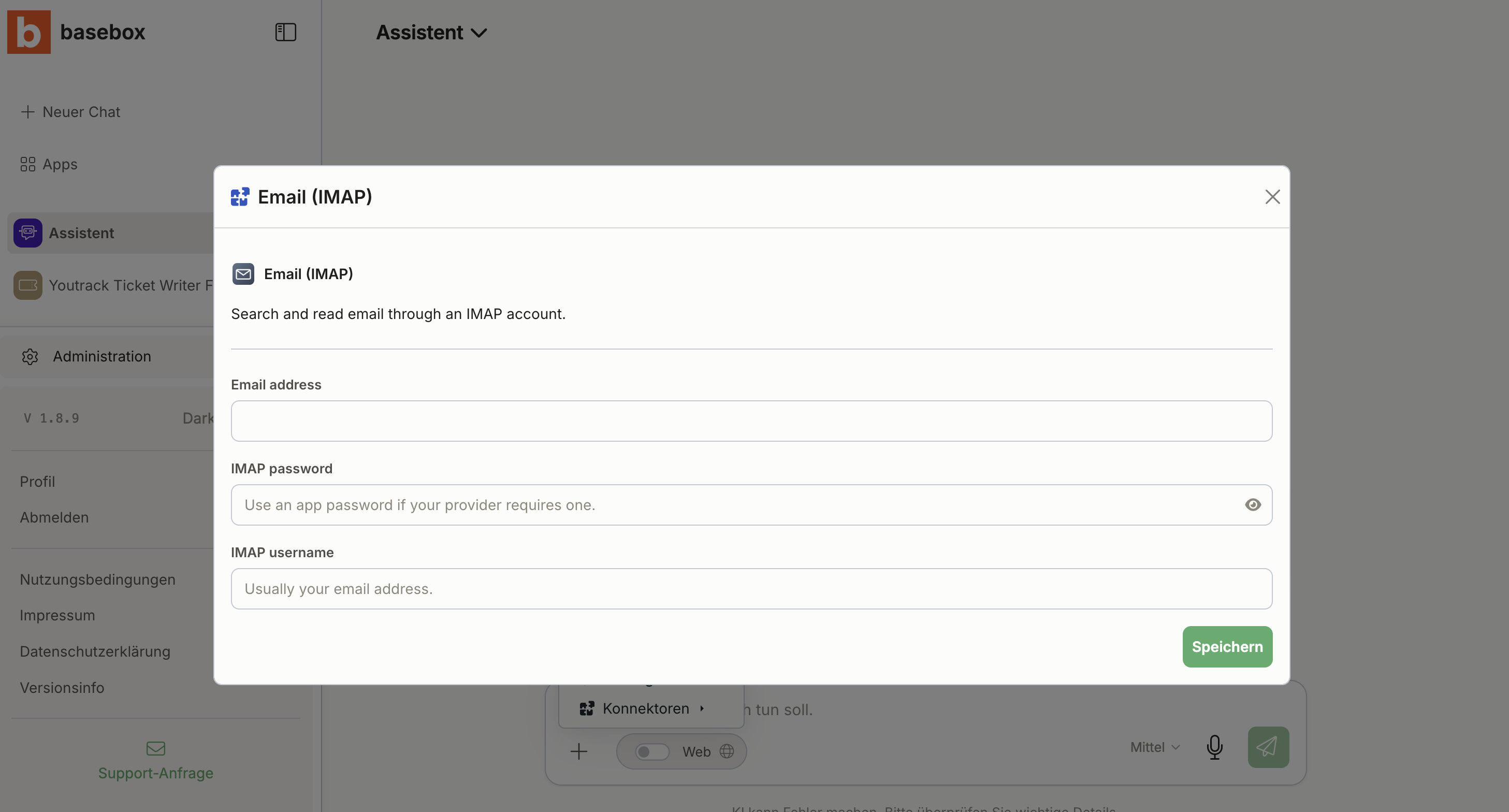
Some connectors access a system in which you have a personal account – a wiki, for example. For these, you store your own access once:
- In the chat, click the "+" icon at the bottom, next to the input field.
- In the list, click the connector you want to set up. This opens its configuration.
- Enter your credentials – usually an access token generated specifically for this purpose in the respective system, not your normal login password.
- Save. The connector is now available to you in the chat.
Using a connector in the chat
You don't need to call up a connector yourself. The assistant knows which connectors are available and uses them on its own whenever that helps with your question.
- Ask your question in the chat as usual.
- If the assistant needs information from a connected system, it calls the appropriate connector.
- While it does so, a short note appears above or beside the answer indicating which tool is currently in use – for example "Searching the web …" or "Using [name of the connector] …".
- You then receive the answer. Links to content in the connected system open in a new browser tab, so your chat is not interrupted.
Web search as a special case
Technically, web search is a connector too, but it is operated differently from the others: you need no credentials, you switch it on with the "Web" toggle in the input bar – and it is off by default. As soon as you leave the chat or sign in again, it switches back off and has to be switched on again the next time you use it. Before the first search, basebox additionally asks for your explicit agreement.
For exactly how the toggle behaves, when it resets, and what happens to your search query once it leaves the installation, see Web Search.
Notes
Note
- You only see what you are allowed to see. When a connector requires a sign-in, each person signs in with their own account. The assistant therefore reaches exactly the content you are allowed to see in the original system – basebox grants no additional rights.
- No access without your credentials. As long as you haven't stored anything for a connector that uses a personal account, the assistant cannot use it.
- Changes take effect immediately. If your access in the connected system is revoked, basebox loses access right away too.
- Setups differ. How a connector is configured can vary by organization – with some, everyone signs in individually; with others, a shared access is set up. If anything is unclear, ask your administrators.
Frequently asked questions
What is a connector? A link from basebox to an external service or tool – for example to a wiki, a specialist system, or a web search. It extends the assistant with capabilities that go beyond plain chat.
Where do I see which connectors I can use? In the chat via the "+" icon at the bottom, next to the input field. It shows exactly the connectors enabled for you and for the app you are currently using.
Do I have to sign in everywhere? No. You only store your own access once for connectors that reach a system with a personal account – a wiki, for instance. Others, such as web search, need no credentials.
Does the assistant also see things I'm not allowed to see? No. With connectors that use a personal sign-in, the assistant accesses the system with your access. The connected system applies the same permissions as it would if you signed in directly – so you get to see no more than usual.
What is web search? A connector that lets the assistant retrieve current, public information from the internet. It is switched off by default, switches back off when you leave the chat and when you sign in again, and requires your confirmation in the "Enable web search" dialog before the first search. Details under Web Search.
Do I have to call up the connector myself? No. You simply ask your question. The assistant decides on its own whether and which connector to use.
Why isn't a particular connector available to me? Either your organization hasn't enabled it, it isn't intended for the app you're currently using, or you haven't stored your own credentials yet.
Questions about a specific connector? Contact support