Licensed to be used in conjunction with basebox, only.
// admin
Audit Log
The audit log records security-relevant events in your organisation: sign-ins as well as changes to settings and data, for example to users, groups and daily announcements. Each entry records who did what and when, and whether it succeeded. Entries can be filtered and exported as CSV.
Actions can be traced and documented
- trace events (e.g. "Who deleted this group?")
- detect failed or suspicious actions
- export evidence for internal audit, data protection reviews or certification as CSV
- pass events on to a SIEM, see SIEM
The audit log is under Administration → Audit Log
Open Administration → Audit Log in the sidebar. This area is accessible only to administrators.
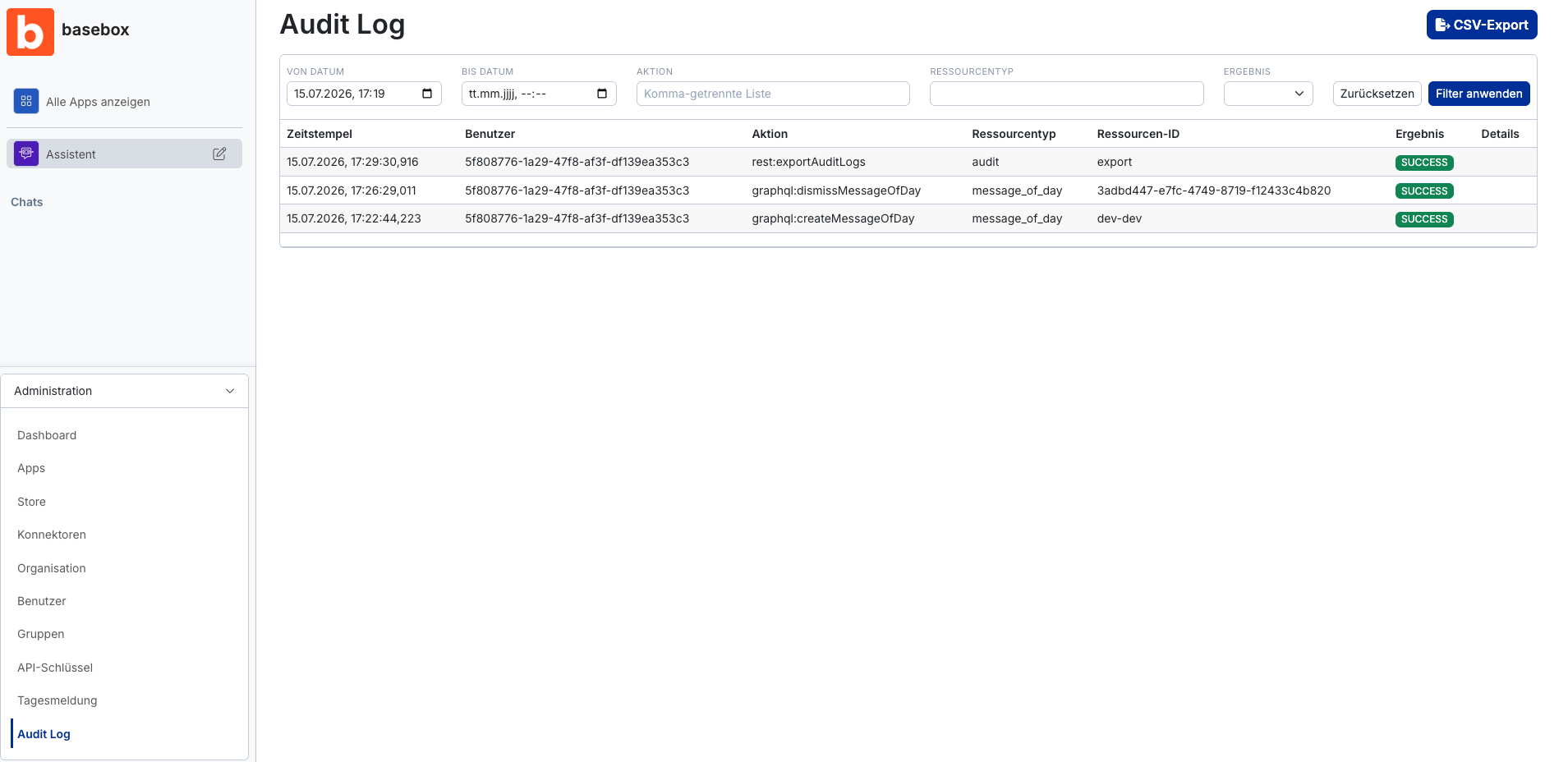
Each entry in the table has the following columns:
| Column | Meaning |
|---|---|
| Timestamp | Date and time of the action, precise to the millisecond |
| User | Identifier of the user who triggered the action |
| Action | The action performed (see "Understanding actions" below) |
| Resource type | Type of the affected object, e.g. user, group, message_of_day, app, audit |
| Resource ID | Identifier of the specific affected object |
| Result | SUCCESS or FAILURE |
| Details | Additional technical information about the action, if available |
Understanding actions
Action names follow a fixed pattern of source and operation:
user.login– A user logged ingraphql:createGroup/graphql:deleteGroup– Group created or deletedgraphql:addUserToGroup/graphql:removeUserFromGroup– User added to or removed from a groupgraphql:editUser– User editedgraphql:createMessageOfDay/updateMessageOfDay/dismissMessageOfDay– Daily announcement created, changed, or dismissedrest:exportAuditLogs– Audit log exported as CSV
This lets you see at a glance what kind of process was logged.
Audit log level and retention
How much is recorded is set under Administration → Organisation in the Audit Log Level section:
| Level | What is recorded |
|---|---|
| Standard | All sign-ins as well as changes to settings and data within the organisation. Recommended for normal operation. |
| High | In addition, the users' chats. |
Chats are normally stored only locally in the users' browser database. If the audit log level is set to High, chats are also recorded in the audit log and are therefore also stored on the server. Agree this setting with your data protection officer beforehand, see GDPR.
You set Audit log retention (months) in the same section: the default is 6 months, possible values are 3 to 36 months. Entries older than the retention period can no longer be exported.
Web search calls are recorded without the text of the query: organisation, user, tool, provider, result and timestamp.
Filtering and exporting entries
Filtering entries
- Narrow down the time range using From date and To date.
- Optional: enter one or more actions under Action as a comma-separated list (most reliably using the exact action names from the "Action" column, e.g.
graphql:deleteGroup). - Optional: restrict to an object type using Resource type (e.g.
group). - Use Result to filter for SUCCESS or FAILURE.
- Click Apply filter. Reset discards all filters.

Exporting as CSV
- First set the filters you want and click Apply filter. The export follows the current view.
- Click CSV export at the top right.
- The file is saved locally on your device and can be analysed, e.g. in Excel.
For each entry the CSV contains timestamp, user identifier, action, resource type, resource ID, result and details; audit events also contain the client address. If the audit log level is High, it also contains chat content. The export itself is recorded as action rest:exportAuditLogs, so you can see later who exported when.
Other exports: consumption and cost per app are shown in the Dashboard. Users back up their chats themselves, see Creating a chat backup.
Exports contain personal data
Exports are personal data
An audit CSV contains user identifiers, timestamps, client addresses and – with audit log level High – chat content. Store it encrypted, limit access and delete it once its purpose is fulfilled.
Note
- The view supports paging, filtering and CSV export.
- Filters only take effect after clicking Apply filter.
- Without filters you export the entire view. Narrow down the time range to get manageable files.
- If you need evidence beyond the retention period, export regularly.
- Only administrators can see the audit log and export it.
- When chats are recorded, users see a notice in the chat.
Frequently asked questions
What is logged? With Standard, all sign-ins as well as changes to the organisation's settings and data, each with timestamp, triggering user, result and affected resource. With High, chats as well.
Are chats recorded by default? No. Chats are stored only in the users' browser database as long as the audit log level is not set to High.
Can I change the retention period? Yes. Under Administration → Organisation in the Audit Log Level section you can set 3 to 36 months; the default is 6 months.
How do I find only failed actions? Set the Result filter to FAILURE and click Apply filter.
Can I export the audit log automatically? No. The interface offers manual CSV export; automatic forwarding is not available yet. Other routes, such as log collection on a Server, are described under SIEM.
Can I export individual chats of my users? Only via the CSV export with audit log level High. Otherwise administrators have no access to other people's conversations; users back up their chats themselves.
More background: Audit & logging.
Next step: Security: audit & logging · GDPR
Need help? Contact support