Licensed to be used in conjunction with basebox, only.
// getting started
Password management
You change your basebox password in your profile while signed in. If you have forgotten it, reset it on the sign-in page. If you sign in with your organization's company account (SSO), that account's password applies – then your IT department is responsible, not basebox.
When do you need a new password?
You should change your password if:
- You want to renew your current password for security reasons
- You suspect your password has been compromised
- Your company requires regular password updates
You need to reset your password if:
- You've forgotten your password
- You can no longer sign in to basebox
- Your account has been locked
Situation 1: You're signed in – changing your password
If you're already signed in to basebox, you can change your password directly in your profile.
How to change your password:
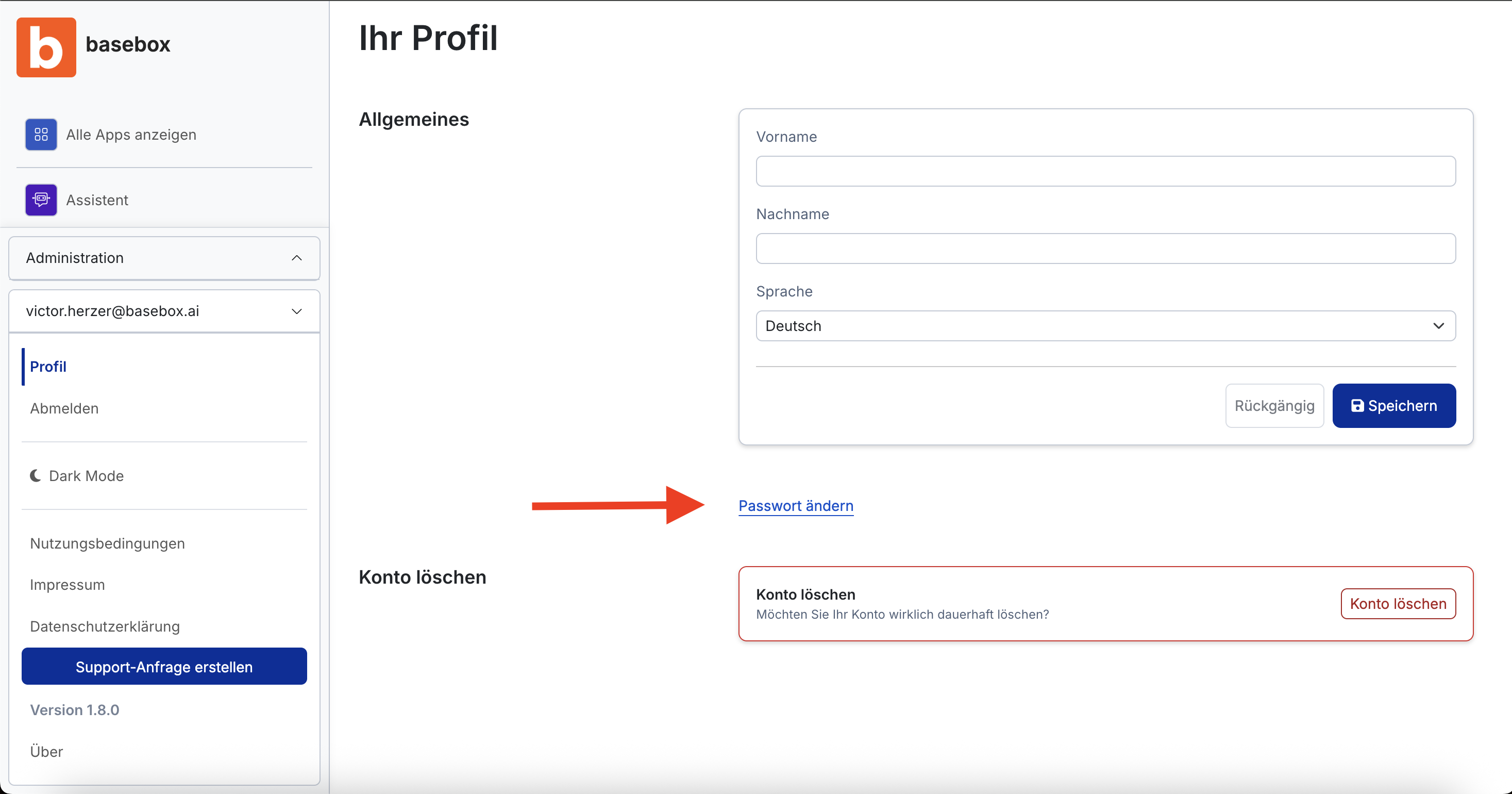
- Click your e-mail address at the bottom left of the sidebar and choose Profile.
-
In the Security section, click Change password.
-
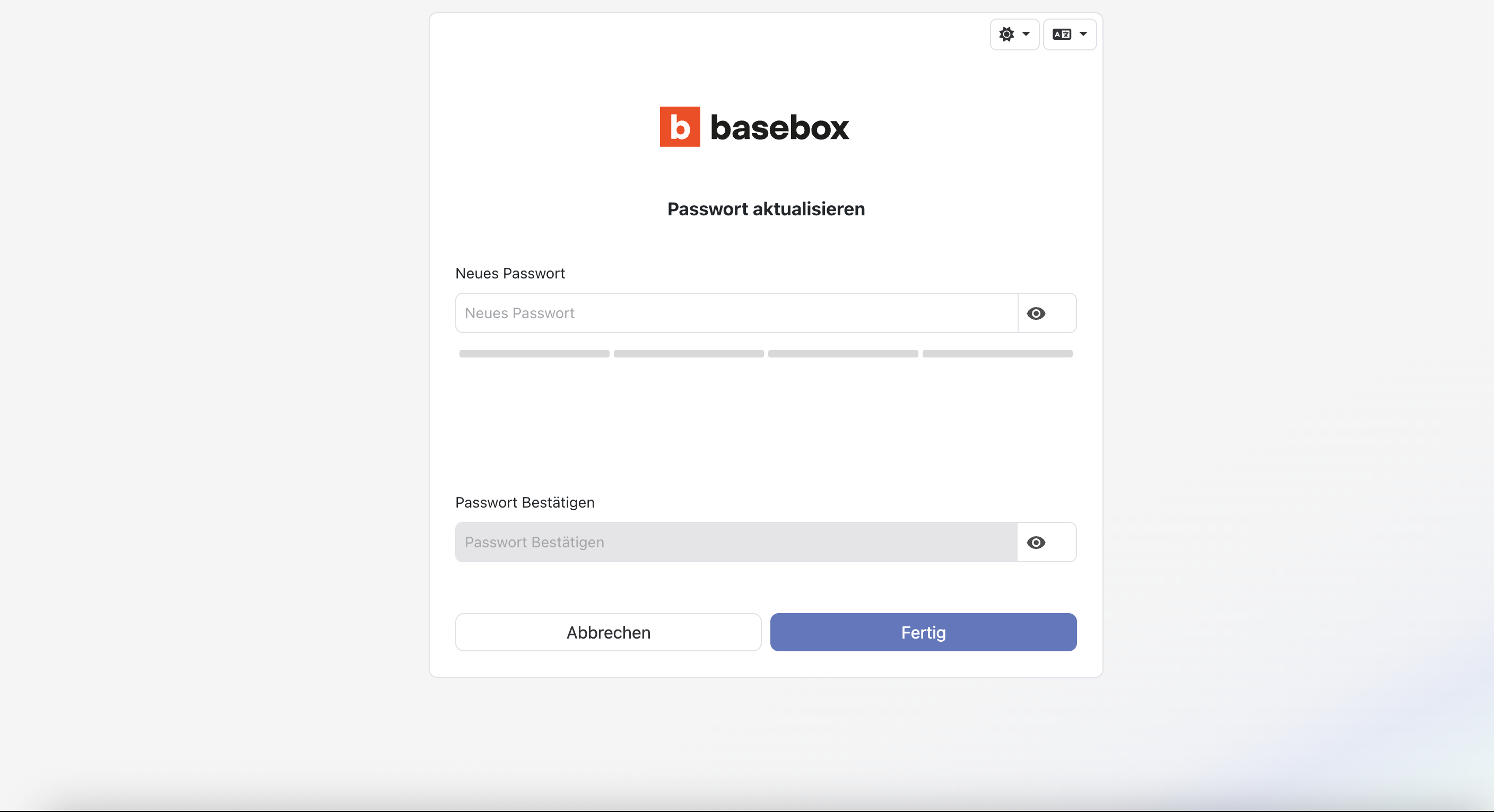
Sign in again. basebox asks for your credentials once more before every password change.
-
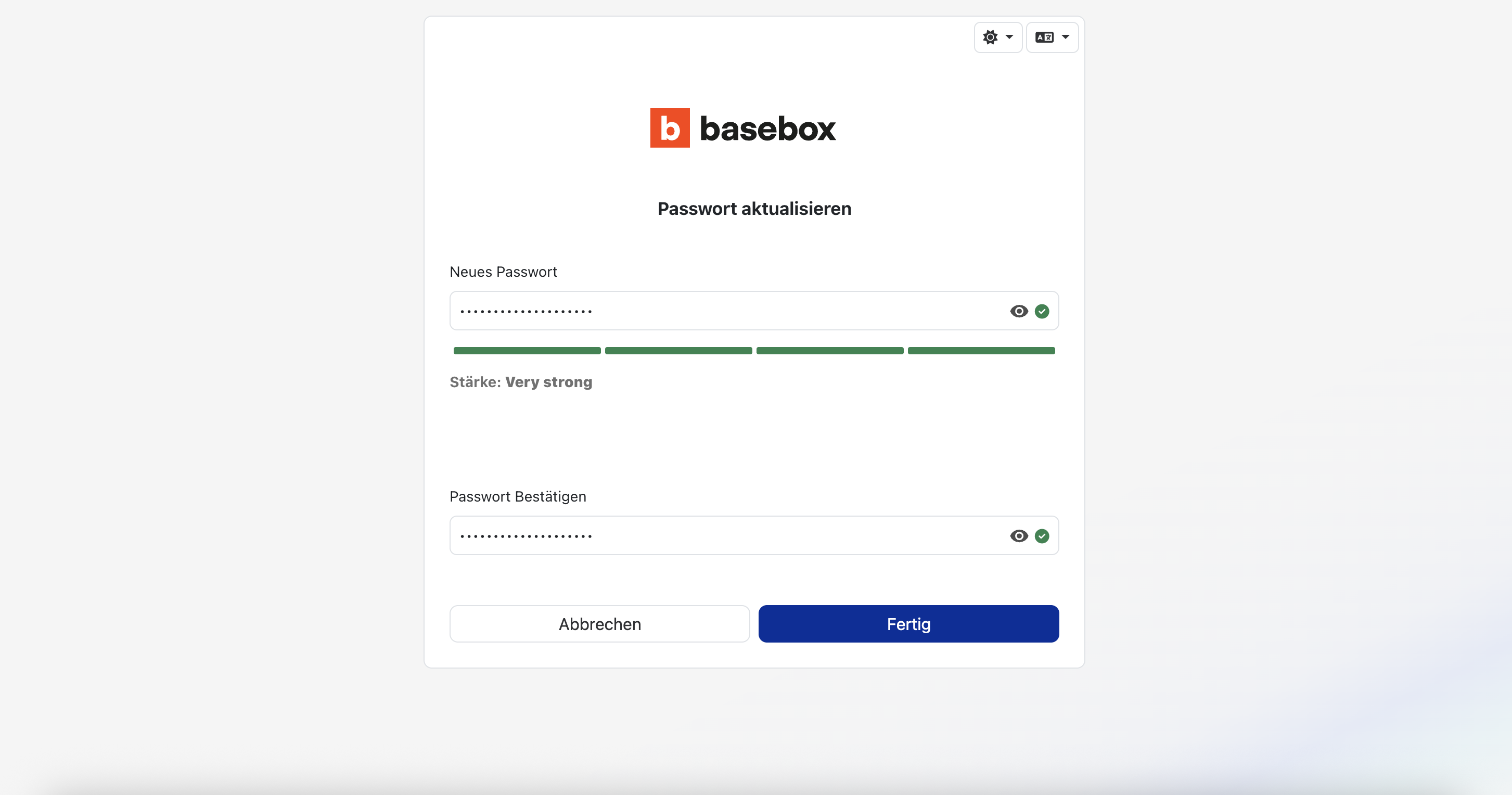
Enter the new password twice on the update form and confirm.
From then on the new password applies; the old one no longer works.
Situation 2: You're not signed in – resetting your password
If you can no longer sign in, use the "Forgot password" function.
How to reset your password:
- Open the sign-in page – Go to the basebox sign-in page
- Click "Forgot password?" – You'll find the link below the sign-in form
- Enter your email address – Enter the email address associated with your basebox account
- Submit – Click "Send link" or "Reset"
- Check your email – Look in your inbox (also check your spam folder!)
- Follow the link – Click the link in the email
- Set a new password – Create a new, secure password
- Confirm – Save the new password
Important
The reset link is only valid for a limited time (usually 24 hours).
Tips for a secure password
A good basebox password should:
- Be at least 8 characters long
- Contain uppercase and lowercase letters
- Include numbers and special characters
- Not appear in dictionaries
- Be unique to basebox (not reused on other services)
Problems with a password reset?
Didn't receive an email?
Check the following:
- Spam folder – The email may have been flagged as spam
- Email address – Did you use the correct address?
- Wait time – Emails can take up to 10 minutes
- Company filters – Your IT system might be blocking the email
Email still not arriving?
- Try again – Repeat the reset process
- Alternative email – If you have multiple email addresses
- Contact support – We're happy to help
Account locked or other issues?
Contact support immediately if:
- Your account has been locked
- You notice suspicious activity
- The reset fails repeatedly
- You don't have access to your email address
Security checklist
After changing your password, you should:
- Save the new password in your password manager
- Verify that you can sign in successfully
- Sign in again on other devices/browsers
- If you suspect a compromise: notify your administrator
Important note
Never share your basebox password with anyone else. Every user should have their own account.
Next step: Where is my data?
Need help? Contact support