Licensed to be used in conjunction with basebox, only.
// admin
Users
Under Administration → Users you decide who has access to your basebox organisation and with which role: you invite people, manage open invitations, remove users and make people administrators.
Administrators control who has access
- inviting new team members,
- removing access for people who have left,
- appointing co-administrators so the organisation does not depend on one person.
If your employees sign in via LDAP, OIDC or SAML, no invitations are needed, see Sign-in (LDAP / SSO).
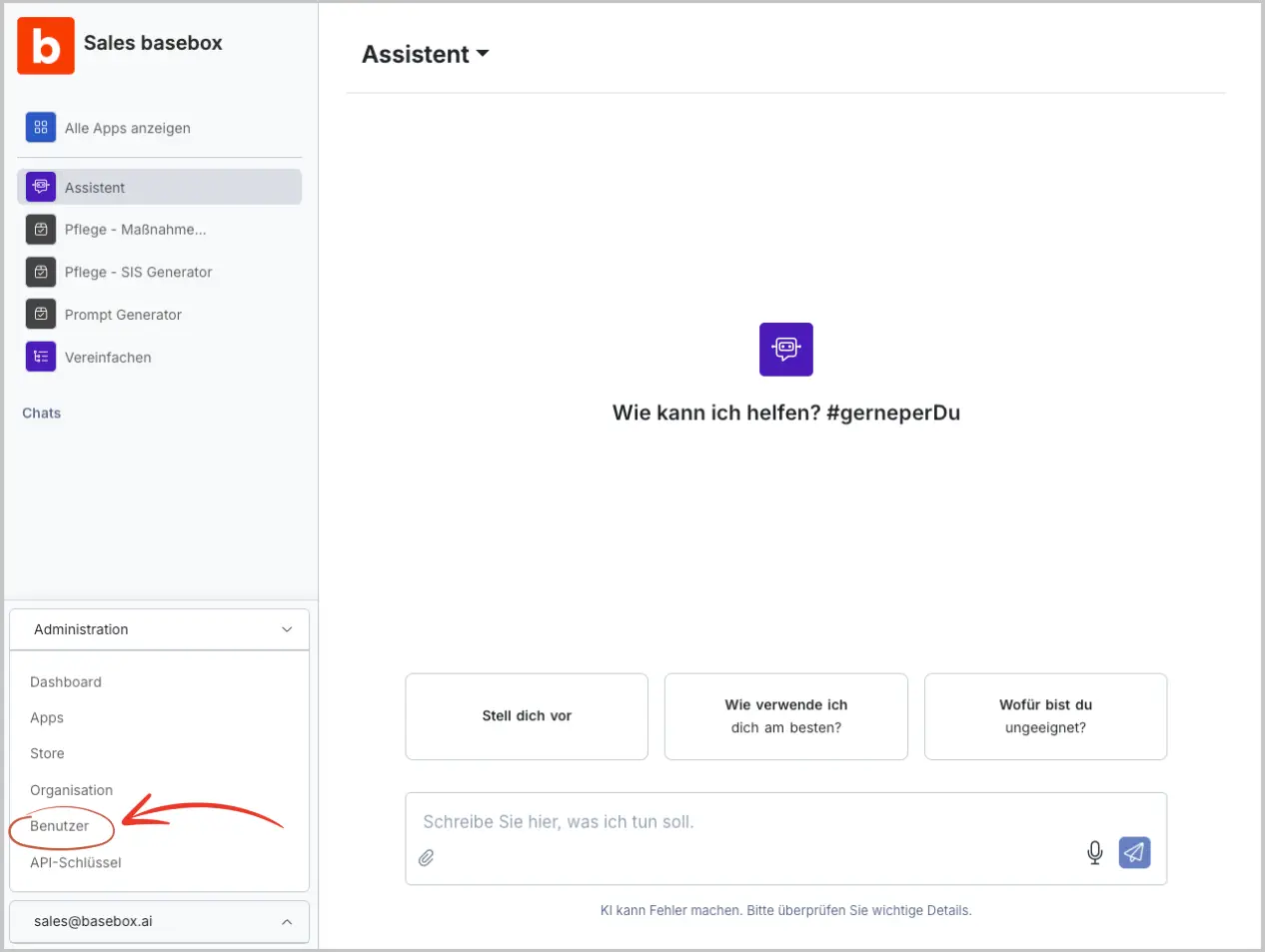
Users are under Administration → Users
Open Administration → Users in the sidebar. You see all team members with their current roles; open invitations are in the Invitations tab. Only administrators see this area.
Inviting users
In the Users area, you invite new people as follows:
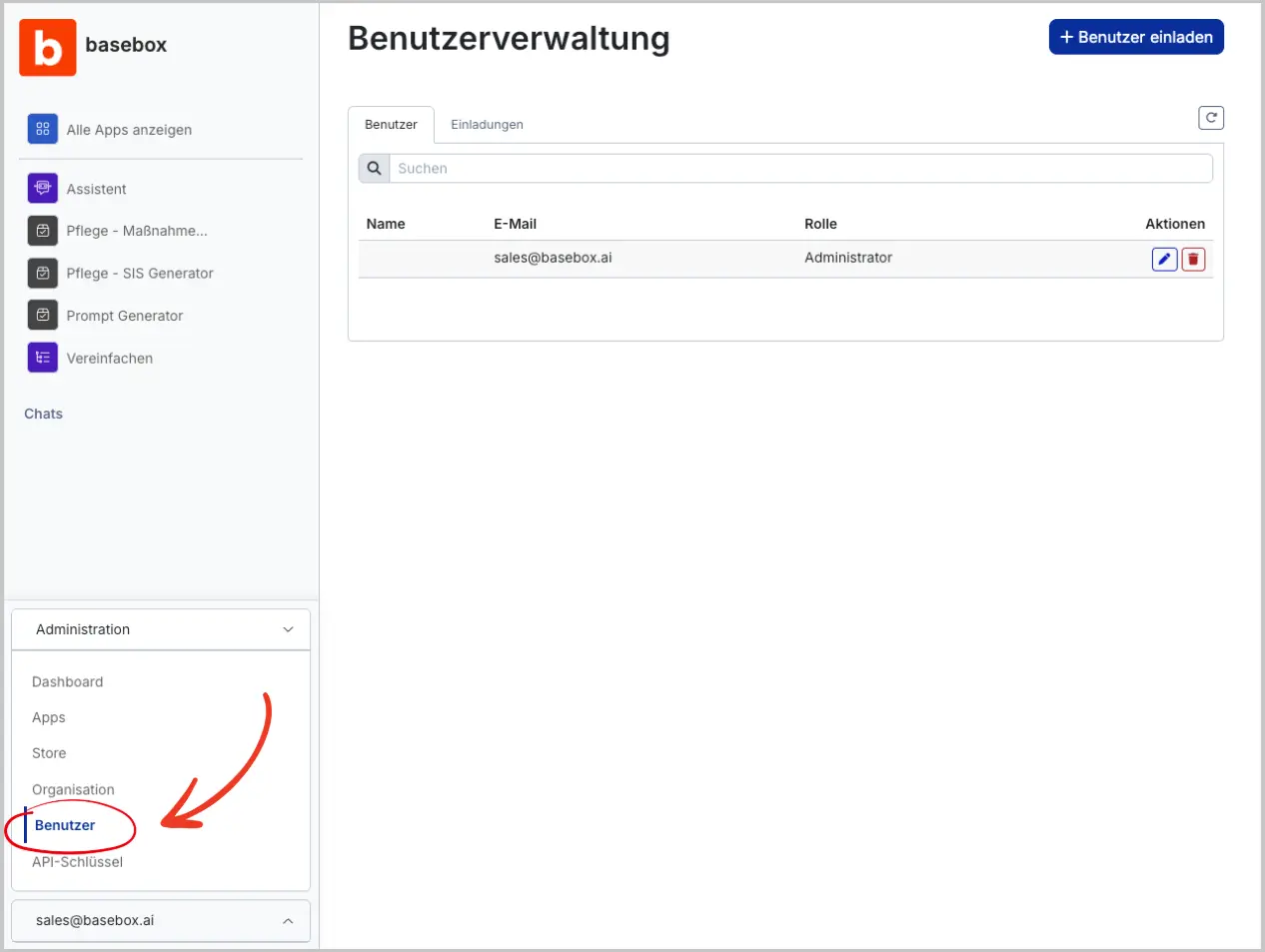
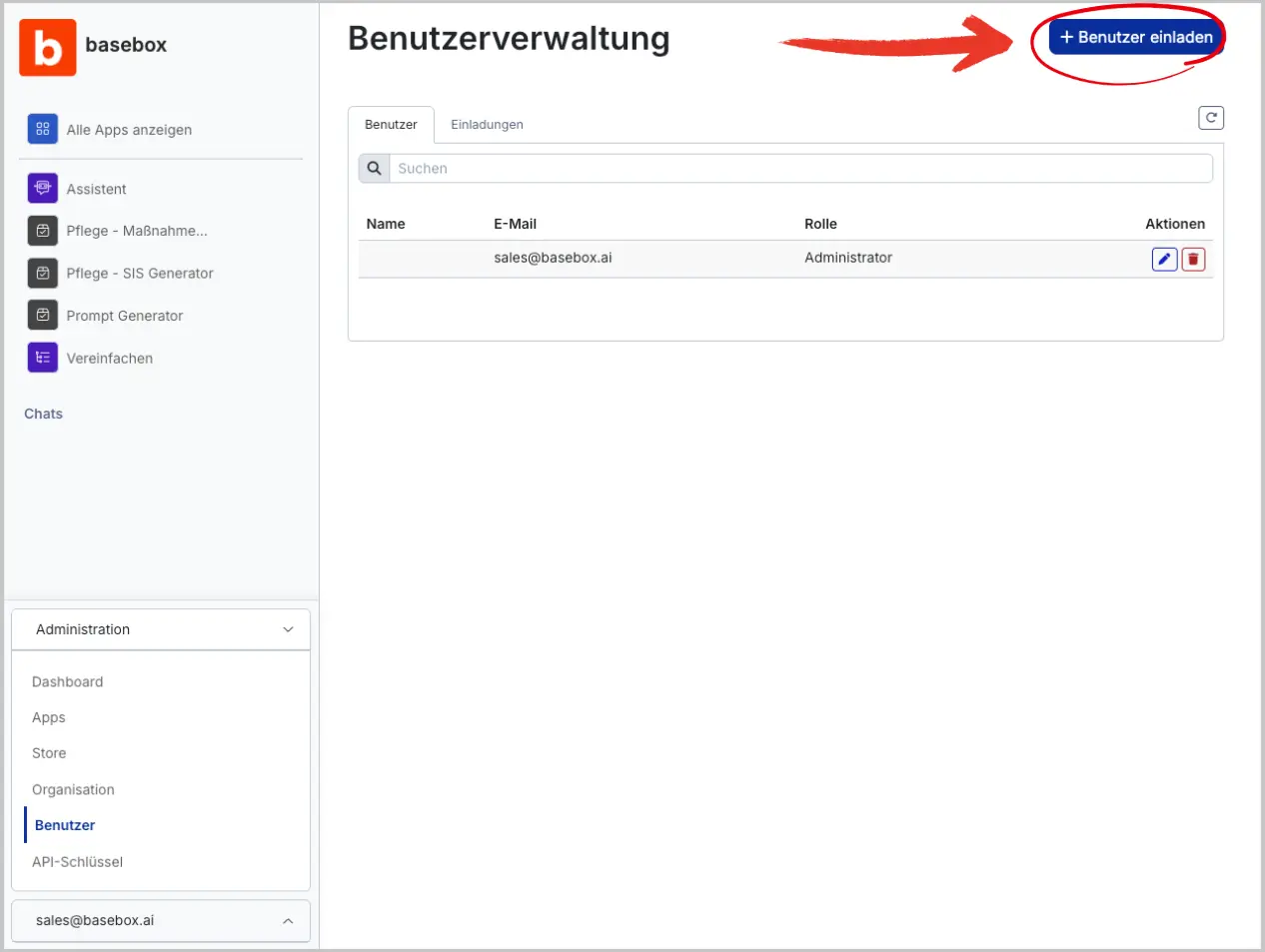
- Click "+ Invite user"
- Enter the user's email address
- Click Invite
The invited user receives an email and can create their account. Invitations are valid for 14 days. If no mail delivery is set up, basebox warns you; copy the invitation link and deliver it yourself, see SMTP.
Managing invitations
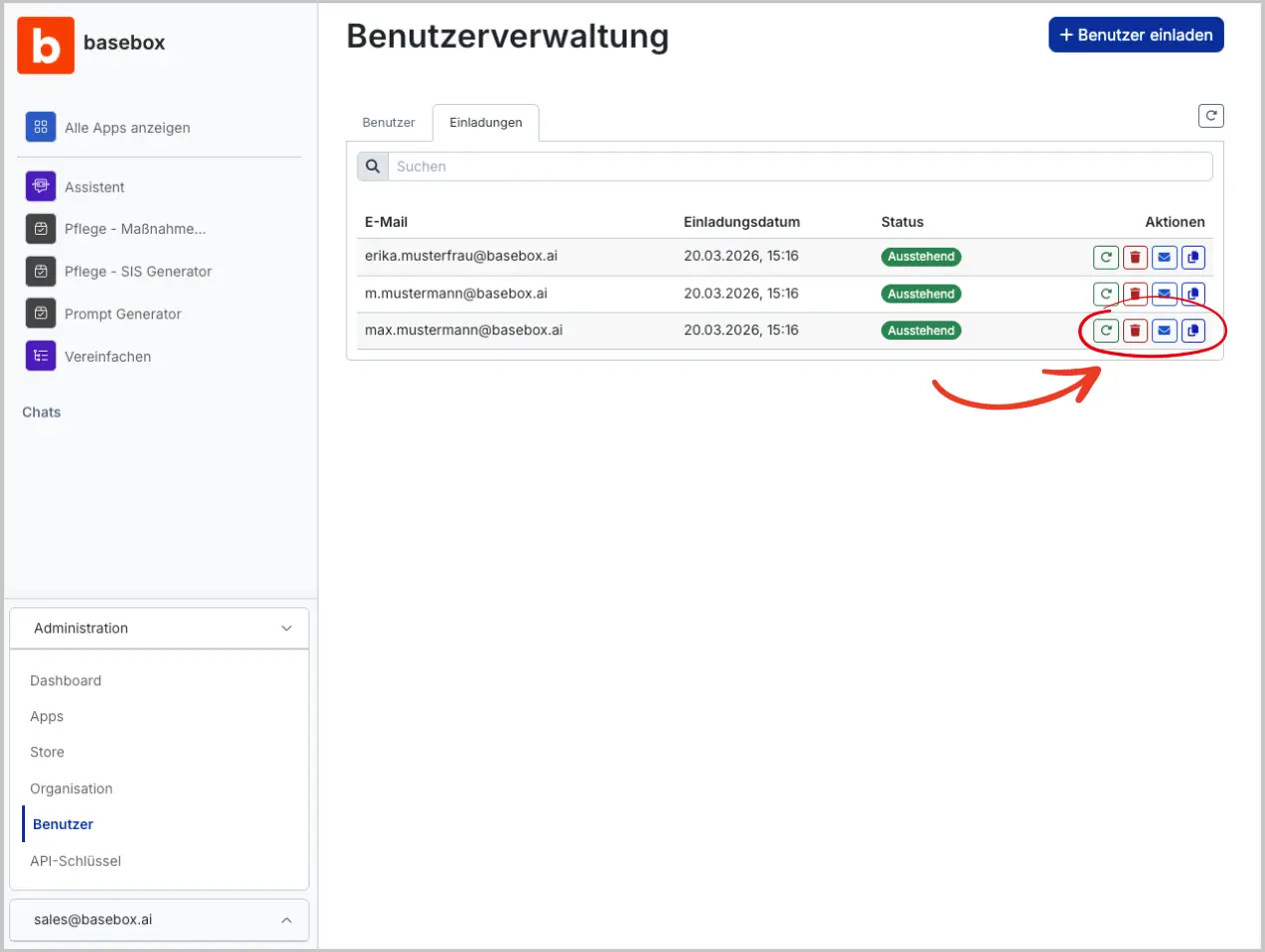
You can view and manage existing invitations at any time.
- Open Users → "Invitations" tab
- Select an invitation
The following actions are available:
- Renew – Resend the invitation
- Delete – Remove the invitation
- Send email – Resend the invitation
- Copy link – Share the invitation link
Removing users
When you need this: When team members leave the company or no longer need access.
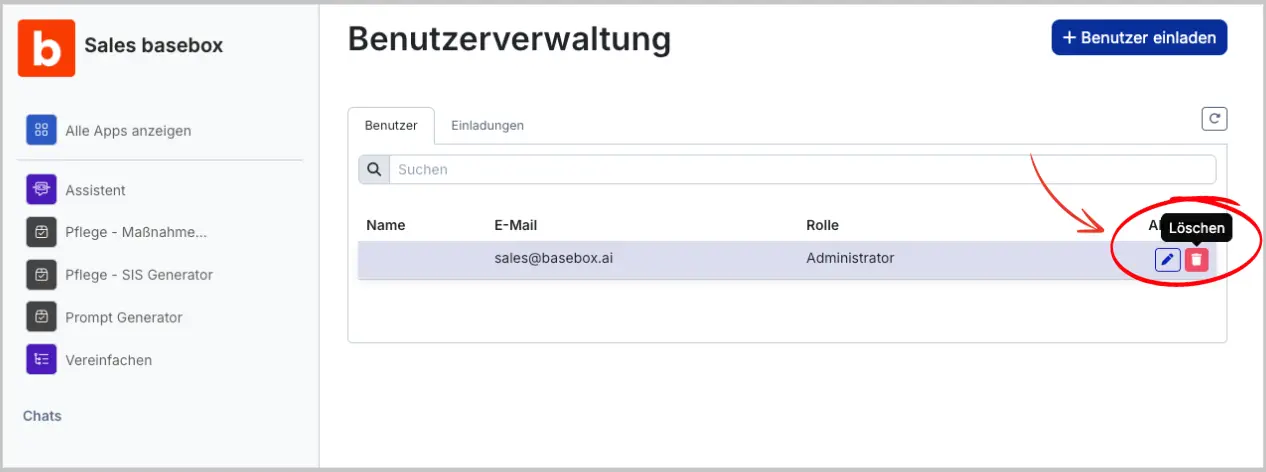
How to remove a user:
- Select the user – Find the person in the user list
- Click the delete icon – Click the trash can icon
- Confirm deletion – Confirm the action in the popup window
What happens afterward:
- The user is immediately removed from your organization
- They no longer have access to basebox
- Their apps and data remain in the organization
Changing roles
When you need this:
- To make a user an administrator
- To revoke an administrator's admin rights
- To equip new team members with the right permissions
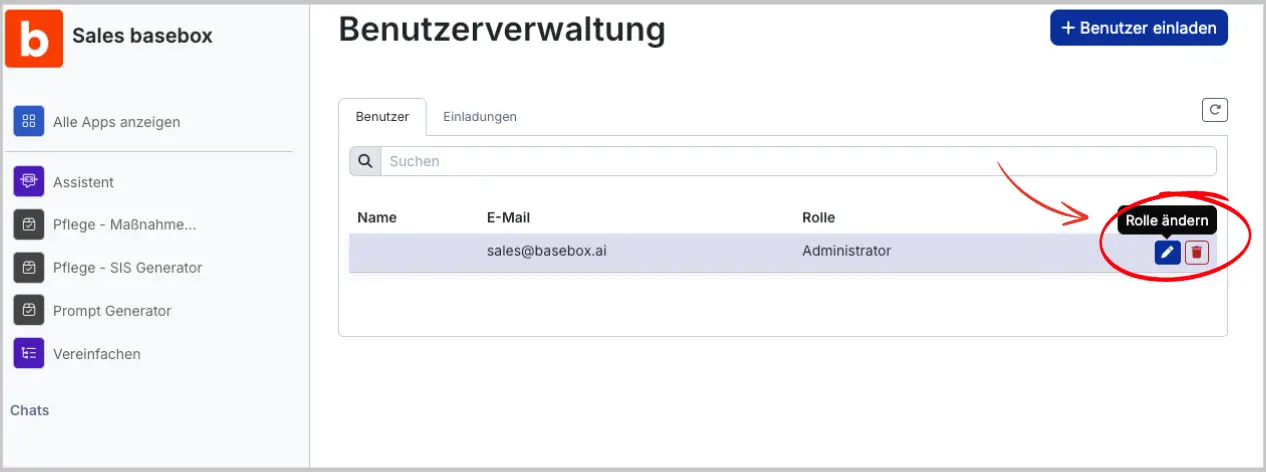
How to change a role:
- Select the user – Find the person in the list
- Click the edit icon – Click the pencil icon
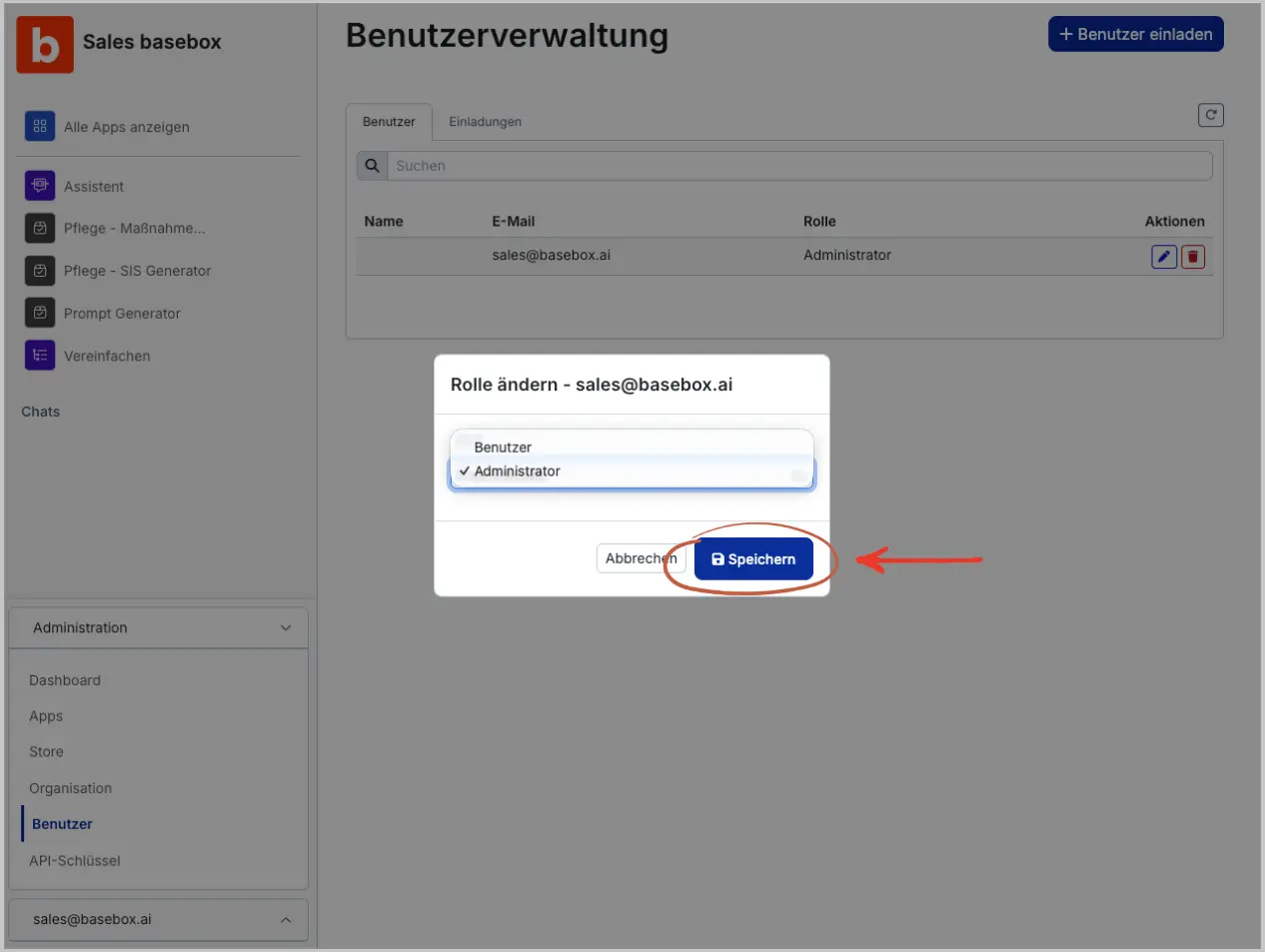
- Choose the new role – Select "Administrator" or "User"
- Save – Click "Save"
The change takes effect immediately – the user gains or loses the corresponding permissions right away, without having to sign in again.
Roles
basebox has two roles: Administrator and User. Every organisation needs at least one administrator. New users are users.
| Function | Administrator | User |
|---|---|---|
| AI chat | Yes | Yes |
| Use apps shared with them | Yes | Yes |
| Create and share their own apps | Yes | Yes |
| Edit, share and delete all apps of the organisation | Yes | No |
| Administration area (Dashboard, Apps, Connectors, Organisation, Users, Groups, API Keys, Daily Announcement, Audit Log) | Yes | No |
Users do not see the Administration area. What the administrator role means in practice is described in Role: Administrator.
At least one administrator must remain
Always keep at least one administrator
Without an administrator, no one can manage users or change settings any more.
- Never remove the last administrator.
- Appoint trusted team members as co-administrators.
- Record who has administrator access.
Note
- Keep your organisation's licence limit in mind. If no user seats are free, an upgrade is needed.
- Check regularly who still has access, whether roles are still correct and whether former employees have been removed.
- Changes to users are recorded in the Audit Log.
Frequently asked questions
Can I temporarily deactivate a user? No, you can only remove users. For temporary suspensions, contact support.
What happens to the apps of a removed user? The apps remain in the organisation and can be managed by administrators.
Can a user make themselves an administrator? No, only existing administrators can change roles.
Why does the invitation e-mail not arrive? Check mail delivery, see SMTP. You can copy the invitation link in the Invitations tab.
Next step: Groups
Need help? Contact support