Licensed to be used in conjunction with basebox, only.
// apps
Create your own app
With the app generator, you can create your own AI app in a few minutes – with no technical knowledge required. Describe in your own words what you'd like the app to help with, and basebox automatically generates a ready-to-use app that you can then customize.
An app captures a task for reuse
An app is an AI assistant tailored to a specific task – for example summarizing meeting minutes, drafting emails, or explaining technical terms. Instead of re-explaining what you need every time you ask, you capture the task once in an app and reuse it whenever you like.
Create new apps under "All apps"
Open "All apps" in the navigation and click "+ Create new app". App creation has two modes, which you switch between at the top:
- App generator – You describe what you need, and the app is generated automatically.
- App editor – You refine the app's name, instructions, and settings.
On the right, you'll always see a live preview of your app.
Create an app in five steps
1. Describe the app (app generator)
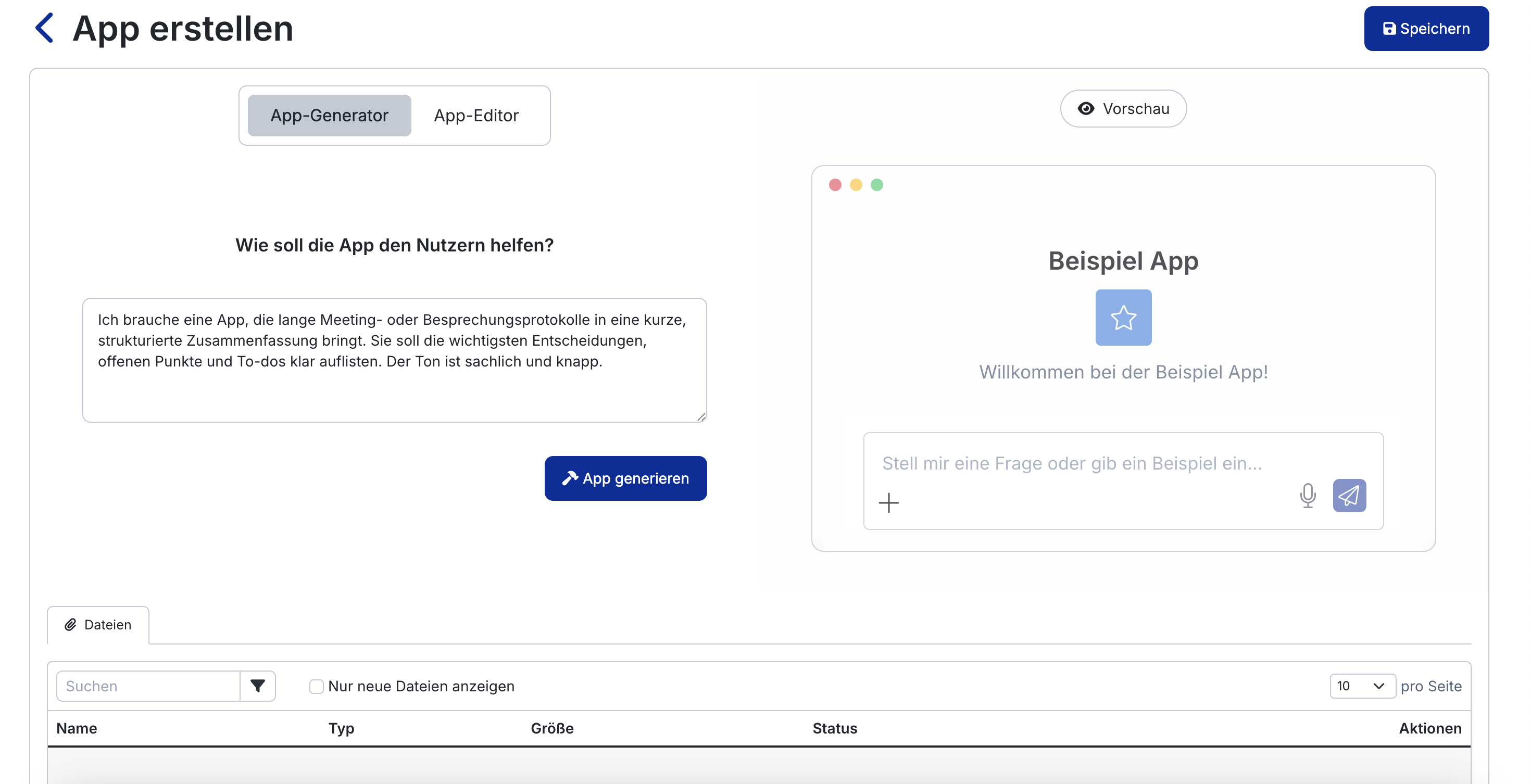
In the "How should the app help users?" field, describe in one or two sentences what the app should do. Feel free to use everyday language.
Example:
I need an app that turns long meeting or discussion minutes into a short, structured summary. It should clearly list the key decisions, open items, and to-dos. The tone should be matter-of-fact and concise.
Then click "Generate app."
2. Review and adjust the result (app editor)
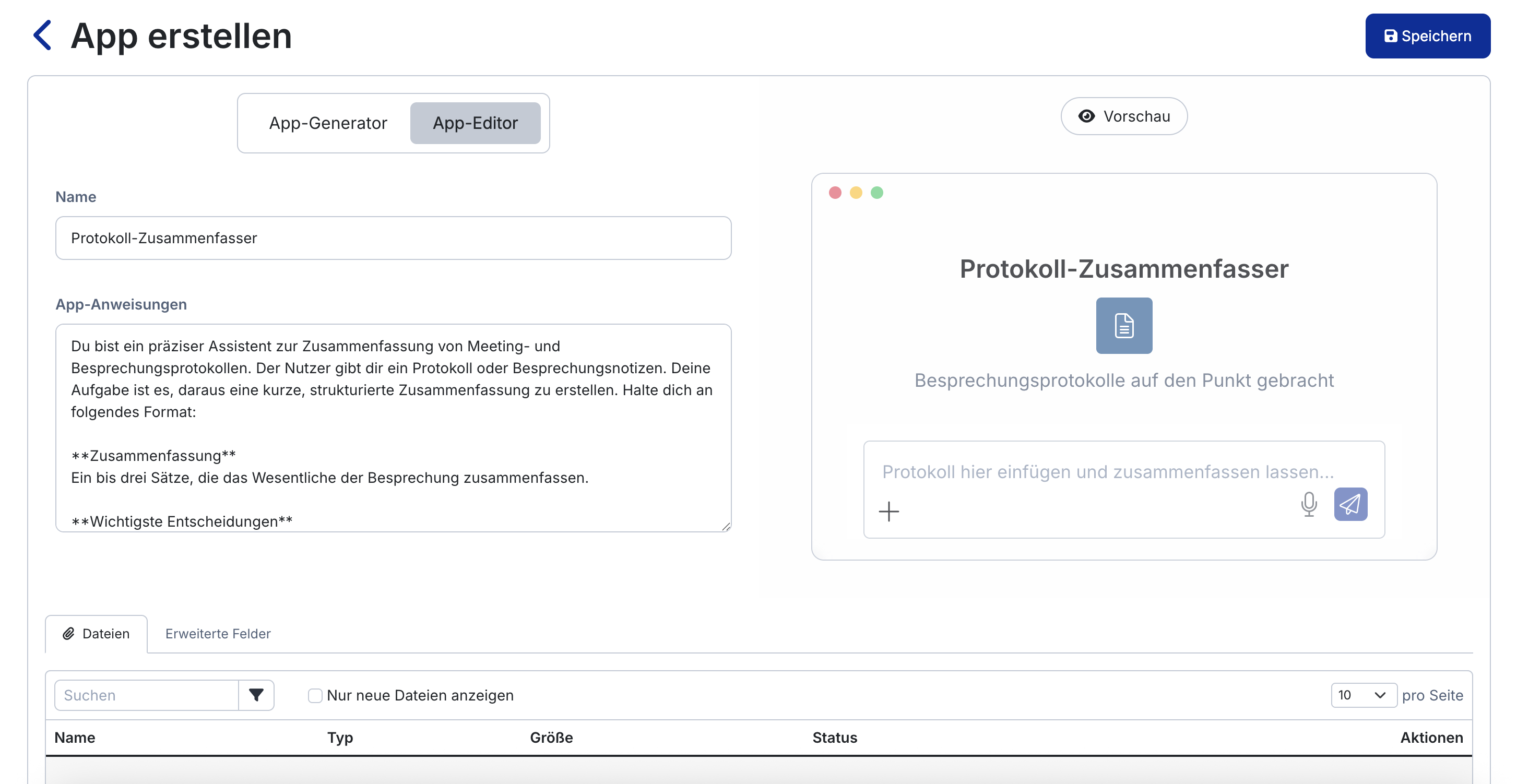
basebox automatically generates a name and matching app instructions (the instruction the app works from). You can freely edit both:
- Name – your app's display name
- App instructions – defines how the app behaves and responds
The preview on the right immediately shows you how your app looks and behaves.
3. Add files as a knowledge base (optional)
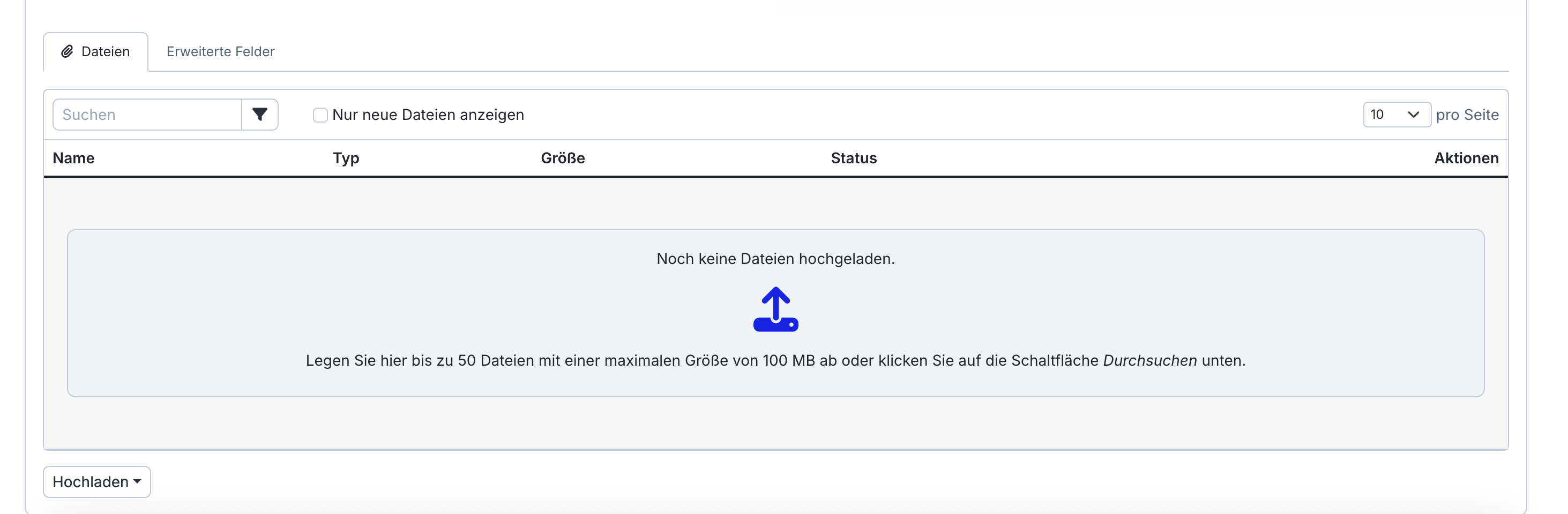
In the "Files" tab, you can upload documents the app can access. The app draws on the content of these files in its responses. This is how you equip the app with your own subject-matter knowledge.
- Drag files into the area or click "Upload" or "Browse"
- The knowledge base holds considerably more and larger files than a direct upload in the chat, where the limit is 10 MB per file. The exact ceilings are set by your organization; the upload area states the values that apply to you
With basebox Server, your organisation may also have connected network drives. You can then also choose a folder from a network drive here, optionally only certain file types (for example only PDF), and set whether basebox syncs it daily, weekly or only manually when you edit the app. The permissions on the drive do not apply: anyone allowed to use the app gets answers from all files in the folder (see Sharing apps).
If the app is only meant to be a reusable template for instructions, skip this step – see An app can consist of instructions only.
4. Fine-tune appearance and response style (optional)
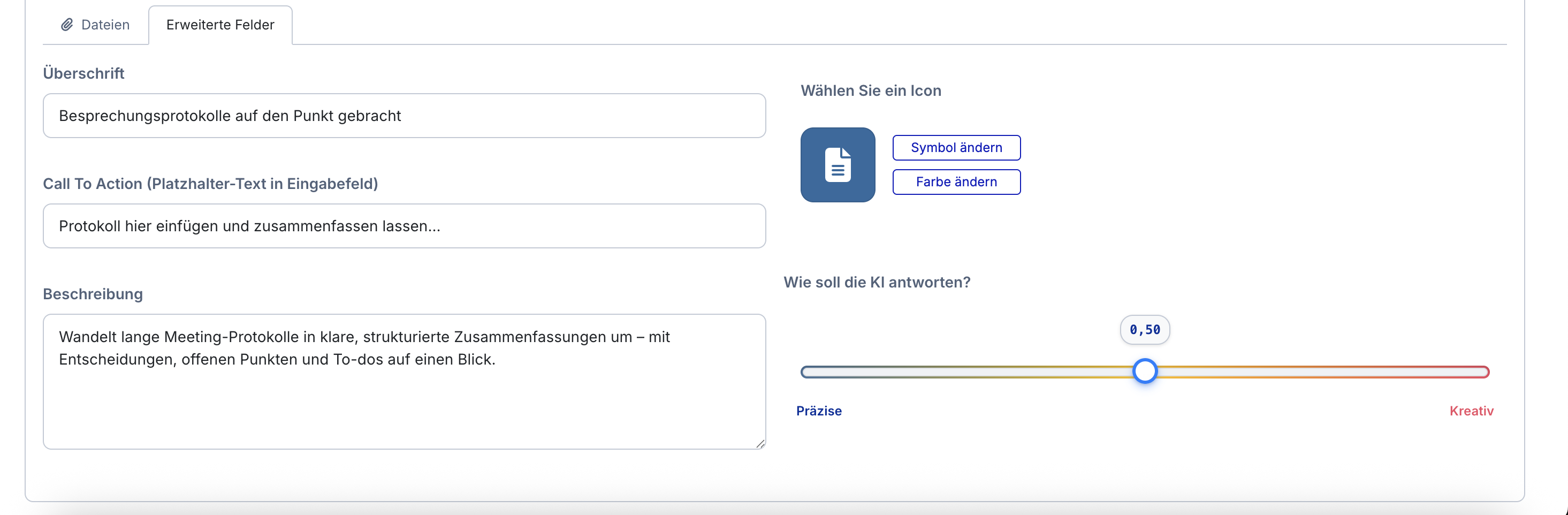
In the "Advanced fields" tab, you can further adjust the app's appearance and behavior:
- Heading – the greeting shown in the app
- Call to action – the placeholder text in the input field
- Description – a short text describing what the app is for
- Icon – via "Change icon" and "Change color"
- Model – which model answers in this app. The default is Use the default; leave it there unless the app needs a specific model
- Thinking effort – the slider controls how much effort the app puts into its answers: Low · Medium · High · Extra High · Max. More effort yields better results on difficult tasks but takes longer – for background, see Reasoning Effort
5. Save the app
Click "Save" in the top right. Your app is now created and appears in your app overview.
Specific descriptions produce better instructions
Tip
The more specifically you describe in the app generator what the app is for and how it should respond (tone, format, what matters), the better the automatically generated instructions will be. You can refine the generated text at any time afterward in the app editor.
Note
- The Thinking effort affects both answer quality and answer time: a low level is enough for simple, repetitive tasks, while analyses and multi-step tasks benefit from a higher one.
- Uploaded files serve as the app's knowledge base; make sure you only upload content you have the necessary rights to.
- Who is allowed to use your app afterward is controlled via app sharing.
Maintaining an app
Monthly maintenance:
- Update documents – Upload new versions, remove outdated ones
- Test sample questions – Do the most common queries still work?
- Collect feedback – What works well, what doesn't?
- Add new documents – Expand the FAQ, add new guidelines
Improving quality:
- Document frequent questions and store them as examples
- Replace unclear answers with better source documents
- Incorporate team feedback into app improvements
Tip
Collect your team's frequently asked questions and adjust your apps accordingly.
Frequently asked questions
Do I need to write the instructions myself? No. You only describe what the app should help with – the instructions are generated automatically. You can adjust them at any time afterward.
Can I change the generated instructions? Yes, in the app editor you can freely edit the name and app instructions.
What are the uploaded files for? They form the app's knowledge base: the app accesses their content and incorporates it into its responses.
What does the "Thinking effort" slider do? It determines how much computational effort the app puts into an answer – from Low (fast, for simple tasks) to Max (slower, for complex tasks).
How do I share my app with others? Via app sharing. There you set whether the app stays private, is available to specific people/groups, or to the entire organization.
Next step: Sharing apps
Need help? Contact support