Licensed to be used in conjunction with basebox, only.
// admin
Organisation
Administration → Organisation holds all settings of your basebox organisation on one page: master data and logo, appearance, support address, rules for the assistant, default model, limits, logging, two-factor authentication and deleting the organisation. This page describes the sections in the order in which they appear in the interface.
The settings apply to everyone in the organisation
Here you define how basebox looks and behaves for everyone in your organisation: which name and logo appear, which rules apply in every chat, which model answers by default, how much may be uploaded, what is logged and whether a second factor is required at sign-in.
Changes take effect only after saving
Open Administration → Organisation in the sidebar. The page is visible to administrators only.
At the top of the page are Undo and Save. Changes in all sections are only applied with Save; Undo discards them. If you leave the page with unsaved changes, basebox warns you. On/off options are switches.
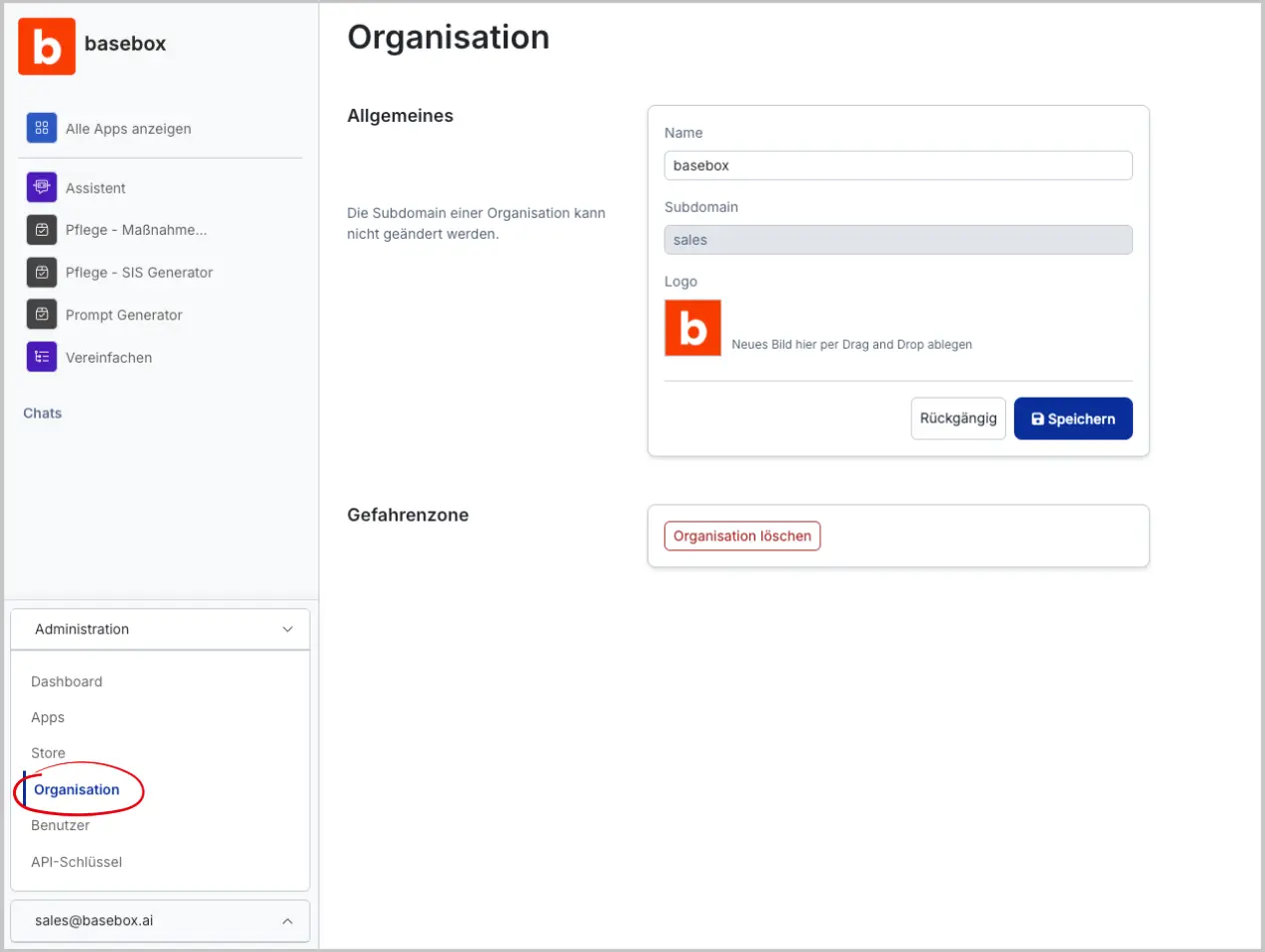
General
The name, subdomain and logo of your organisation.
- Change your organisation's name in the Name field (maximum 62 characters).
- Under Logo, upload an image via drag & drop or click Browse. JPG, PNG or WebP up to 1 MB are allowed; square (1:1) with at least 174 × 174 pixels is recommended.
- Click Save at the top.
The subdomain is fixed and cannot be changed.
You do not set a language for the whole organisation here: each person chooses the interface language (German or English) in their own profile.
Appearance
The main colour is used for buttons and highlights in your organisation's interface. Pick one of the offered colours or set your own value with Custom colour. Reset restores the default colour.
Support
In the Support email address field, enter the address your users should contact with questions, for example your internal IT support. If the field is empty, basebox shows the default support link.
System prompt
The system prompt holds rules that apply to all chats in your organisation, such as house style, answer language or topics the assistant should decline. An empty field means the default behaviour applies. The system prompt is an instruction to the language model, not a technical block. Details and examples: System prompt.
Blocked words
Enter words or phrases that must not be used in your organisation, one word or phrase per line. If an entry occurs in a question or in an answer, basebox blocks the content.
Unlike the system prompt, this list is enforced rather than requested: it does not depend on whether the language model follows an instruction.
Welcome message
New users see the welcome message when they first sign in, until they send their first input. You maintain one version in English and one in German; the version in the person's language is shown. If a field is empty, the built-in default welcome appears.
Suitable content includes the organisation's name, notes on usage or internal contacts. For time-limited announcements (maintenance, new features), use the daily announcement.
Default model
In the Chat model field you choose which AI model answers in your organisation, unless an app sets its own model. With Use the basebox default you follow the installation's default; each model shows the region in which it processes requests. A change takes effect from the next answer. Details: Default model.
Source Groundedness
Answers from a knowledge base show for each source how closely the retrieved passage matches the question: Low, Medium or High. Here you set the thresholds:
| Field | Default |
|---|---|
| Threshold for High | 80 % |
| Threshold for Medium | 60 % |
Below that, the level is Low. With the option to show the exact percentage, users also see the percentage.
Source groundedness measures how closely a passage matches the question, not whether the answer is correct.
Limits
In the Limits section you set upper limits per organisation. As long as a field holds the default value, no custom setting applies; clearing a field restores the default.
| Field | Default | Applies to |
|---|---|---|
| Maximum file size for knowledge base uploads | 100 MB | each uploaded file |
| Maximum number of files per app | 100 | each app individually |
| Maximum audio file size | 200 MB | each uploaded audio file |
| Maximum number of apps | 1000 | the whole organisation |
An app's upload area shows users the applicable values. The limits only take effect up to the server's upload limit; if uploads fail despite suitable settings, that limit has probably been reached.
Independently of this, 10 MB per file applies in the chat. Files that are too large produce a message naming the applicable limit.
You do not set a usage limit (consumption) here. The Total consumption ring in the Dashboard shows consumption relative to it.
Audit Log Level
Determines how much the Audit Log records:
- Standard – logs all sign-ins as well as changes to settings and data within the organisation. Recommended for normal operation.
- High – also records chats. Otherwise chats are stored only locally in the users' browser database; with "High" they are then also stored on the server.
Below it you set Audit log retention (months): the default is 6 months, possible values are 3 to 36 months. Details: Audit Log.
Two-Factor Authentication
With the Two-Factor Authentication switch you require all users of this organisation to set up and use a second factor when signing in. If the switch is off, users are not required to do so. Details: Two-factor authentication.
Danger Zone
Delete organisation permanently removes all apps, chats and members of the organisation.
Cannot be undone
Deleting the organisation cannot be reversed. Back up what you need to keep first, for example an audit log export.
All settings apply per organisation
Note
- All settings on this page apply per organisation. If several organisations share one installation, each administrator manages only their own.
- Changes to settings are recorded in the Audit Log.
- You do not set up mail delivery (SMTP) for invitations on this page, see SMTP.
- Sign-in via LDAP or SSO is currently set up by basebox or the Platform Operator, see Sign-in (LDAP / SSO).
Frequently asked questions
Can I change the subdomain later? No, the subdomain is fixed.
Where do I change the language for everyone? You don't. Each person chooses their language in their own profile.
Can I set a different welcome message per group? No, it applies to the organisation. For group-specific information, use apps with their own description.
What is the difference between the system prompt and blocked words? The system prompt is an instruction to the language model that is usually followed. Blocked words are blocked by basebox independently of the model.
What happens if I delete the organisation? All apps, chats and members are permanently removed. This cannot be undone.
Next step: Default model · Two-factor authentication
Need help? Contact support