Licensed to be used in conjunction with basebox, only.
// integration
OpenAI-Compatible API User Guide
Applies to
Product: Cloud · Server · Audience: Developer / Integrator
The basebox's OpenAI-compatible API endpoint.
> "The problem with quotes on the Internet is that you can never know if they are genuine." — Abraham Lincoln (probably)
Table of Contents
- OpenAI tools talk to basebox
- Getting Your API Token
- How to Use the API Properly
- Testing with curl
- Testing with Swagger UI
- Common Mistakes (and How to Avoid Them)
- Troubleshooting
OpenAI tools talk to basebox
This endpoint lets you use tools and libraries designed for OpenAI's API, but they'll actually talk to basebox's backend.
The API supports chat, streaming and tool calling
- Chat Completions: Have conversations with AI models
- List Models: See what models are available
- Streaming: Get responses in real-time (like watching a typewriter in action)
- Tool Calling: Let the AI use functions to do things (like checking the weather or querying databases)
The message roles system (also developer), user, assistant and tool are supported, as are temperature and token limits.
Legacy completion endpoints and provider-specific features are missing
- The legacy endpoint
/v1/completionsis not offered; basebox uses chat completions. - Provider-specific features such as image generation via the API and some advanced OpenAI parameters are not supported.
Check your use case in the Swagger UI before going to production.
Key Endpoints
POST /v1/chat/completions- Chat with AI modelsGET /v1/models- List available models
Base URL: Your basebox instance URL (e.g., https://your-org.basebox.ai or http://localhost:8888)
Getting Your API Token
Before you can make API calls, you need an API token.
Create a token in the admin area
-
Log into basebox: Open your basebox instance in a web browser
-
Open API Tokens: open Administration → API Tokens.
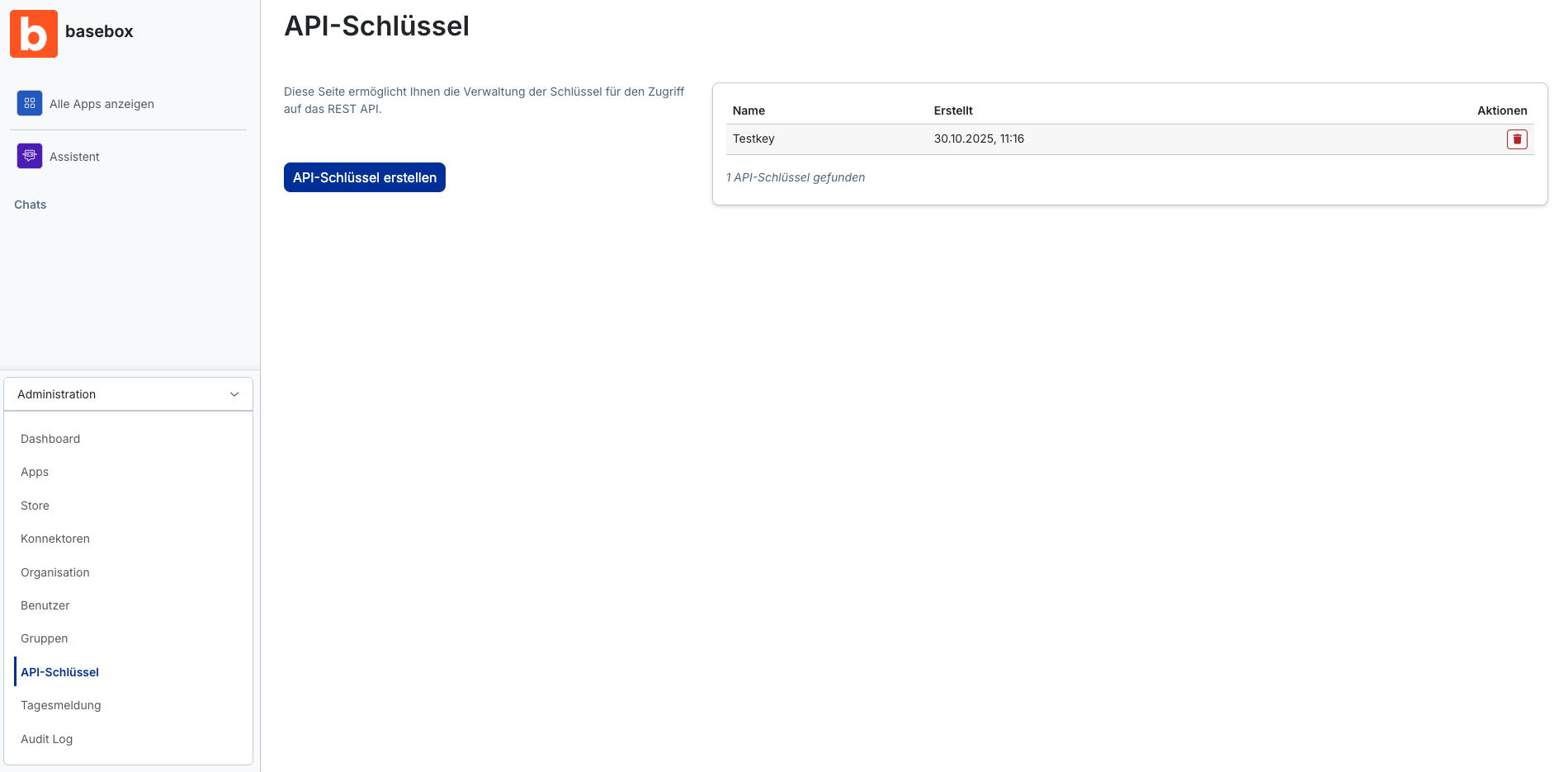
- Create a token: click Create API Token, enter a name that tells you what it is used for (for example "Ticket system"), and click Create API Token in the dialog.
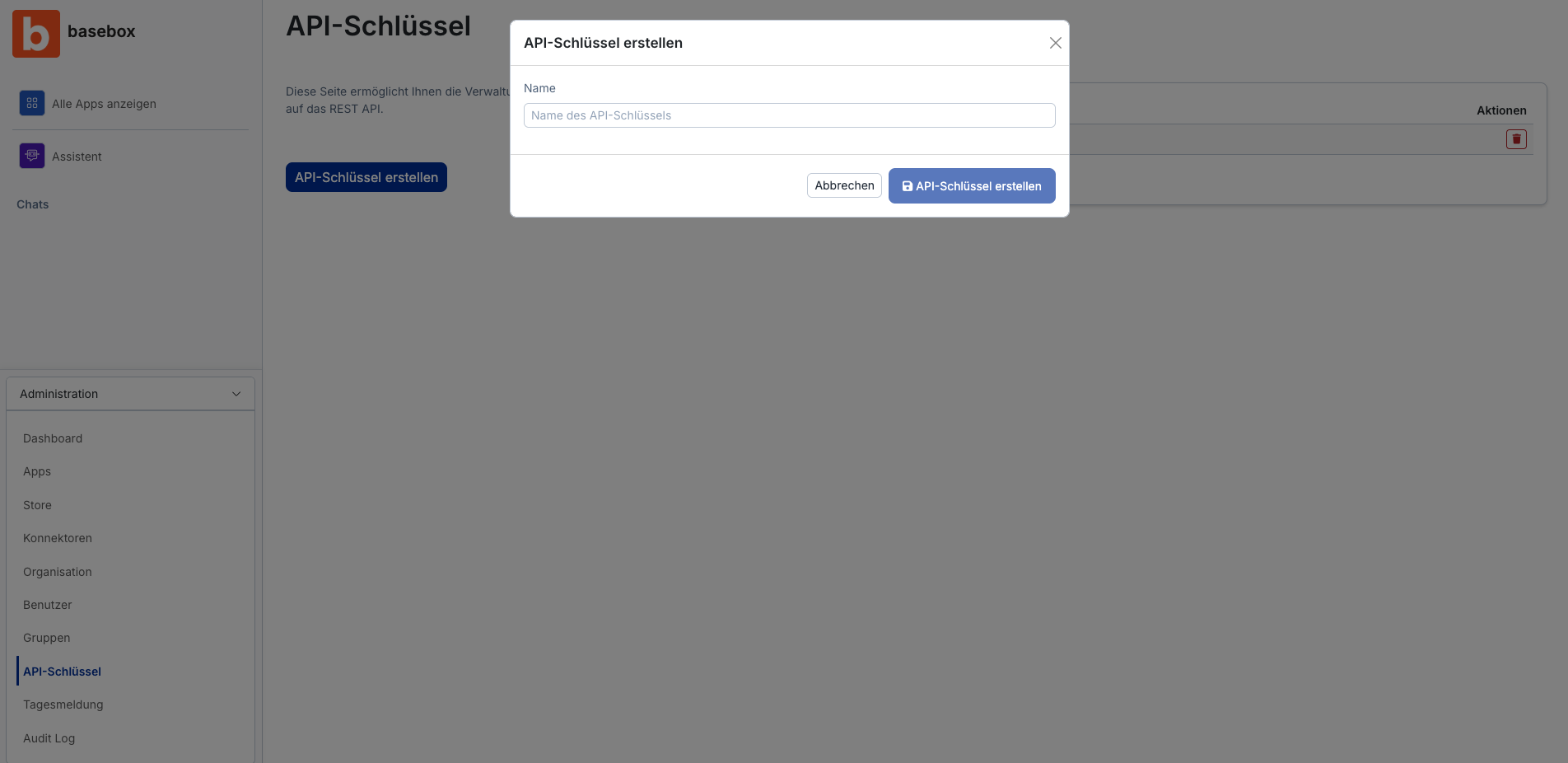
- Copy the token:
- The token is shown only once. Copy it right away.
- Store it securely (password manager, environment variable or similar).
- If you lose it, create a new one.
Token Security Tip:
Treat your API token like your password
Never commit it to Git
Use environment variables instead
Token Format
Your token will look something like this:
It's a long string of characters. Don't worry if it looks random - that's by design!
How to Use the API Properly
Authentication
Every API request needs authentication. You'll use Bearer token authentication:
Realm/Organization
Depending on your setup, you might need to specify which organization (realm) you're using:
Option 1: Using X-Realm Header (recommended)
Option 2: Using Subdomain
If your basebox instance is at your-org.basebox.ai, the realm is automatically extracted from the subdomain.
Basic Request Structure
Here's what a typical request looks like:
{
  "model": "claude-sonnet-4",
  "messages": [
    {
      "role": "user",
      "content": "Hello, how are you?"
    }
  ],
  "stream": false,
  "temperature": 0.7,
  "max_tokens": 500
}
Understanding the Fields
model: Which AI model to use (check/v1/modelsfor available options)messages: Array of conversation messagesrole:"system","user","assistant", or"tool"content: The actual message textstream:truefor streaming responses,falsefor complete responsetemperature: Creativity level (0.0 = focused, 1.0 = creative)max_tokens: Maximum tokens in the response
Message Roles Explained
Think of roles like characters in a play:
system: The director's notes - sets the AI's behavior and personalityuser: You, the human asking questionsassistant: The AI's responsestool: Results from function calls (if you're using tools)
Example: Multi-Turn Conversation
{
  "model": "claude-sonnet-4",
  "messages": [
    {
      "role": "system",
      "content": "You are a helpful coding assistant."
    },
    {
      "role": "user",
      "content": "What is Rust?"
    },
    {
      "role": "assistant",
      "content": "Rust is a systems programming language..."
    },
    {
      "role": "user",
      "content": "Can you give me a simple example?"
    }
  ]
}
Testing with curl
curl is a command-line tool for HTTP requests and is suitable for API testing.
Prerequisites
Make sure you have:
curlinstalled (it's usually pre-installed on macOS/Linux)- Your API token ready
- Your basebox URL
Basic Chat Completion Request
curl -X POST https://your-org.basebox.ai/v1/chat/completions \
  -H "Content-Type: application/json" \
  -H "Authorization: Bearer YOUR_TOKEN_HERE" \
  -H "X-Realm: your-org-name" \
  -d '{
    "model": "claude-sonnet-4",
    "messages": [
      {
        "role": "user",
        "content": "Write a haiku about APIs"
      }
    ],
    "stream": false
  }'
What You'll Get Back
A JSON response that looks like this:
{
  "id": "chatcmpl-abc123",
  "object": "chat.completion",
  "created": 1234567890,
  "model": "claude-sonnet-4",
  "choices": [
    {
      "index": 0,
      "message": {
        "role": "assistant",
        "content": "Endpoints await,\nBearer tokens in the breeze,\nData flows like streams."
      },
      "finish_reason": "stop"
    }
  ],
  "usage": {
    "prompt_tokens": 12,
    "completion_tokens": 17,
    "total_tokens": 29
  }
}
Streaming Request
Want to see the response as it's generated? Use streaming:
curl -X POST https://your-org.basebox.ai/v1/chat/completions \
  -H "Content-Type: application/json" \
  -H "Authorization: Bearer YOUR_TOKEN_HERE" \
  -H "X-Realm: your-org-name" \
  -d '{
    "model": "claude-sonnet-4",
    "messages": [
      {
        "role": "user",
        "content": "Count to 10 slowly"
      }
    ],
    "stream": true
  }'
You'll see Server-Sent Events (SSE) streaming in:
data: {"id":"chatcmpl-...","object":"chat.completion.chunk",...}

data: {"id":"chatcmpl-...","choices":[{"delta":{"content":"1"}}]}

data: {"id":"chatcmpl-...","choices":[{"delta":{"content":" "}}]}

data: {"id":"chatcmpl-...","choices":[{"delta":{"content":"2"}}]}

...

data: [DONE]
List Available Models
curl -X GET https://your-org.basebox.ai/v1/models \
  -H "Authorization: Bearer YOUR_TOKEN_HERE" \
  -H "X-Realm: your-org-name"
Using Environment Variables (Pro Tip)
Save your token in an environment variable to avoid typing it every time:
# Set your token (add this to your ~/.bashrc or ~/.zshrc)
export BASEBOX_API_TOKEN="your-token-here"
export BASEBOX_URL="https://your-org.basebox.ai"
export BASEBOX_REALM="your-org-name"

# Now use it in curl
curl -X POST $BASEBOX_URL/v1/chat/completions \
  -H "Content-Type: application/json" \
  -H "Authorization: Bearer $BASEBOX_API_TOKEN" \
  -H "X-Realm: $BASEBOX_REALM" \
  -d '{
    "model": "claude-sonnet-4",
    "messages": [{"role": "user", "content": "Hello!"}]
  }'
Testing with Swagger UI
Swagger UI tests the API in the browser
Swagger UI is like an interactive playground for APIs. Instead of writing curl commands or code, you can:
- Explore endpoints visually
- Test API calls directly in your browser
- See request/response schemas automatically
- Try different parameters without writing code
Think of it as a "try before you code" tool. It's suitable for:
- Learning how the API works
- Testing and experimentation
- Sharing API examples with teammates
- Debugging issues
Fun Fact: Swagger UI generates its interface from an OpenAPI specification - a machine-readable description of the API. It's like having a map that also shows you how to use each road!
Accessing Swagger UI
- Open your browser and navigate to:
Or for local development:
2. You should see a page that looks like this: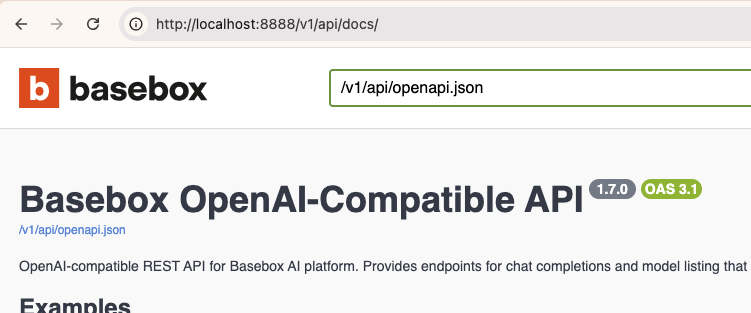
Send your first request in Swagger UI
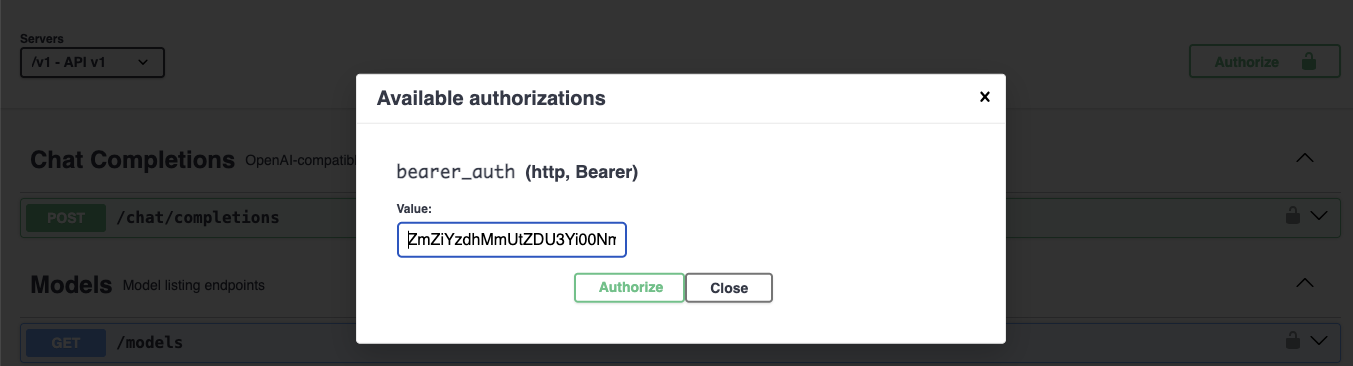
Step 1: Authorize
Before you can make requests, you need to authenticate:
- Click the "Authorize" button (usually at the top right)
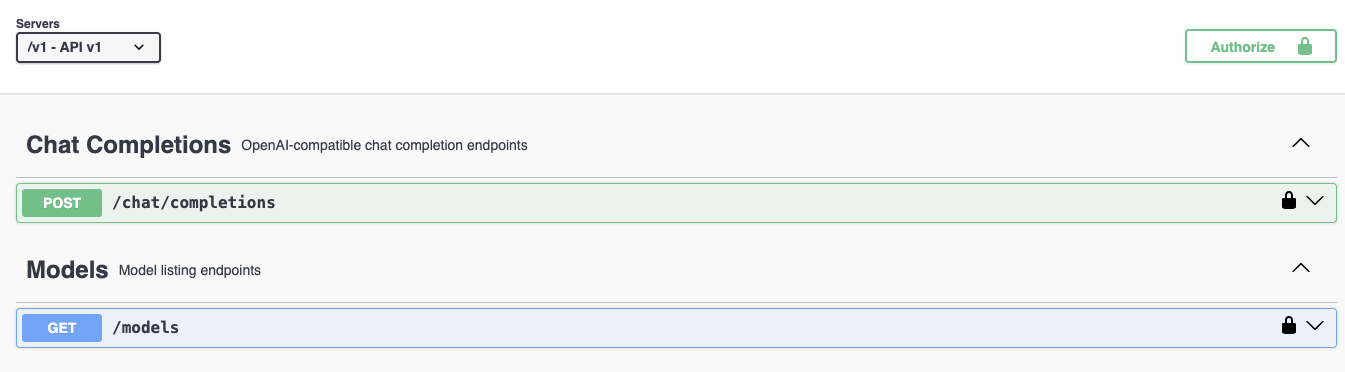
- In the popup, you'll see a field for "bearer_auth"
- Enter your token:
YOUR_TOKEN_HERE - Click "Authorize"
- Click "Close"
You should see a 🔒 lock icon next to the endpoints, indicating you're authenticated.
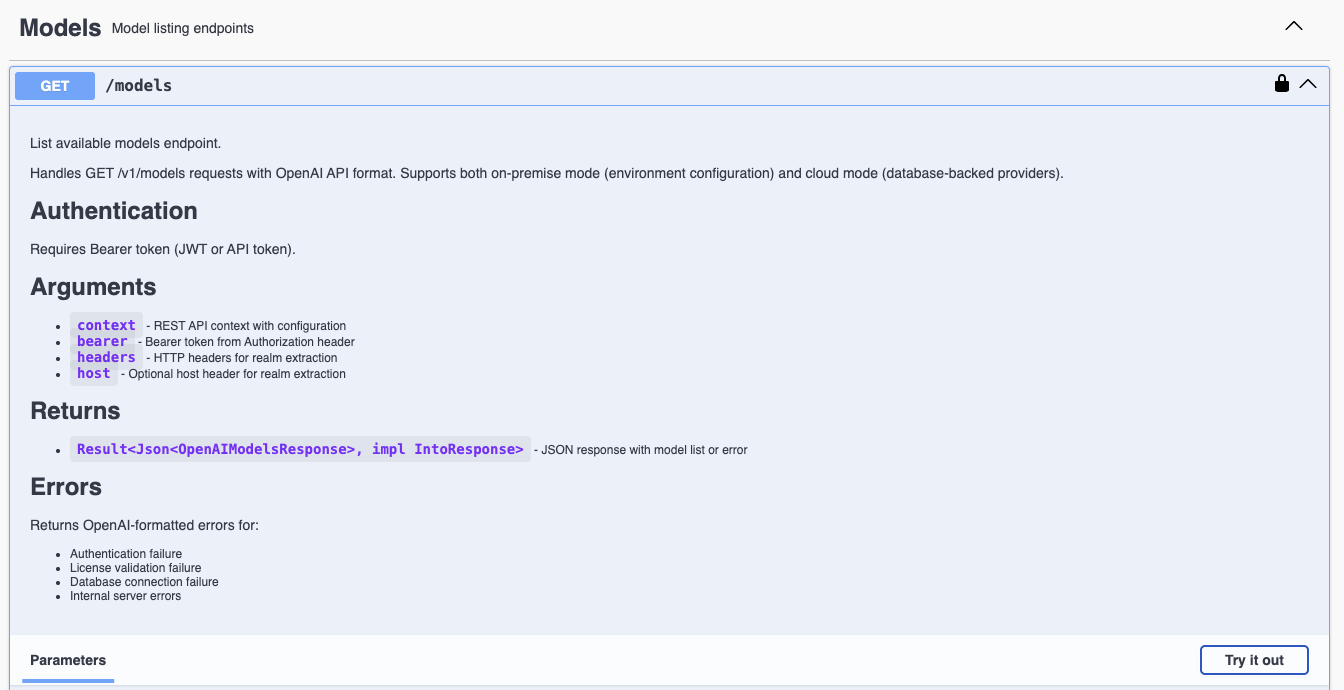
Step 2: Explore Available Models
- Find the "Models" section
- Click on "GET /v1/models"
- Click "Try it out"
- Click "Execute"
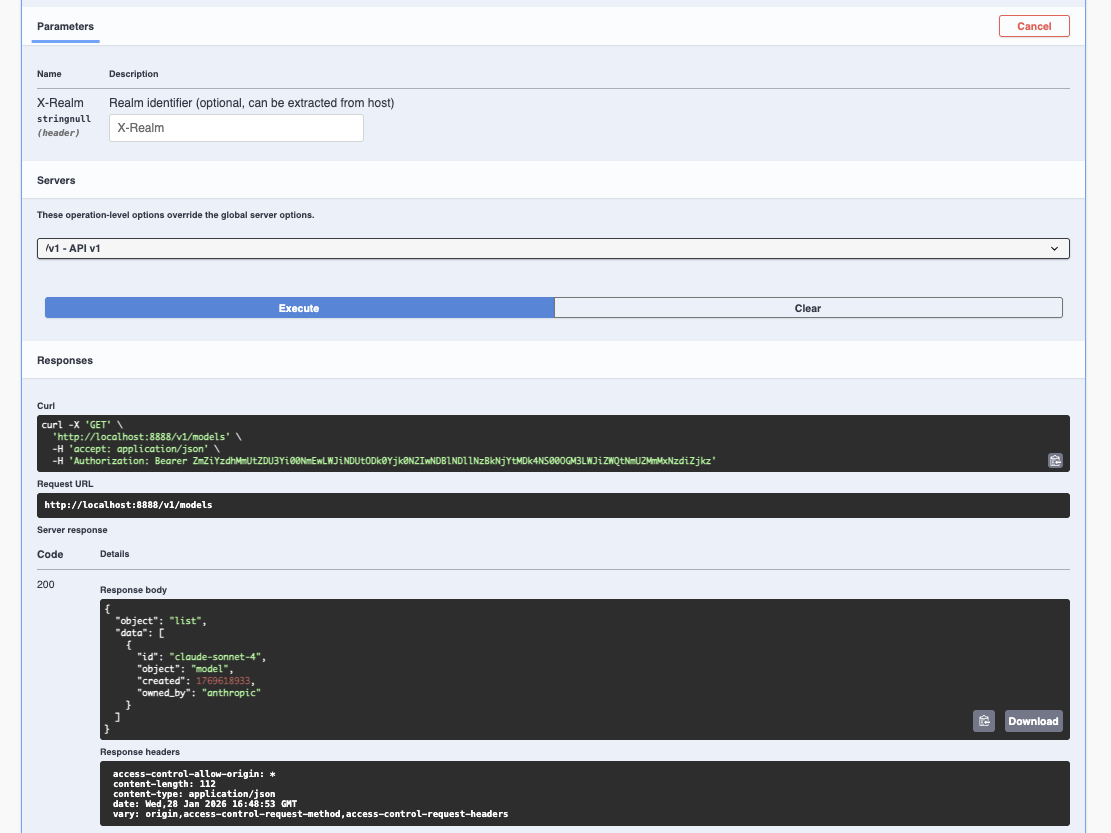
You'll see:
- Request URL: The actual URL that was called
- Response Code: HTTP status (200 = success!)
- Response Body: JSON list of available models
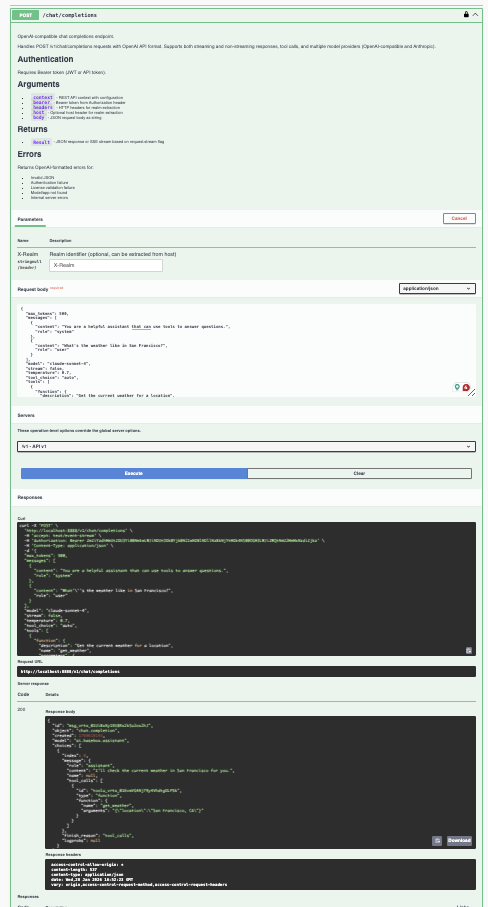
Step 3: Make a Chat Completion Request
- Find the "Chat Completions" section
- Click on "POST /v1/chat/completions"
- Click "Try it out"
You'll see a request body editor with an example JSON. Modify it:
{
  "model": "claude-sonnet-4",
  "messages": [
    {
      "role": "user",
      "content": "Explain APIs like I'm 5 years old"
    }
  ],
  "stream": false,
  "temperature": 0.7,
  "max_tokens": 200
}
- Click "Execute"
- Scroll down to see the response!
Understanding Swagger UI Features
Schema Documentation
Each endpoint shows:
- Parameters: What you can send
- Request Body: The JSON structure expected
- Response: What you'll get back
- Example Values: Pre-filled examples to get you started
Testing Different Scenarios
Try these in Swagger UI:
1. Simple Question:
2. System Message:
{
  "model": "claude-sonnet-4",
  "messages": [
    {"role": "system", "content": "You are a pirate."},
    {"role": "user", "content": "Tell me about APIs"}
  ]
}
3. Multi-Turn Conversation:
{
  "model": "claude-sonnet-4",
  "messages": [
    {"role": "user", "content": "What is 2+2?"},
    {"role": "assistant", "content": "2+2 equals 4."},
    {"role": "user", "content": "What about 2+3?"}
  ]
}
Pro Tips for Swagger UI
-
Copy as cURL: After executing a request, Swagger UI can show you the equivalent curl command.
-
Schema Validation: Swagger UI validates your JSON before sending - catch errors early!
-
Response Examples: Expand the "Example Value" sections to see what responses look like
-
Error Testing: Try invalid requests to see what error responses look like
Troubleshooting Swagger UI
Problem: "401 Unauthorized"
Solution: Make sure you clicked "Authorize" and entered your token correctly (including "Bearer ")
Problem: "404 Not Found"
Solution: Check that your URL is correct - should end with /v1/api/docs
Problem: Can't see the "Authorize" button
Solution: Some browsers block popups - check your browser settings
Problem: Token not persisting
Solution: Swagger UI saves tokens in browser storage - try refreshing the page
Common Mistakes (and How to Avoid Them)
Mistake #1: Forgetting the "Bearer" Prefix
[-] Wrong:
[+] Right:
Why it matters: The API expects "Bearer" followed by a space, then your token. Without it, authentication fails.
Mistake #2: Missing Content-Type Header
[-] Wrong:
[+] Right:
Why it matters: The server needs to know you're sending JSON, not form data.
Mistake #3: Wrong Message Role
[-] Wrong:
[+] Right:
Valid roles: "system", "user", "assistant", "tool"
Mistake #4: Forgetting the Realm
If your setup requires it:
[-] Wrong:
[+] Right:
Mistake #5: Invalid JSON
[-] Wrong:
{
  "model": "claude-sonnet-4",
  "messages": [
    {"role": "user", "content": "Hello"}  // Missing comma
    {"role": "assistant", "content": "Hi"}
  ]
}
[+] Right:
{
  "model": "claude-sonnet-4",
  "messages": [
    {"role": "user", "content": "Hello"},
    {"role": "assistant", "content": "Hi"}
  ]
}
Pro tip: Use a JSON validator or your editor's JSON mode to catch these errors.
Mistake #6: Using Wrong Model Name
[-] Wrong:
[+] Right:
Always check /v1/models to see what models are available.
Troubleshooting
"The problem with troubleshooting is that trouble shoots back." — Unknown
Error: 401 Unauthorized
What it means: Your token is invalid or missing.
Solutions:
- Check that you included "Bearer " before your token
- Verify your token is correct (copy-paste it again)
- Make sure the token hasn't been deleted
Error: 403 Forbidden
What it means: Your organization doesn't have a valid license or permission.
Solutions:
- Check your organization's license status
- Contact your administrator
- Verify you're using the correct realm/organization
Error: 400 Bad Request
What it means: Your request format is incorrect.
Solutions:
- Validate your JSON (use a JSON validator)
- Check that required fields are present (
model,messages) - Verify message roles are valid (
"user","assistant", etc.) - Check the Swagger UI schema for the correct format
Error: 404 Not Found
What it means: The endpoint doesn't exist or the URL is wrong.
Solutions:
- Verify your base URL is correct
- Check that the path is
/v1/chat/completions(not/api/v1/...) - Ensure the OpenAI API is enabled on your instance
Error: 500 Internal Server Error
What it means: Something went wrong on the server side.
Solutions:
- Check server logs (if you have access)
- Try again - might be a temporary issue
- Contact support with:
- Your request (without the token!)
- The error response
- Timestamp of when it happened
Streaming Issues
Problem: Streaming responses stop abruptly
Solutions:
- Check your network connection
- Increase timeout settings in your client
- Verify the model supports streaming
- Check server logs for errors
Model Not Found
Error: Model "xyz" not found
Solutions:
- Call
/v1/modelsto see available models - Check model name spelling (case-sensitive!)
- Verify the model is configured for your organization
Quick Reference
Endpoints
| Method | Endpoint | Description |
|---|---|---|
POST |
/v1/chat/completions |
Chat with AI models |
GET |
/v1/models |
List available models |
GET |
/v1/api/docs |
Swagger UI documentation |
Required Headers
Content-Type: application/json
Authorization: Bearer YOUR_TOKEN_HERE
X-Realm: your-org-name  (if required)
Minimum Request
Quick curl Template
curl -X POST YOUR_URL/v1/chat/completions \
  -H "Content-Type: application/json" \
  -H "Authorization: Bearer YOUR_TOKEN" \
  -H "X-Realm: YOUR_REALM" \
  -d '{
    "model": "claude-sonnet-4",
    "messages": [{"role": "user", "content": "YOUR_MESSAGE"}]
  }'
Next Steps
Now that you've mastered the basics:
- Explore Tool Calling: Learn how to make the AI use functions
- Optimize Your Requests: Experiment with temperature, max_tokens, etc.
- Build an Integration: Use your favorite programming language's OpenAI client library
- Read the Architecture Docs: Check out
openai-api-architecture.mdfor deep technical details
"The early bird might get the worm, but the second mouse gets the cheese." — Unknown
Last updated: January 2026
Questions? Check the architecture documentation or contact support.