Licensed to be used in conjunction with basebox, only.
// admin
Groups
Groups bundle multiple users to jointly control access and approvals – for example, to share apps with a team in a targeted way.
Groups control who sees which app
With groups, you assign permissions not per individual person but in bundles: an app or approval granted to the "Marketing" group automatically reaches all its members. This simplifies administration and keeps access consistent.
Groups are under Administration → Groups
Open Administration → Groups in the sidebar. Group management shows:
- a search field to find groups
- a table with the columns Name, Members (count), and Actions
- the Edit (pencil icon) and Delete (trash can icon) actions for each group
- the "+ Create group" button at the top right
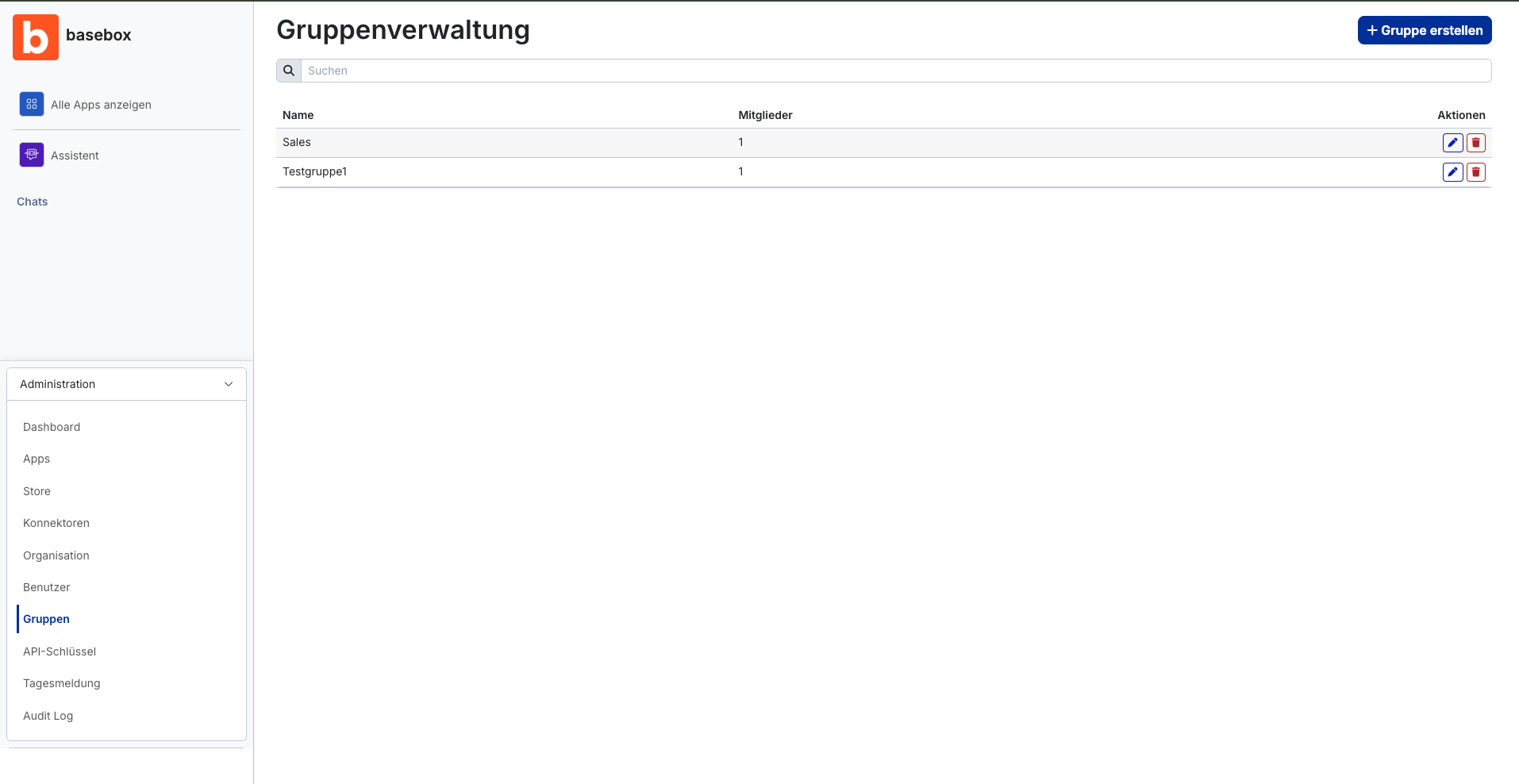
Creating and maintaining groups
Creating a group
- Open Administration → Groups
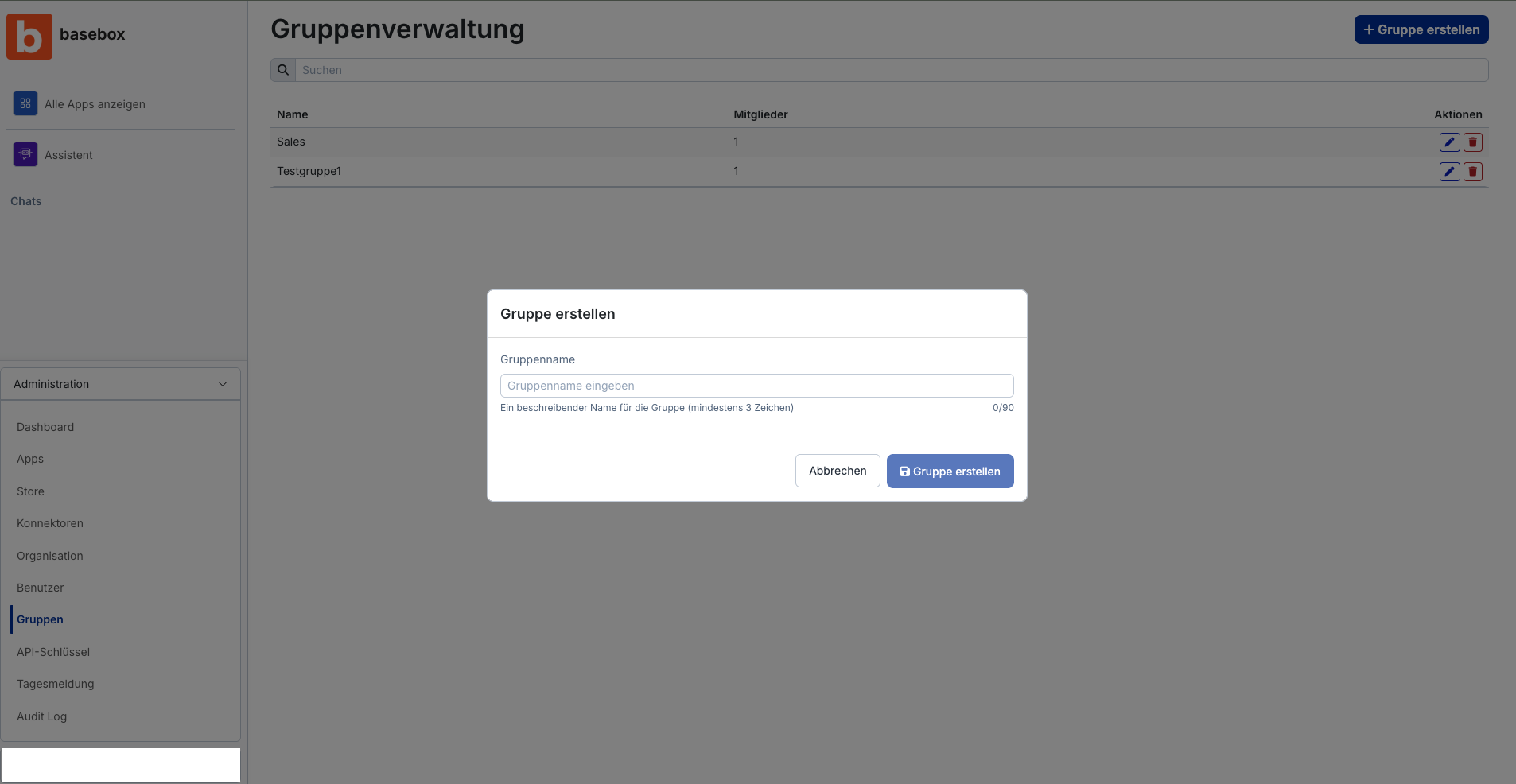
- Click "Create group"
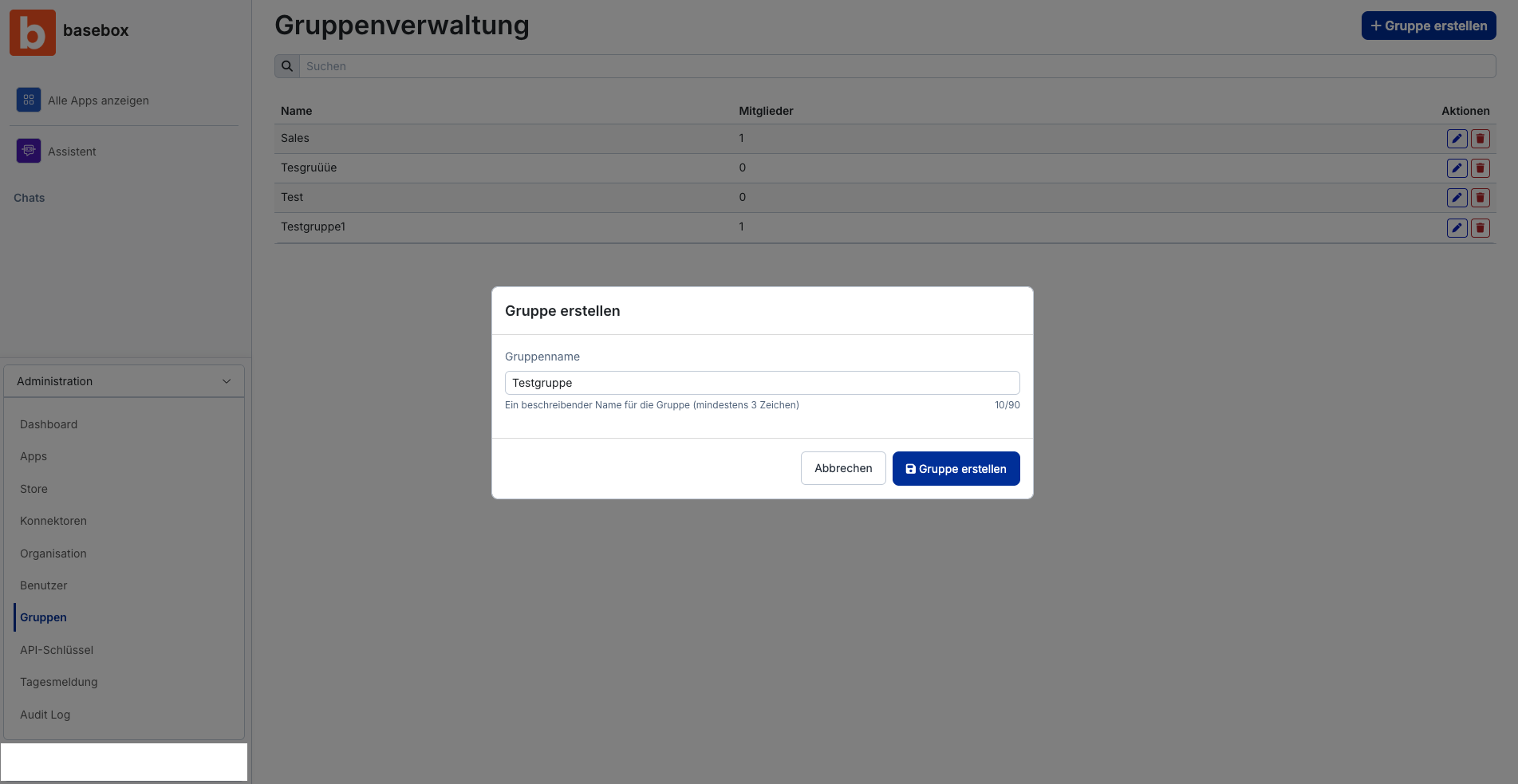
- Enter a group name (minimum 3, maximum 90 characters)
- Click "Create group"
Note
- The group name must be between 3 and 90 characters long.
- Newly created groups are shown at the end of the list – you may need to switch to the last page of the overview.
Editing a group and managing members
- Select the desired group in group management
- Click the pencil icon (edit)
- Here you can change the group name, add members, and remove members. Use the "i" icon next to "Members" to see all members of the group.
- Click "Save"
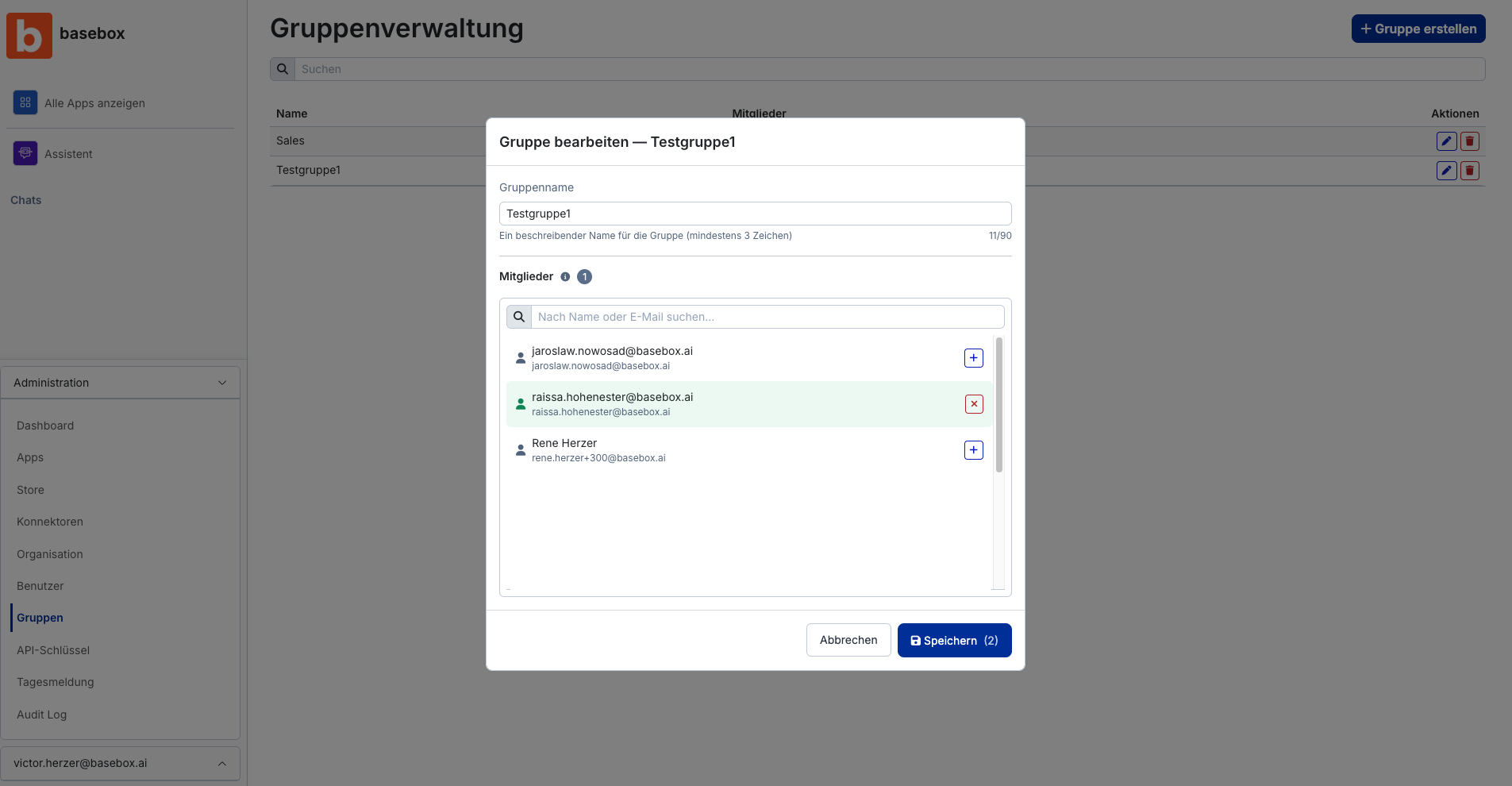
Changes to groups directly affect the members' access and permissions.
Deleting a group
- Click the trash can icon in the group's row
- Confirm the deletion
Frequently asked questions
Why do I need groups? To manage apps and approvals for multiple people at once, instead of granting permissions to each person individually.
Where can I see who is in a group? In group management, in the Members (count) column, and while editing via the "i" icon next to "Members".
What happens when I delete a group? The group is removed; the associated bundled access is revoked for its members. The user accounts themselves remain intact.
Next step: App approval
Need help? Contact support