Copyright © 2022-2026 basebox GmbH, all rights reserved.
Licensed to be used in conjunction with basebox, only.
Licensed to be used in conjunction with basebox, only.
// integration
How to create a YouTrack token
Applies to
Product: Cloud · Server · Audience: User
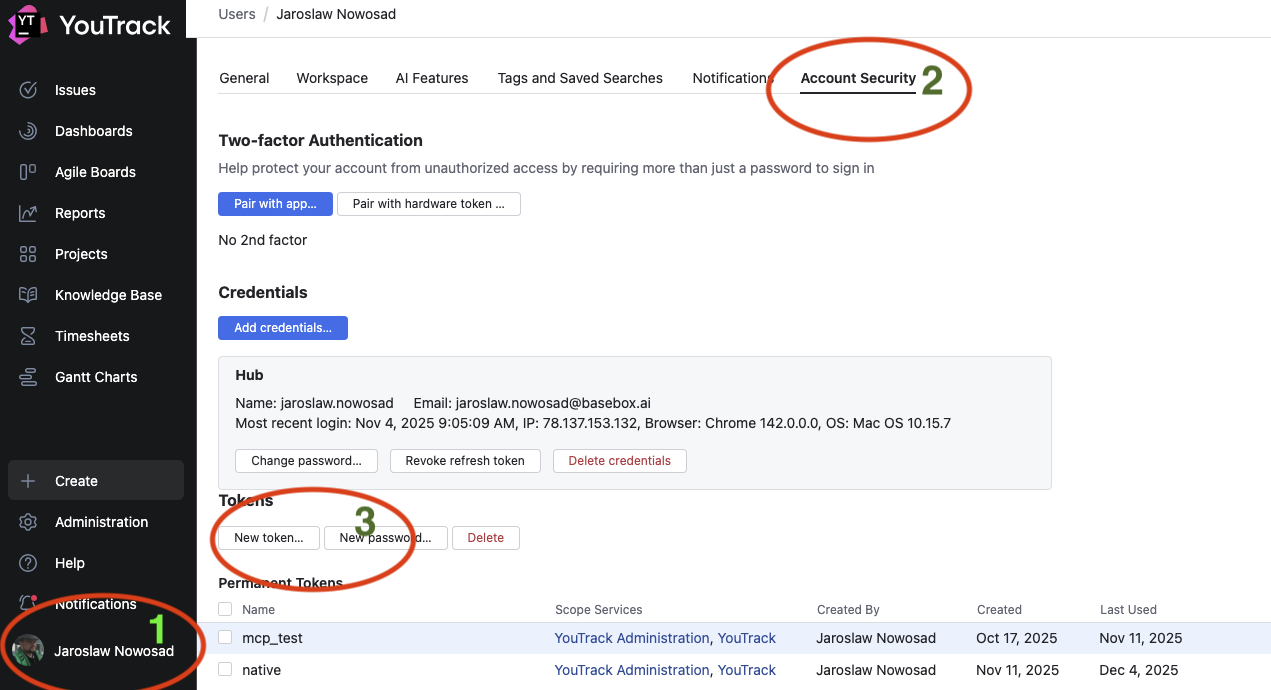
To use the YouTrack connector in basebox, you need a permanent token from your YouTrack account. This page walks you through it in three easy steps.
Three steps
- Open your profile. In YouTrack, click your profile picture in the top right corner, then choose Profile.
- Open Account Security. In the profile page, switch to the Account Security tab.
- Create a new token. Click New token…, give the token a name (for example
basebox), select the scopes you want basebox to access, and click Create.
Copy the token immediately — YouTrack will not show it again.
Use the token in basebox
- Open the YouTrack connector in basebox. Where to find it is described under Connectors.
- Paste the token.
- Click Test connection to verify it works.
Your administrator sets up the connector itself; your token applies only to you.
Choosing scopes
Grant the smallest set of scopes that fits your use case:
- Read-only assistant (recommended starting point):
YouTrack: Read Issue,YouTrack: Read Project. - Assistant that can comment / update: additionally grant
YouTrack: Update Issue,YouTrack: Create Issue,YouTrack: Update Issue Private Fieldsas needed.
You can always create a second token with broader scopes later and replace the one in basebox.
Revoking a token
If a token is ever leaked or no longer needed, revoke it from the same Account Security screen — find the token in the list and delete it. basebox will lose access immediately on the next request.