Licensed to be used in conjunction with basebox, only.
// integration
Benutzerhandbuch OpenAI-kompatible API
Gilt für
Produkt: Cloud · Server · Zielgruppe: Entwickler / Integrator
Der OpenAI-kompatible API-Endpunkt von basebox.
> "The problem with quotes on the Internet is that you can never know if they are genuine." — Abraham Lincoln (wahrscheinlich)
Inhalt
- OpenAI-Werkzeuge sprechen mit basebox
- API-Token erhalten
- Die API richtig nutzen
- Testen mit curl
- Testen mit Swagger UI
- Häufige Fehler (und wie Sie sie vermeiden)
- Troubleshooting
OpenAI-Werkzeuge sprechen mit basebox
Dieser Endpunkt lässt Sie Werkzeuge und Bibliotheken nutzen, die für die OpenAI-API entwickelt wurden – sie sprechen aber tatsächlich mit dem basebox-Backend.
Die API unterstützt Chat, Streaming und Tool Calling
- Chat Completions: Unterhaltungen mit KI-Modellen führen
- Modelle auflisten: Sehen, welche Modelle verfügbar sind
- Streaming: Antworten in Echtzeit erhalten (wie eine Schreibmaschine bei der Arbeit)
- Tool Calling: Die KI Funktionen ausführen lassen (etwa Wetter abfragen oder Datenbanken durchsuchen)
Zentrale Endpunkte
POST /v1/chat/completions– Mit KI-Modellen chattenGET /v1/models– Verfügbare Modelle auflisten
Basis-URL: Die URL Ihrer basebox-Instanz (z. B. https://your-org.basebox.ai oder http://localhost:8888)
API-Token erhalten
Bevor Sie API-Aufrufe machen können, brauchen Sie ein API-Token.
Ein Token im Admin-Bereich erstellen
-
Bei basebox anmelden: Öffnen Sie Ihre basebox-Instanz im Browser
-
API-Schlüssel öffnen: Öffnen Sie Administration → API-Schlüssel.
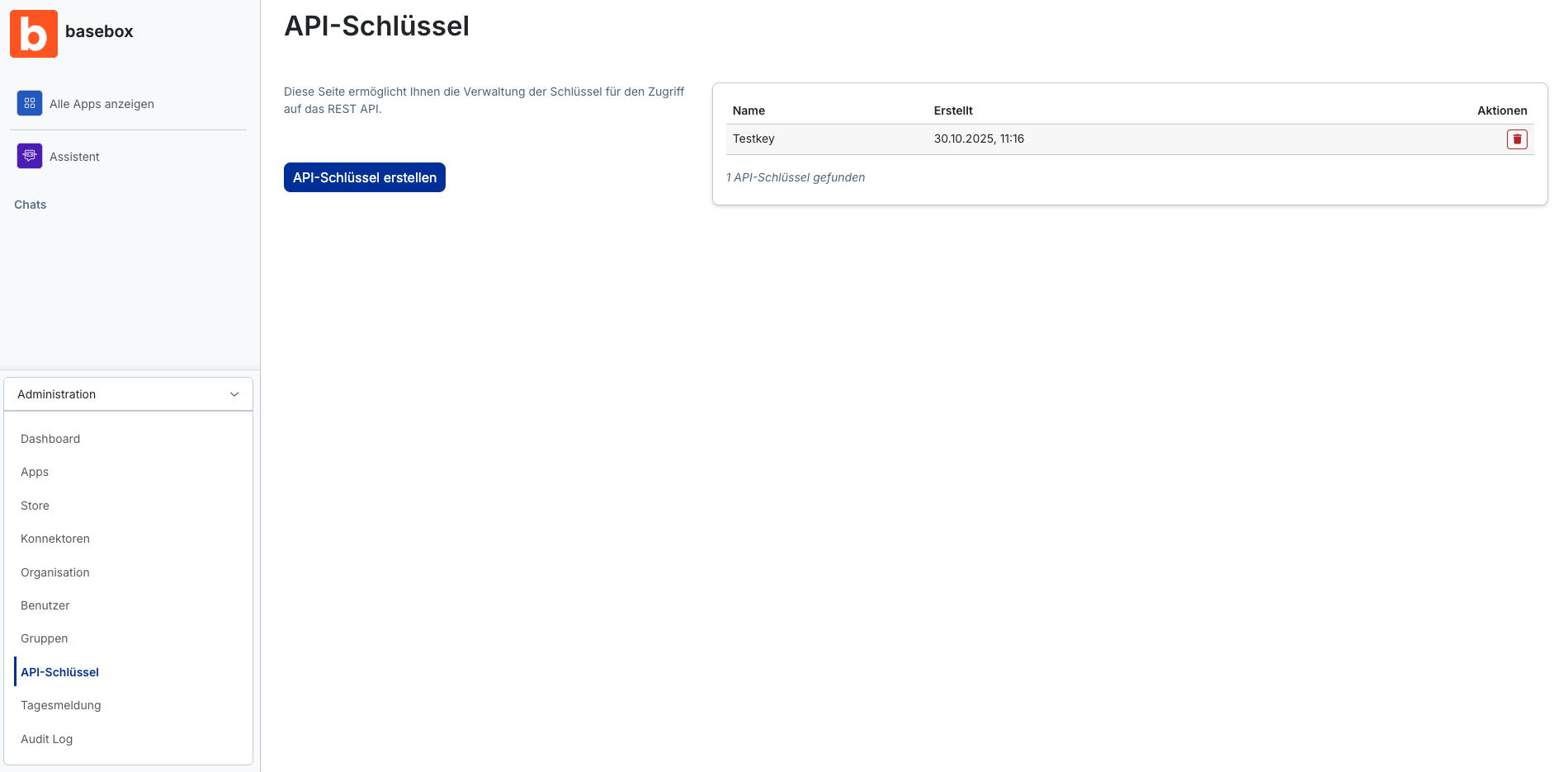
- Schlüssel erstellen: Klicken Sie auf API-Schlüssel erstellen, geben Sie einen Namen ein, an dem Sie den Einsatzzweck erkennen (etwa „Ticketsystem“), und klicken Sie im Dialog auf API-Schlüssel erstellen.
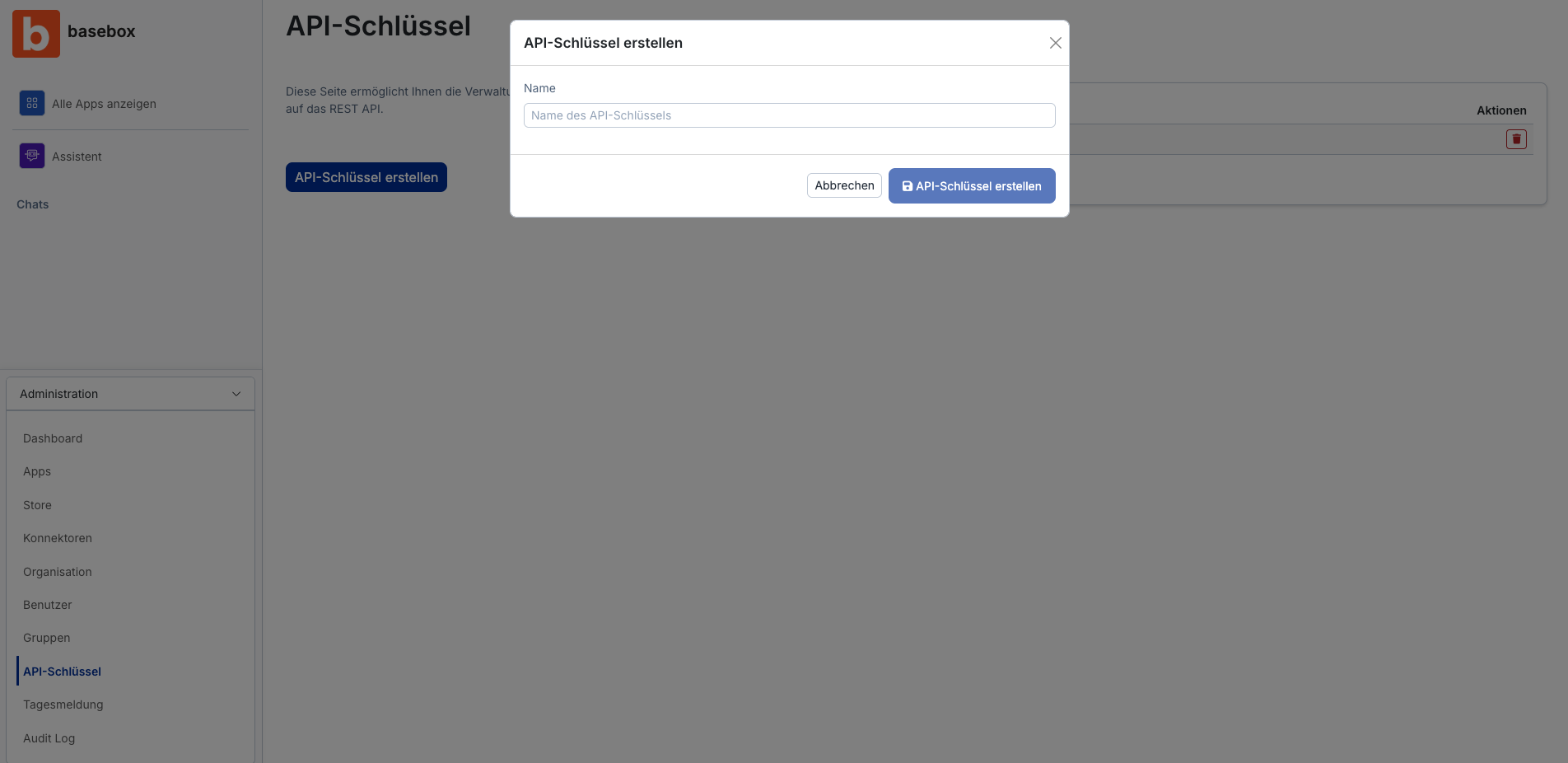
- Schlüssel kopieren:
- Der Schlüssel wird nur einmal angezeigt. Kopieren Sie ihn sofort.
- Bewahren Sie ihn sicher auf (Passwortmanager, Umgebungsvariable o. Ä.).
- Haben Sie ihn verloren, erstellen Sie einen neuen.
Sicherheitstipp:
Behandeln Sie Ihr API-Token wie Ihr Passwort
Checken Sie es nie in Git ein
Nutzen Sie stattdessen Umgebungsvariablen
Token-Format
Ihr Token sieht etwa so aus:
Eine lange Zeichenkette. Keine Sorge, wenn sie zufällig aussieht – das ist so gewollt!
Die API richtig nutzen
Authentifizierung
Jede API-Anfrage braucht Authentifizierung. Sie verwenden Bearer-Token-Authentifizierung:
Realm/Organisation
Je nach Setup müssen Sie angeben, welche Organisation (Realm) Sie nutzen:
Option 1: X-Realm-Header (empfohlen)
Option 2: Subdomain
Liegt Ihre basebox-Instanz unter your-org.basebox.ai, wird der Realm automatisch aus der Subdomain gelesen.
Grundstruktur einer Anfrage
So sieht eine typische Anfrage aus:
{
  "model": "claude-sonnet-4",
  "messages": [
    {
      "role": "user",
      "content": "Hello, how are you?"
    }
  ],
  "stream": false,
  "temperature": 0.7,
  "max_tokens": 500
}
Die Felder verstehen
model: Welches KI-Modell genutzt wird (verfügbare Optionen unter/v1/models)messages: Array der Unterhaltungsnachrichtenrole:"system","user","assistant"oder"tool"content: Der eigentliche Nachrichtentextstream:truefür Streaming-Antworten,falsefür eine vollständige Antworttemperature: Kreativitätsgrad (0.0 = fokussiert, 1.0 = kreativ)max_tokens: Maximale Tokens in der Antwort
Nachrichtenrollen erklärt
Stellen Sie sich die Rollen wie Figuren in einem Theaterstück vor:
system: Die Regieanweisungen – legen Verhalten und Persönlichkeit der KI festuser: Sie, der Mensch, der Fragen stelltassistant: Die Antworten der KItool: Ergebnisse von Funktionsaufrufen (wenn Sie Tools nutzen)
Beispiel: Unterhaltung über mehrere Runden
{
  "model": "claude-sonnet-4",
  "messages": [
    {
      "role": "system",
      "content": "You are a helpful coding assistant."
    },
    {
      "role": "user",
      "content": "What is Rust?"
    },
    {
      "role": "assistant",
      "content": "Rust is a systems programming language..."
    },
    {
      "role": "user",
      "content": "Can you give me a simple example?"
    }
  ]
}
Testen mit curl
curl ist ein Kommandozeilenwerkzeug für HTTP-Anfragen und eignet sich für API-Tests.
Voraussetzungen
Stellen Sie sicher, dass Sie haben:
curlinstalliert (auf macOS/Linux meist vorinstalliert)- Ihr API-Token bereit
- Ihre basebox-URL
Einfache Chat-Completion-Anfrage
curl -X POST https://your-org.basebox.ai/v1/chat/completions \
  -H "Content-Type: application/json" \
  -H "Authorization: Bearer YOUR_TOKEN_HERE" \
  -H "X-Realm: your-org-name" \
  -d '{
    "model": "claude-sonnet-4",
    "messages": [
      {
        "role": "user",
        "content": "Write a haiku about APIs"
      }
    ],
    "stream": false
  }'
Was Sie zurückbekommen
Eine JSON-Antwort, die so aussieht:
{
  "id": "chatcmpl-abc123",
  "object": "chat.completion",
  "created": 1234567890,
  "model": "claude-sonnet-4",
  "choices": [
    {
      "index": 0,
      "message": {
        "role": "assistant",
        "content": "Endpoints await,\nBearer tokens in the breeze,\nData flows like streams."
      },
      "finish_reason": "stop"
    }
  ],
  "usage": {
    "prompt_tokens": 12,
    "completion_tokens": 17,
    "total_tokens": 29
  }
}
Streaming-Anfrage
Sie wollen die Antwort beim Entstehen sehen? Nutzen Sie Streaming:
curl -X POST https://your-org.basebox.ai/v1/chat/completions \
  -H "Content-Type: application/json" \
  -H "Authorization: Bearer YOUR_TOKEN_HERE" \
  -H "X-Realm: your-org-name" \
  -d '{
    "model": "claude-sonnet-4",
    "messages": [
      {
        "role": "user",
        "content": "Count to 10 slowly"
      }
    ],
    "stream": true
  }'
Sie sehen Server-Sent Events (SSE) eintreffen:
data: {"id":"chatcmpl-...","object":"chat.completion.chunk",...}

data: {"id":"chatcmpl-...","choices":[{"delta":{"content":"1"}}]}

data: {"id":"chatcmpl-...","choices":[{"delta":{"content":" "}}]}

data: {"id":"chatcmpl-...","choices":[{"delta":{"content":"2"}}]}

...

data: [DONE]
Verfügbare Modelle auflisten
curl -X GET https://your-org.basebox.ai/v1/models \
  -H "Authorization: Bearer YOUR_TOKEN_HERE" \
  -H "X-Realm: your-org-name"
Umgebungsvariablen nutzen (Profi-Tipp)
Speichern Sie Ihr Token in einer Umgebungsvariable, um es nicht jedes Mal einzutippen:
# Set your token (add this to your ~/.bashrc or ~/.zshrc)
export BASEBOX_API_TOKEN="your-token-here"
export BASEBOX_URL="https://your-org.basebox.ai"
export BASEBOX_REALM="your-org-name"

# Now use it in curl
curl -X POST $BASEBOX_URL/v1/chat/completions \
  -H "Content-Type: application/json" \
  -H "Authorization: Bearer $BASEBOX_API_TOKEN" \
  -H "X-Realm: $BASEBOX_REALM" \
  -d '{
    "model": "claude-sonnet-4",
    "messages": [{"role": "user", "content": "Hello!"}]
  }'
Testen mit Swagger UI
Swagger UI testet die API im Browser
Swagger UI ist ein interaktiver Spielplatz für APIs. Statt curl-Befehle oder Code zu schreiben, können Sie:
- Endpunkte visuell erkunden
- API-Aufrufe direkt im Browser testen
- Request-/Response-Schemata automatisch sehen
- Verschiedene Parameter ausprobieren, ohne Code zu schreiben
Ein Werkzeug nach dem Motto „erst probieren, dann programmieren". Geeignet für:
- Verstehen, wie die API funktioniert
- Tests und Experimente
- API-Beispiele mit Kollegen teilen
- Fehlersuche
Gut zu wissen: Swagger UI erzeugt seine Oberfläche aus einer OpenAPI-Spezifikation – einer maschinenlesbaren Beschreibung der API. Wie eine Landkarte, die auch zeigt, wie man jede Straße benutzt!
Swagger UI aufrufen
- Öffnen Sie Ihren Browser und navigieren Sie zu:
Oder für lokale Entwicklung:
2. Sie sollten eine Seite wie diese sehen: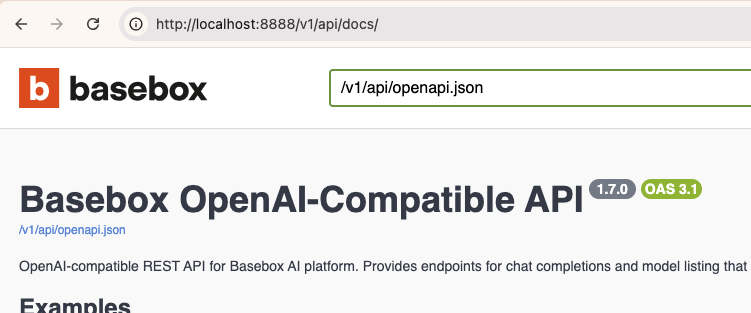
Die erste Anfrage in Swagger UI senden
Schritt 1: Autorisieren
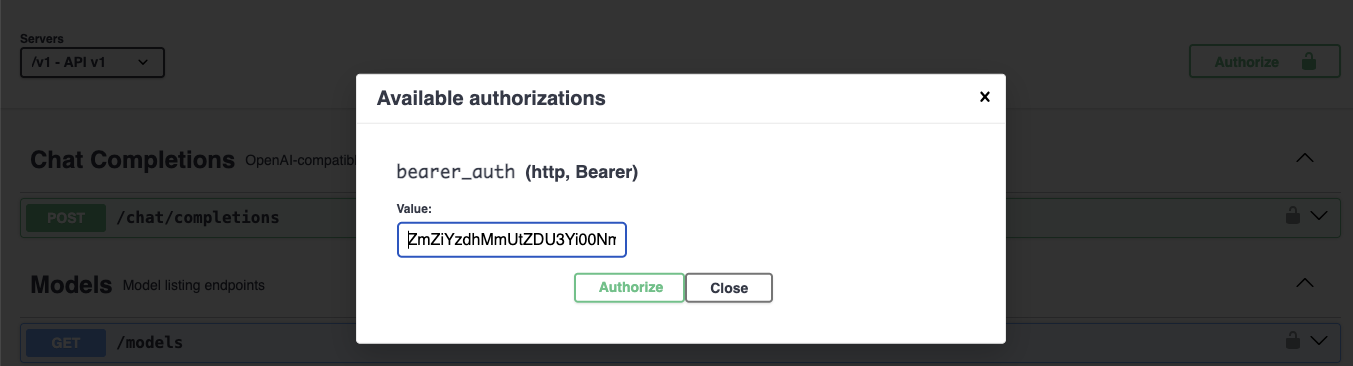
Bevor Sie Anfragen senden können, müssen Sie sich authentifizieren:
- Klicken Sie auf die Schaltfläche „Authorize" (meist oben rechts)
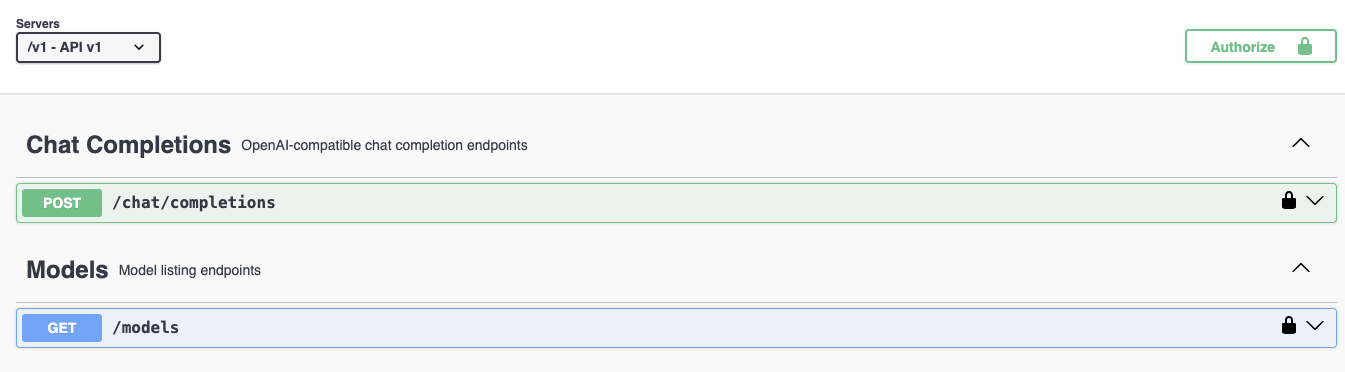
- Im Popup sehen Sie ein Feld für „bearer_auth"
- Geben Sie Ihr Token ein:
YOUR_TOKEN_HERE - Klicken Sie auf „Authorize"
- Klicken Sie auf „Close"
Neben den Endpunkten sollte ein 🔒-Schloss erscheinen – Sie sind authentifiziert.
Schritt 2: Verfügbare Modelle erkunden
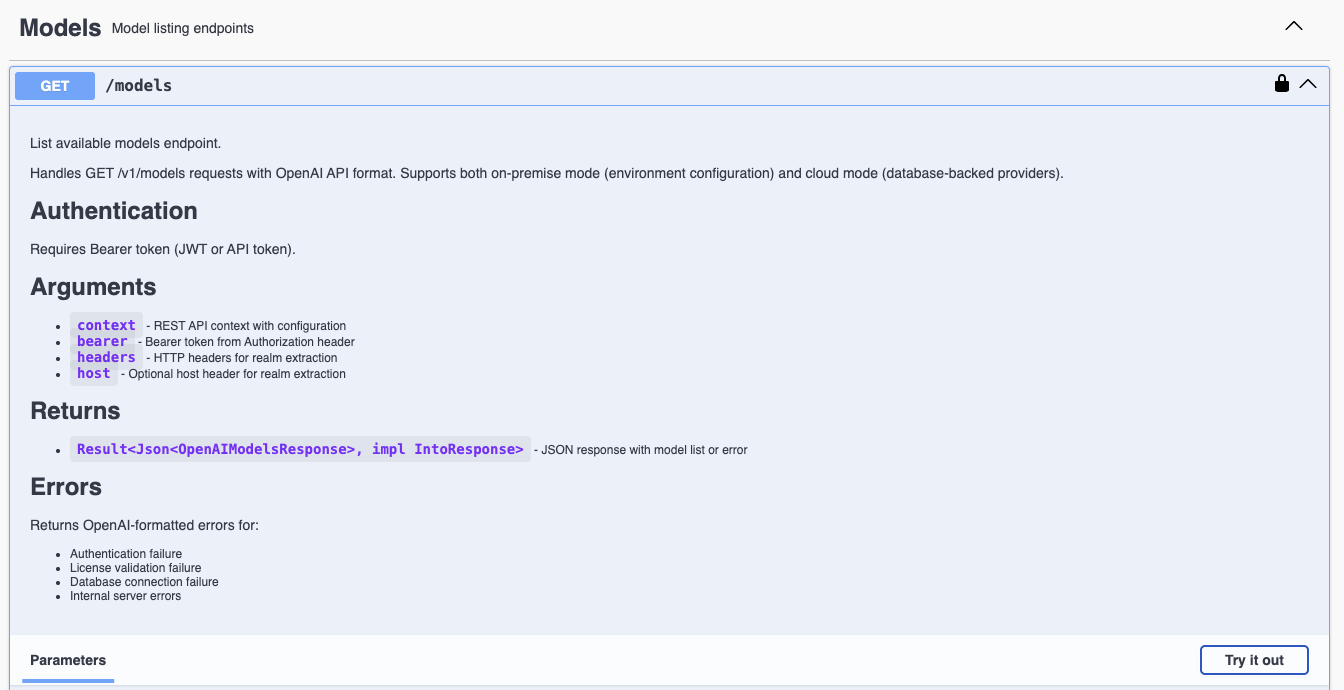
- Suchen Sie den Abschnitt „Models"
- Klicken Sie auf „GET /v1/models"
- Klicken Sie auf „Try it out"
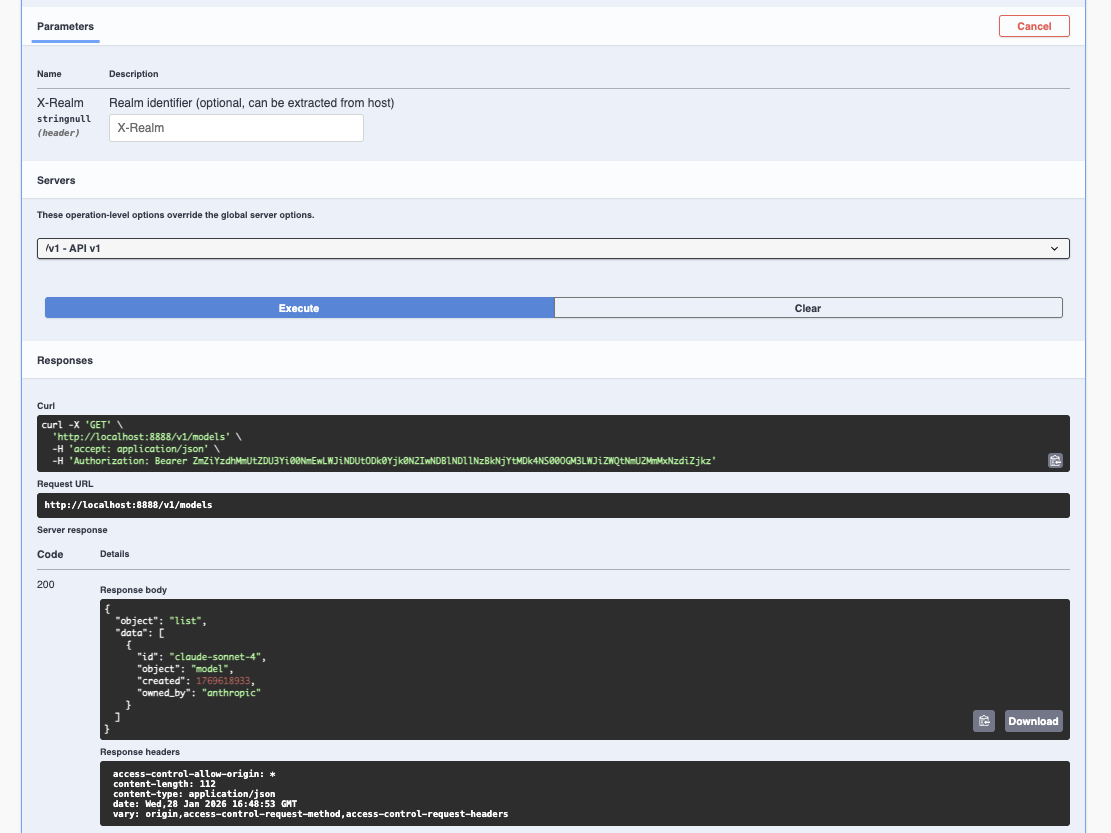
- Klicken Sie auf „Execute"
Sie sehen:
- Request URL: Die tatsächlich aufgerufene URL
- Response Code: HTTP-Status (200 = Erfolg!)
- Response Body: JSON-Liste der verfügbaren Modelle
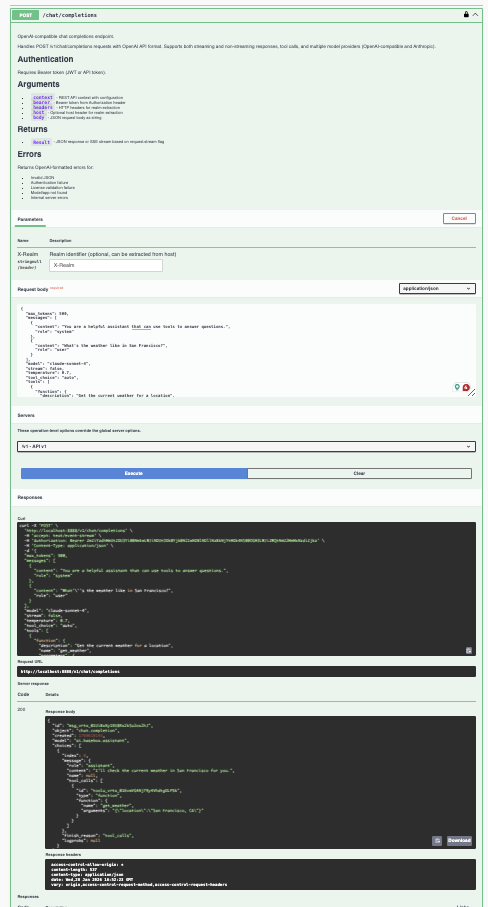
Schritt 3: Eine Chat-Completion-Anfrage senden
- Suchen Sie den Abschnitt „Chat Completions"
- Klicken Sie auf „POST /v1/chat/completions"
- Klicken Sie auf „Try it out"
Sie sehen einen Editor für den Request-Body mit Beispiel-JSON. Passen Sie es an:
{
  "model": "claude-sonnet-4",
  "messages": [
    {
      "role": "user",
      "content": "Explain APIs like I'm 5 years old"
    }
  ],
  "stream": false,
  "temperature": 0.7,
  "max_tokens": 200
}
- Klicken Sie auf „Execute"
- Scrollen Sie nach unten zur Antwort!
Die Funktionen von Swagger UI verstehen
Schema-Dokumentation
Jeder Endpunkt zeigt:
- Parameter: Was Sie senden können
- Request Body: Die erwartete JSON-Struktur
- Response: Was Sie zurückbekommen
- Beispielwerte: Vorausgefüllte Beispiele für den Einstieg
Verschiedene Szenarien testen
Probieren Sie diese in Swagger UI:
1. Einfache Frage:
2. System-Nachricht:
{
  "model": "claude-sonnet-4",
  "messages": [
    {"role": "system", "content": "You are a pirate."},
    {"role": "user", "content": "Tell me about APIs"}
  ]
}
3. Unterhaltung über mehrere Runden:
{
  "model": "claude-sonnet-4",
  "messages": [
    {"role": "user", "content": "What is 2+2?"},
    {"role": "assistant", "content": "2+2 equals 4."},
    {"role": "user", "content": "What about 2+3?"}
  ]
}
Profi-Tipps für Swagger UI
-
Als cURL kopieren: Nach dem Ausführen einer Anfrage kann Swagger UI den entsprechenden curl-Befehl anzeigen.
-
Schema-Validierung: Swagger UI prüft Ihr JSON vor dem Senden – Fehler früh erkennen!
-
Antwortbeispiele: Klappen Sie die Abschnitte „Example Value" auf, um zu sehen, wie Antworten aussehen
-
Fehler testen: Probieren Sie ungültige Anfragen, um zu sehen, wie Fehlerantworten aussehen
Troubleshooting Swagger UI
Problem: „401 Unauthorized"
Lösung: Stellen Sie sicher, dass Sie auf „Authorize" geklickt und das Token korrekt eingegeben haben (einschließlich „Bearer ")
Problem: „404 Not Found"
Lösung: Prüfen Sie die URL – sie sollte auf /v1/api/docs enden
Problem: Schaltfläche „Authorize" nicht sichtbar
Lösung: Manche Browser blockieren Popups – prüfen Sie die Browser-Einstellungen
Problem: Token wird nicht gespeichert
Lösung: Swagger UI speichert Tokens im Browser-Storage – laden Sie die Seite neu
Häufige Fehler (und wie Sie sie vermeiden)
Fehler 1: Das Präfix „Bearer" vergessen
[-] Falsch:
[+] Richtig:
Warum das wichtig ist: Die API erwartet „Bearer", ein Leerzeichen, dann Ihr Token. Ohne das schlägt die Authentifizierung fehl.
Fehler 2: Fehlender Content-Type-Header
[-] Falsch:
[+] Richtig:
Warum das wichtig ist: Der Server muss wissen, dass Sie JSON senden, keine Formulardaten.
Fehler 3: Falsche Nachrichtenrolle
[-] Falsch:
[+] Richtig:
Gültige Rollen: "system", "user", "assistant", "tool"
Fehler 4: Den Realm vergessen
Falls Ihr Setup ihn erfordert:
[-] Falsch:
[+] Richtig:
Fehler 5: Ungültiges JSON
[-] Falsch:
{
  "model": "claude-sonnet-4",
  "messages": [
    {"role": "user", "content": "Hello"}  // Missing comma
    {"role": "assistant", "content": "Hi"}
  ]
}
[+] Richtig:
{
  "model": "claude-sonnet-4",
  "messages": [
    {"role": "user", "content": "Hello"},
    {"role": "assistant", "content": "Hi"}
  ]
}
Profi-Tipp: Nutzen Sie einen JSON-Validator oder den JSON-Modus Ihres Editors, um solche Fehler zu finden.
Fehler 6: Falscher Modellname
[-] Falsch:
[+] Richtig:
Prüfen Sie immer /v1/models, um zu sehen, welche Modelle verfügbar sind.
Troubleshooting
"The problem with troubleshooting is that trouble shoots back." — Unbekannt
Fehler: 401 Unauthorized
Bedeutung: Ihr Token ist ungültig oder fehlt.
Lösungen:
- Prüfen, dass „Bearer " vor dem Token steht
- Token auf Korrektheit prüfen (erneut kopieren und einfügen)
- Sicherstellen, dass das Token nicht gelöscht wurde
Fehler: 403 Forbidden
Bedeutung: Ihre Organisation hat keine gültige Lizenz oder Berechtigung.
Lösungen:
- Lizenzstatus Ihrer Organisation prüfen
- Administrator kontaktieren
- Prüfen, dass Sie den richtigen Realm / die richtige Organisation nutzen
Fehler: 400 Bad Request
Bedeutung: Das Format Ihrer Anfrage ist falsch.
Lösungen:
- JSON validieren (JSON-Validator nutzen)
- Prüfen, dass Pflichtfelder vorhanden sind (
model,messages) - Prüfen, dass die Nachrichtenrollen gültig sind (
"user","assistant"etc.) - Das Schema in Swagger UI auf das korrekte Format prüfen
Fehler: 404 Not Found
Bedeutung: Der Endpunkt existiert nicht oder die URL ist falsch.
Lösungen:
- Basis-URL prüfen
- Prüfen, dass der Pfad
/v1/chat/completionslautet (nicht/api/v1/...) - Sicherstellen, dass die OpenAI-API auf Ihrer Instanz aktiviert ist
Fehler: 500 Internal Server Error
Bedeutung: Auf Serverseite ist etwas schiefgegangen.
Lösungen:
- Server-Logs prüfen (falls Sie Zugriff haben)
- Erneut versuchen – könnte ein vorübergehendes Problem sein
- Support kontaktieren mit:
- Ihrer Anfrage (ohne das Token!)
- Der Fehlerantwort
- Dem Zeitpunkt des Auftretens
Streaming-Probleme
Problem: Streaming-Antworten brechen abrupt ab
Lösungen:
- Netzwerkverbindung prüfen
- Timeout-Einstellungen im Client erhöhen
- Prüfen, dass das Modell Streaming unterstützt
- Server-Logs auf Fehler prüfen
Modell nicht gefunden
Fehler: Model „xyz" not found
Lösungen:
/v1/modelsaufrufen, um verfügbare Modelle zu sehen- Schreibweise des Modellnamens prüfen (Groß-/Kleinschreibung zählt!)
- Prüfen, dass das Modell für Ihre Organisation konfiguriert ist
Kurzreferenz
Endpunkte
| Methode | Endpunkt | Beschreibung |
|---|---|---|
POST |
/v1/chat/completions |
Mit KI-Modellen chatten |
GET |
/v1/models |
Verfügbare Modelle auflisten |
GET |
/v1/api/docs |
Swagger-UI-Dokumentation |
Erforderliche Header
Content-Type: application/json
Authorization: Bearer YOUR_TOKEN_HERE
X-Realm: your-org-name  (if required)
Minimale Anfrage
Schnelle curl-Vorlage
curl -X POST YOUR_URL/v1/chat/completions \
  -H "Content-Type: application/json" \
  -H "Authorization: Bearer YOUR_TOKEN" \
  -H "X-Realm: YOUR_REALM" \
  -d '{
    "model": "claude-sonnet-4",
    "messages": [{"role": "user", "content": "YOUR_MESSAGE"}]
  }'
Nächste Schritte
Jetzt, da Sie die Grundlagen beherrschen:
- Tool Calling erkunden: Lernen, wie die KI Funktionen nutzt
- Anfragen optimieren: Mit temperature, max_tokens etc. experimentieren
- Eine Integration bauen: Die OpenAI-Client-Bibliothek Ihrer bevorzugten Programmiersprache nutzen
- Architektur-Doku lesen: Technische Details in
openai-api-architecture.md
"The early bird might get the worm, but the second mouse gets the cheese." — Unbekannt
Zuletzt aktualisiert: Januar 2026
Fragen? Siehe die Architektur-Dokumentation oder kontaktieren Sie den Support.