Licensed to be used in conjunction with basebox, only.
// integration
Ihren Code-Editor mit basebox verbinden
Gilt für
Produkt: Cloud · Server · Zielgruppe: Entwickler / Integrator
"The best way to get a project done faster is to start sooner." — Jim Highsmith
KI-Coding-Unterstützung direkt in Ihrem Editor – mit den KI-Modellen in Ihrer basebox.
Dieser Leitfaden zeigt, wie Sie gängige Code-Editoren (VS Code, Zed, Neovim, JetBrains-IDEs) mit Ihrer basebox-Instanz verbinden. Einmal eingerichtet, haben Sie KI-gestützte Code-Vervollständigung, Chat-Unterstützung und mehr – alles mit den KI-Modellen in Ihrer basebox.
Was Sie bekommen
✅ KI-Code-Vervollständigung in Ihrem bevorzugten Editor
✅ Chat mit der KI über Ihren Code
✅ Code-Erklärungen und Vorschläge
✅ Refactoring-Unterstützung
✅ Privacy first – Ihr Code bleibt auf Ihrer Infrastruktur
Wählen Sie Ihren Weg
Kürzester Weg: → Direkt zum Zed-Editor-Setup (direkte Verbindung, kein Goose nötig)
Sie brauchen fortgeschrittene KI-Agenten-Funktionen? → Siehe Goose-Integration
Sie nutzen VS Code? → Siehe VS Code direkt unter dem Inhaltsverzeichnis
Sie nutzen JetBrains? → Siehe RustRover / JetBrains IDEs
Inhalt
- VS Code
- Architekturübersicht
- Zusammenfassung: Was wird wofür genutzt?
- Vergleich lokaler LLM-Backends
- Einführung in Goose
- Voraussetzungen & API-Token erhalten
- Editorspezifische Konfiguration
- 7.1 Zed Editor (direkt an die basebox-API)
- 7.2 Goose CLI
- 7.3 Goose Desktop App (Standalone)
- 7.4 RustRover / JetBrains IDEs
- 7.5 Neovim (mit goose.nvim-Plugin)
- Troubleshooting & Best Practices
VS Code
Setup:
Installieren Sie die Erweiterung „VS Code Goose" (block.vscode-goose).
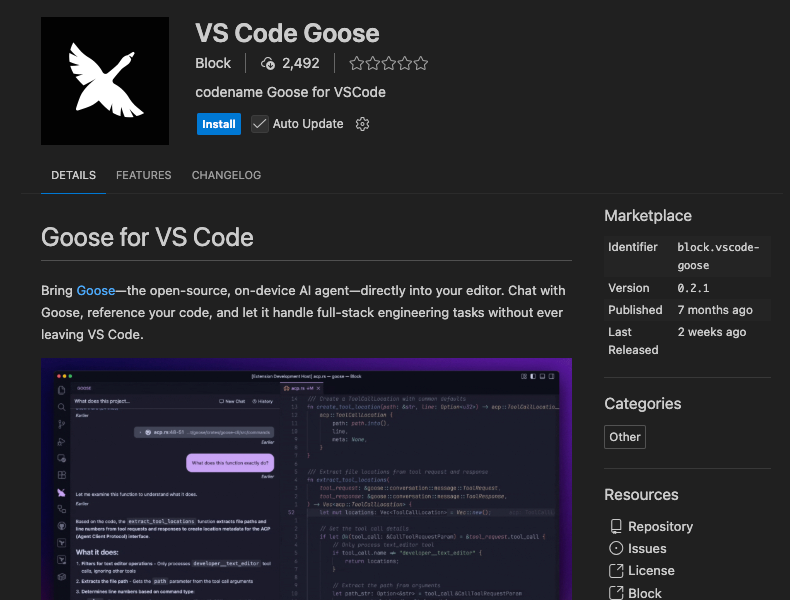
Die Erweiterung nutzt die Goose CLI. Ist sie installiert und mit basebox verbunden (siehe Goose CLI und API-Token erhalten), ist keine weitere Einrichtung nötig:
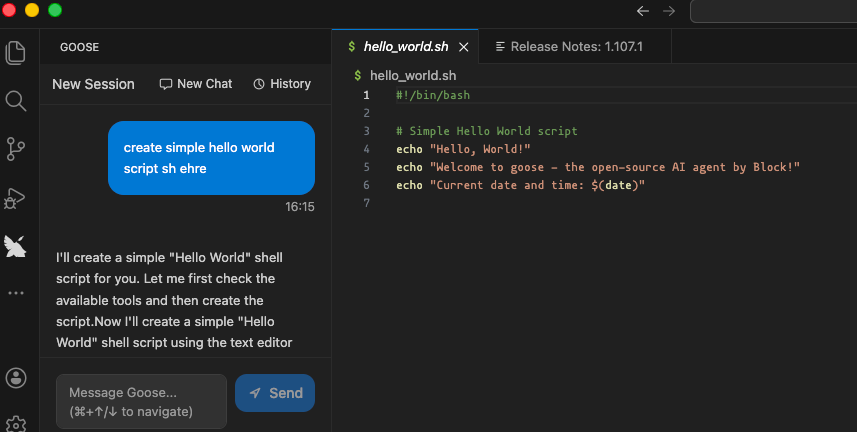
Funktionen: Inline-Diff-Vorschauen, Projektnavigation, Terminal-Integration.
Architekturübersicht
graph TD
   subgraph basebox["basebox-Plattform"]
      direction TB
      baseboxAPI[basebox OpenAI API<br>/v1/chat/completions<br>/v1/models]
   end

   subgraph llm["LLM-Backends (in basebox konfiguriert)"]
      direction RL
      TGI[Text Generation Inference<br>TGI]
      vLLM[vLLM]
      Ollama[Ollama]
      GCPVertex[GCP Vertex AI]
      OtherLLM[Andere OpenAI-kompatible<br>Dienste]
   end

   subgraph agent["Agentenschicht"]
      Goose[Goose<br>Autonomer KI-Agent]
      ZedAgent[Zed – eingebauter Agent]
      Jetbrains[JetBrains ACP<br>Beta]
   end

   subgraph gui["GUI-/Editor-Schicht"]
      Zed[Zed Editor]
      VSCode[VS Code]
      RustRover[RustRover<br>JetBrains]
      Neovim[Neovim]
      GooseDesktop[Goose Desktop App]
      OtherGUI[Andere IDEs / Editoren]
   end

%% LLM Backends connect to basebox
   TGI --> baseboxAPI
   vLLM --> baseboxAPI
   Ollama --> baseboxAPI
   GCPVertex --> baseboxAPI
   OtherLLM --> baseboxAPI

%% basebox API connects to agents
   baseboxAPI --> Goose
   baseboxAPI -->|Direkt| ZedAgent
   baseboxAPI -->|Direkt| Jetbrains

%% Agents connect to editors
   Goose --> VSCode
   Goose --> Neovim
   Goose --> GooseDesktop
   Goose --> RustRover
   Goose --> OtherGUI

   Jetbrains --> RustRover
   ZedAgent --> Zed
   GooseDesktop --> RustRover

%% Styling & Boundaries
   classDef baseboxc fill:#e7f3ff,stroke:#0066cc,stroke-width:3px;
   classDef llmc fill:#d1e7dd,stroke:#0f5132,stroke-width:2px;
   classDef agentc fill:#fff3cd,stroke:#664d03,stroke-width:2px;
   classDef guic fill:#cfe2ff,stroke:#084298,stroke-width:2px;

   class baseboxAPI baseboxc;
   class TGI,vLLM,Ollama,GCPVertex,OtherLLM llmc;
   class Goose,ZedAgent,Jetbrains agentc;
   class Zed,VSCode,RustRover,Neovim,GooseDesktop,OtherGUI guic;
Kurz gesagt: Die LLM-Backends (TGI, vLLM, Ollama etc.) werden in basebox konfiguriert. basebox stellt eine einheitliche OpenAI-kompatible API bereit, mit der sich alle Ihre Editoren verbinden können. Keine Proxys nötig – ein API-Endpunkt für alle Editoren.
Zusammenfassung: Was wird wofür genutzt?
Diese Architektur bildet einen einheitlichen KI-Coding-Stack. So trägt jede Schicht bei:
basebox OpenAI API (die Brücke)
Stellen Sie sich basebox als Universalübersetzer vor. Es nimmt Anfragen von Editoren (die OpenAIs Sprache sprechen) und leitet sie an das LLM-Backend weiter, das Sie konfiguriert haben. Ob der Endpunkt TGI, vLLM, Ollama oder Google Vertex AI ist – basebox bedient alles über eine konsistente API.
Zentrale Vorteile:
- Eine API für alles: Keine unterschiedlichen Endpunkte je LLM konfigurieren
- Einheitliche Authentifizierung: Ein Token für alles
- Modellverwaltung: Modelle wechseln, ohne Editor-Konfigurationen anzufassen
- Enterprise-Funktionen: Eingebaute Ratenbegrenzung, Nutzungsverfolgung und mehr
LLM-Backends (das Gehirn)
Das sind die eigentlichen KI-Modelle, die die Arbeit machen. basebox unterstützt mehrere Backends:
- Lokale Modelle: TGI, vLLM, Ollama (laufen auf Ihrer Hardware)
- Cloud-Modelle: Google Vertex AI, OpenAI API oder jeder OpenAI-kompatible Dienst
- Hybrid: Nach Bedarf kombinieren
Agentenschicht (der Koordinator)
Übersetzt KI-Antworten in umsetzbare Aufgaben und steuert komplexe mehrstufige Workflows:
- Goose – Vollständiger autonomer Agent, der planen, Dateien bearbeiten, Befehle ausführen, debuggen und komplexe Aufgaben iterativ lösen kann
- Zed – eingebauter Agent – Leichtgewichtiger Assistent direkt in Zed für Inline-Bearbeitungen und Chat
- JetBrains ACP (Beta) – Neu in RustRover 2025.3+, Assistent mit eingeschränktem Zugriff (Lesen ja, Schreiben nein, manueller Ablauf)
Zentrale Vorteile:
- Autonomer Betrieb: Bearbeitet mehrstufige Aufgaben ohne ständige Anleitung
- Iterative Problemlösung: Kann debuggen, testen und Lösungen verfeinern
- Tool-Integration: Nutzt Dateisysteme, Terminals und Entwicklungswerkzeuge
GUI-/Editor-Schicht (Ihre Oberfläche)
Wo Sie interagieren und arbeiten. Die meisten Editoren (Stand 12/2025) nutzen Goose für tiefe agentische Funktionen, während Zed als einziger einen eigenen eingebauten Agenten hat, der sich direkt mit basebox verbindet.
Integrationsansätze:
- Direkte Verbindung: Editor → basebox-API (ohne Zwischenschicht, genutzt von Zed)
- Über Agenten: Editor → Goose → basebox-API (für komplexe Workflows)
Vergleich lokaler LLM-Backends
| Backend | Stärken | Am besten für | Latenz (interaktiv) | Speichereffizienz | Multi-GPU | Tool-Calling-Unterstützung | Empfohlen? |
|---|---|---|---|---|---|---|---|
| Ollama | Einfachstes Setup, Modelle per Befehl, eingebaute Bibliothek | Prototyping, Einsteiger, kleine Modelle | Mittel–Hoch | Gut | Begrenzt | Gut | Ja (einfach) |
| TGI | Hugging-Face-Integration, gated/private Modelle, stabil | Produktionsnahe Setups, große Modelle | Niedrig–Mittel | Sehr gut | Ja | Exzellent | Ja |
| vLLM | Höchster Durchsatz, PagedAttention, Continuous Batching, geringste Latenz | Performance-kritisch, große Modelle, interaktiv | Am niedrigsten | Exzellent | Ja | Exzellent (mit Flags) | Insgesamt am besten |
Warum vLLM 2025 als beste Wahl empfohlen wird
Für die meisten Entwickler auf Consumer- oder Workstation-GPUs liefert vLLM:
- Hoher Durchsatz: Optimierungen wie PagedAttention und Continuous Batching
- Speichereffizienz: Verarbeitet lange Kontexte (128k+) effizienter als Alternativen
- OpenAI-API-Kompatibilität: Drop-in-Ersatz für OpenAI-API-Endpunkte
- Interaktive Leistung: Optimiert für das Hin und Her von Coding-Assistenz
Einführung in Goose
Goose ist Blocks quelloffenes, local-first, autonomes KI-Agenten-Framework (veröffentlicht 2025, aktiv gepflegt). Anders als klassische Code-Vervollständigung (GitHub Copilot, Cursor Autocomplete) ist Goose ein vollständiger Reasoning-Agent, der:
Kernfähigkeiten:
- Mehrstufige Planung: Zerlegt komplexe Aufgaben in handhabbare Schritte
- Dateisystem-Operationen: Liest, schreibt und bearbeitet mehrere Dateien
- Befehlsausführung: Führt Tests, Builds, Deployments und Debugging-Befehle aus
- Iterative Problemlösung: Analysiert Ergebnisse und passt den Ansatz automatisch an
- Erweiterbares Tool-System: Nutzt MCP (Model Context Protocol) für eigene Integrationen
- Echtzeit-Feedback: Zeigt Diff-Vorschauen und Freigabeschritte vor Änderungen
Warum Goose?
Privacy first: Läuft vollständig auf Ihrem Rechner mit Ihrem lokalen LLM Editor-agnostisch: Funktioniert mit VS Code, Neovim, JetBrains und mehr Integration: Projektkontext über MCP-Erweiterungen Transparenter Betrieb: Sie sehen genau, was geplant und getan wird
Praxisbeispiel:
Statt eine Testdatei von Hand zu schreiben, sagen Sie Goose: "Create comprehensive unit tests for my authentication module". Goose wird: 1. Die Struktur Ihres Auth-Codes analysieren 2. Nötige Testfälle identifizieren 3. Testdateien mit korrekten Imports anlegen 4. Die Tests ausführen, um ihre Funktion zu prüfen 5. Gefundene Probleme beheben 6. Ihnen die getestete Test-Suite präsentieren
Voraussetzungen & API-Token erhalten
Bevor Sie Ihren Editor konfigurieren, brauchen Sie zwei Dinge:
- Eine laufende basebox-Instanz (mit konfigurierten LLM-Backends)
- Ein API-Token zur Authentifizierung Ihrer Anfragen
API-Token erhalten
Token-Haiku:
API token needed Like a key to unlock doors Get yours from basebox
Schritt für Schritt:
- Bei basebox anmelden: Öffnen Sie Ihre basebox-Instanz im Browser
- Lokale Entwicklung:
http://localhost:5173 -
Cloud-Instanz:
https://your-org.basebox.ai -
API-Schlüssel öffnen: Öffnen Sie Administration → API-Schlüssel.
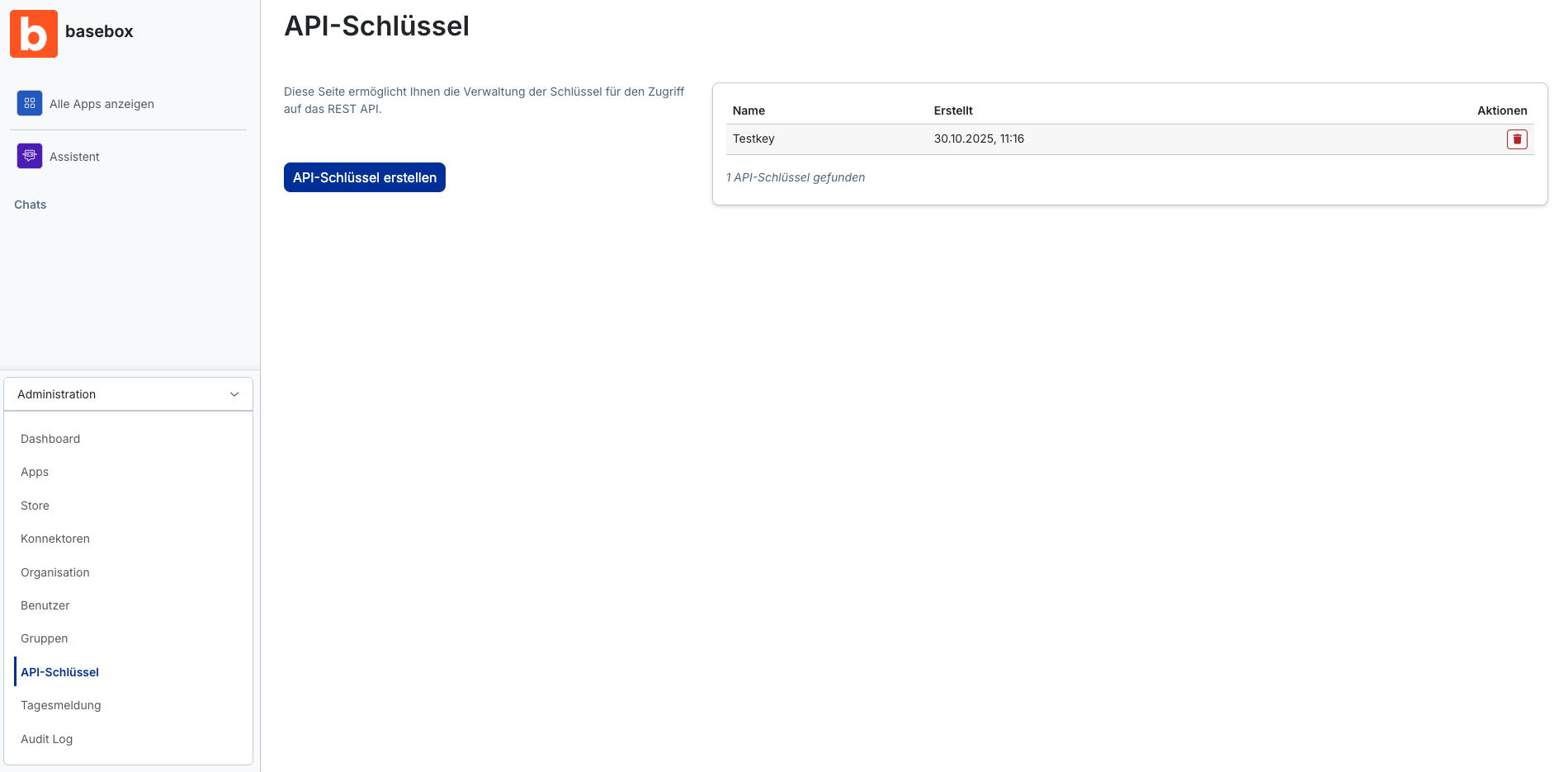
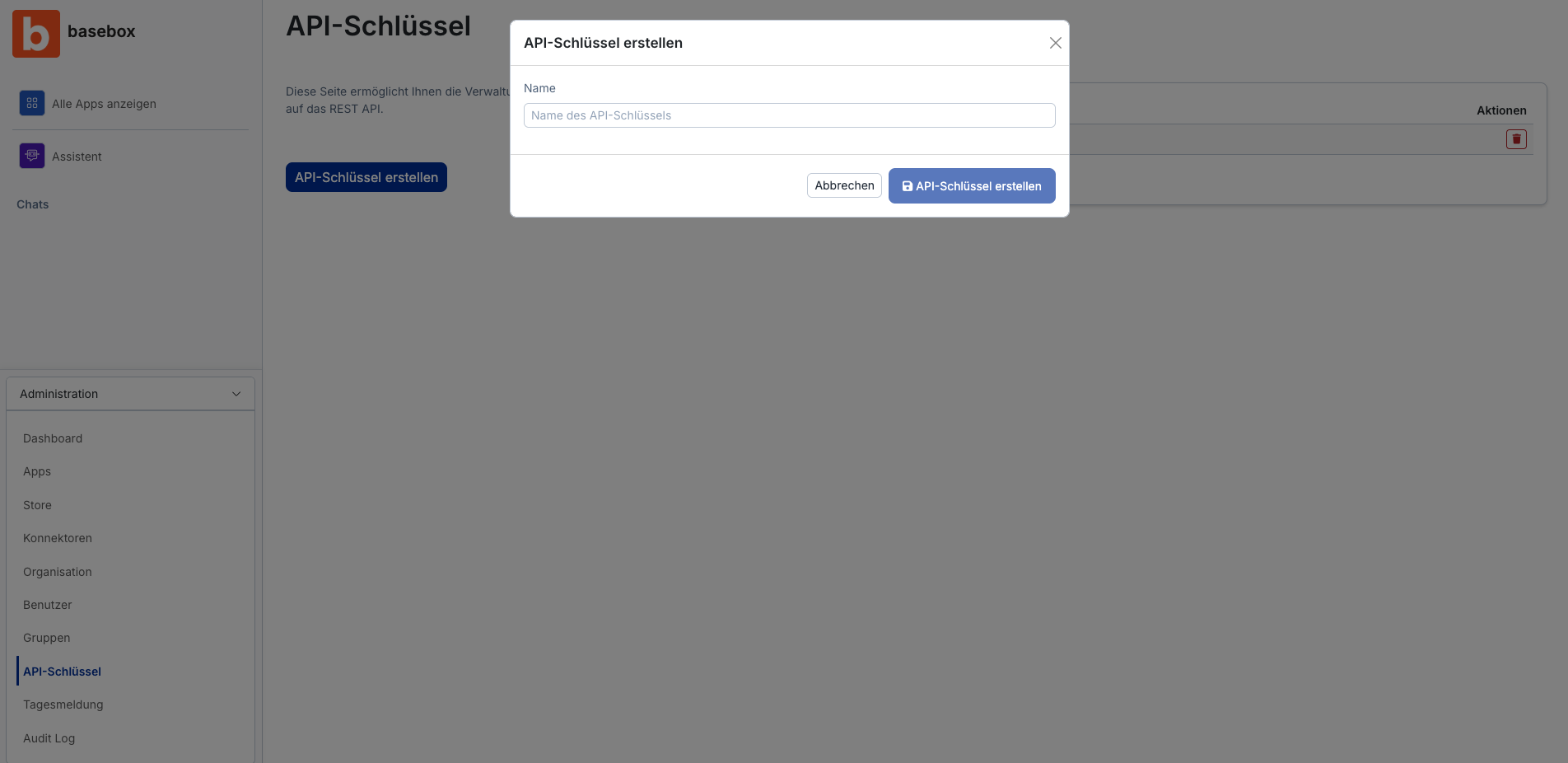
- Schlüssel erstellen: Klicken Sie auf API-Schlüssel erstellen, geben Sie einen Namen ein, an dem Sie den Einsatzzweck erkennen (etwa „Ticketsystem“), und klicken Sie im Dialog auf API-Schlüssel erstellen.
- Schlüssel kopieren:
- Der Schlüssel wird nur einmal angezeigt. Kopieren Sie ihn sofort.
- Bewahren Sie ihn sicher auf (Passwortmanager, Umgebungsvariable o. Ä.).
- Haben Sie ihn verloren, erstellen Sie einen neuen.
Profi-Tipp: Erstellen Sie separate Tokens für verschiedene Editoren/Werkzeuge. So können Sie den Zugriff bei Bedarf gezielt widerrufen!
basebox-API-Endpunkte
Ihre basebox-Instanz stellt die OpenAI-kompatible API bereit unter:
- Basis-URL:
http://localhost:8888(lokal) oderhttps://your-org.basebox.ai(Cloud) - Chat Completions:
POST /v1/chat/completions - Modelle auflisten:
GET /v1/models - Swagger UI:
GET /v1/api/docs(interaktive API-Dokumentation!)
Schnelltest: Prüfen Sie, dass Ihr Setup funktioniert:
Sehen Sie eine Modellliste, funktioniert das Setup.
Editorspezifische Konfiguration
Jeder Editor hat seinen eigenen Integrationsansatz. Wählen Sie den Abschnitt zu Ihrer bevorzugten Entwicklungsumgebung:
1. Zed Editor (direkt an die basebox-API)
Warum Zed: Inline-Bearbeitungen, eingebauter Agent, Rust-/JavaScript-/TypeScript-Unterstützung und direkte Verbindung zur basebox-API ohne Goose.
Architektur: Zed → basebox-API (direkte Verbindung, kein Goose nötig)
Einrichtung:
-
Zed-Provider konfigurieren:
-
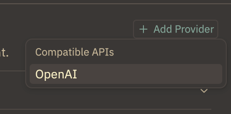
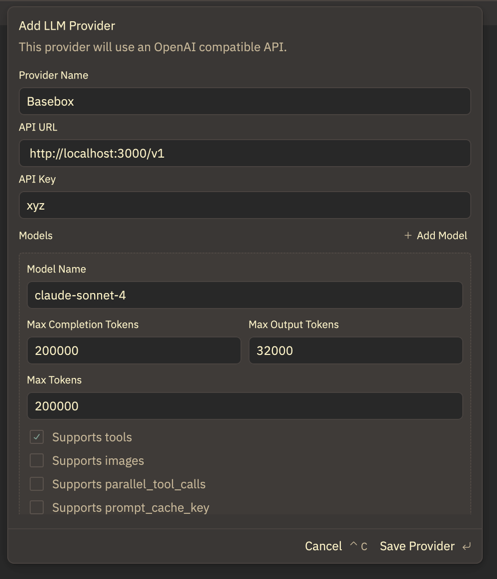
Öffnen Sie Zed → Settings → Assistant → Add Provider

- OpenAI-kompatiblen Endpunkt hinzufügen:
- Provider Type: „OpenAI Compatible"
- Name: „basebox" (oder ein Name Ihrer Wahl)
- URL:
http://localhost:8888/v1(lokal) oderhttps://your-org.basebox.ai/v1(Cloud) - Model: Verfügbare Modelle mit
GET /v1/modelsprüfen (z. B.claude-sonnet-4) - API Key: Ihr basebox-API-Token (das Sie eben erstellt haben!)
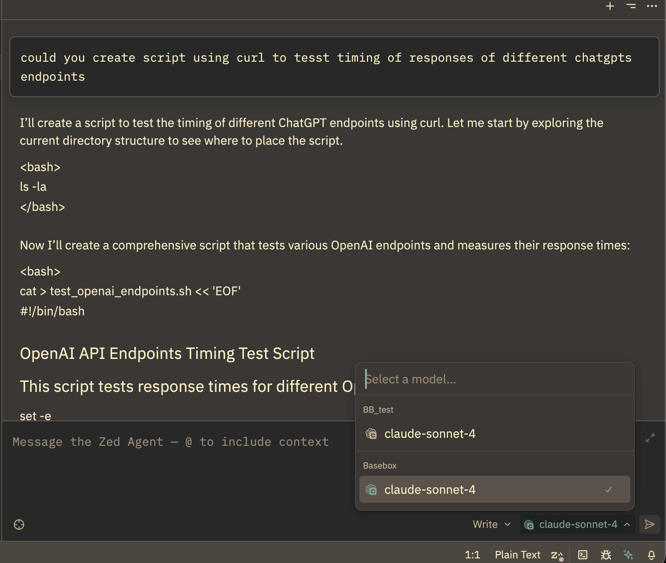
- Setup prüfen:
Unten in Zed sollte „basebox" für den Chat verfügbar sein:
Erweiterte Nutzung mit MCP-Erweiterungen:
Wichtig: Ohne aktivierte MCP-Erweiterungen (Model Context Protocol) erklärt Zed Schritte nur im Chat, statt Aktionen auszuführen. Für die volle Integration:
- Gehen Sie zu Zed Settings → Extensions → MCP
-
Aktivieren Sie Standard-MCPs wie:
-
Dateisystem-Operationen
- Terminalzugriff
- Git-Integration
Damit wird Zed von einer reinen Chat-Oberfläche zu einer Coding-Assistenz, die Ihren Code ändern und Befehle ausführen kann.
2. Goose CLI
Warum CLI: Für terminalzentrierte Workflows, Automatisierungsskripte und alle, die die Kommandozeile GUI-Anwendungen vorziehen.
Installation:
macOS (empfohlen):
Andere Plattformen: Siehe Installationsleitfaden für Linux, Windows und manuelle Installation.
Erstkonfiguration:
Starten Sie den Konfigurationsassistenten:
Ablauf Schritt für Schritt:
┌   goose-configure
│
◇  What would you like to configure?
│  Configure Providers
│
◇  Which model provider should we use?
│  OpenAI
│
●  OPENAI_API_KEY is set via environment variable
│
◇  Would you like to save this value to your keyring?
│  No
│
●  OPENAI_HOST is already configured
│
◇  Would you like to update this value?
│  No
│
●  OPENAI_BASE_PATH is already configured
│
◇  Would you like to update this value?
│  No
│
◇  Model fetch complete
│
◇  Select a model:
│  claude-sonnet-4
│
◐  Checking your configuration...
└  Configuration saved successfully to /Users/yarenty/.config/goose/config.yaml
Konfigurationsdetails:
- Provider: „OpenAI" für die OpenAI-kompatible API wählen
- API Key: Ihr basebox-API-Token (per Umgebungsvariable oder im Keyring gespeichert)
- Host: URL Ihrer basebox-Instanz (z. B.
http://localhost:8888lokal,https://your-org.basebox.aiCloud) - Base Path:
/v1(der Pfad der OpenAI-kompatiblen API) - Model: Aus den verfügbaren Modellen wählen (prüfen mit
GET /v1/models)
Tipp: Die Goose Desktop App nutzt dieselbe Konfigurationsdatei – wer eines konfiguriert, konfiguriert beide.
Grundnutzung:
# Start a new session
goose session start

# Run a specific task
goose run "analyze the performance bottlenecks in this codebase"

# Continue previous session
goose session list
goose session resume [session-id]
3. Goose Desktop App (Standalone)
Warum Desktop App: Grafische Oberfläche und automatische Updates; für alle, die GUI der Kommandozeile vorziehen, sowie für Prototyping und kurze Aufgaben.
Installationsoptionen:
macOS (empfohlen, mit Auto-Updates):
Direkter Download: - Besuchen Sie block.github.io/goose - Laden Sie den passenden Installer für Ihr Betriebssystem - Unterstützt macOS, Windows und Linux - Geeignet für abgeschottete/Offline-Umgebungen
Ersteinrichtung:
-
Anwendung starten: Öffnen Sie Goose aus dem Programme-Ordner (macOS) oder Startmenü (Windows)
-
Provider konfigurieren: Die App fragt beim ersten Start nach der Provider-Konfiguration
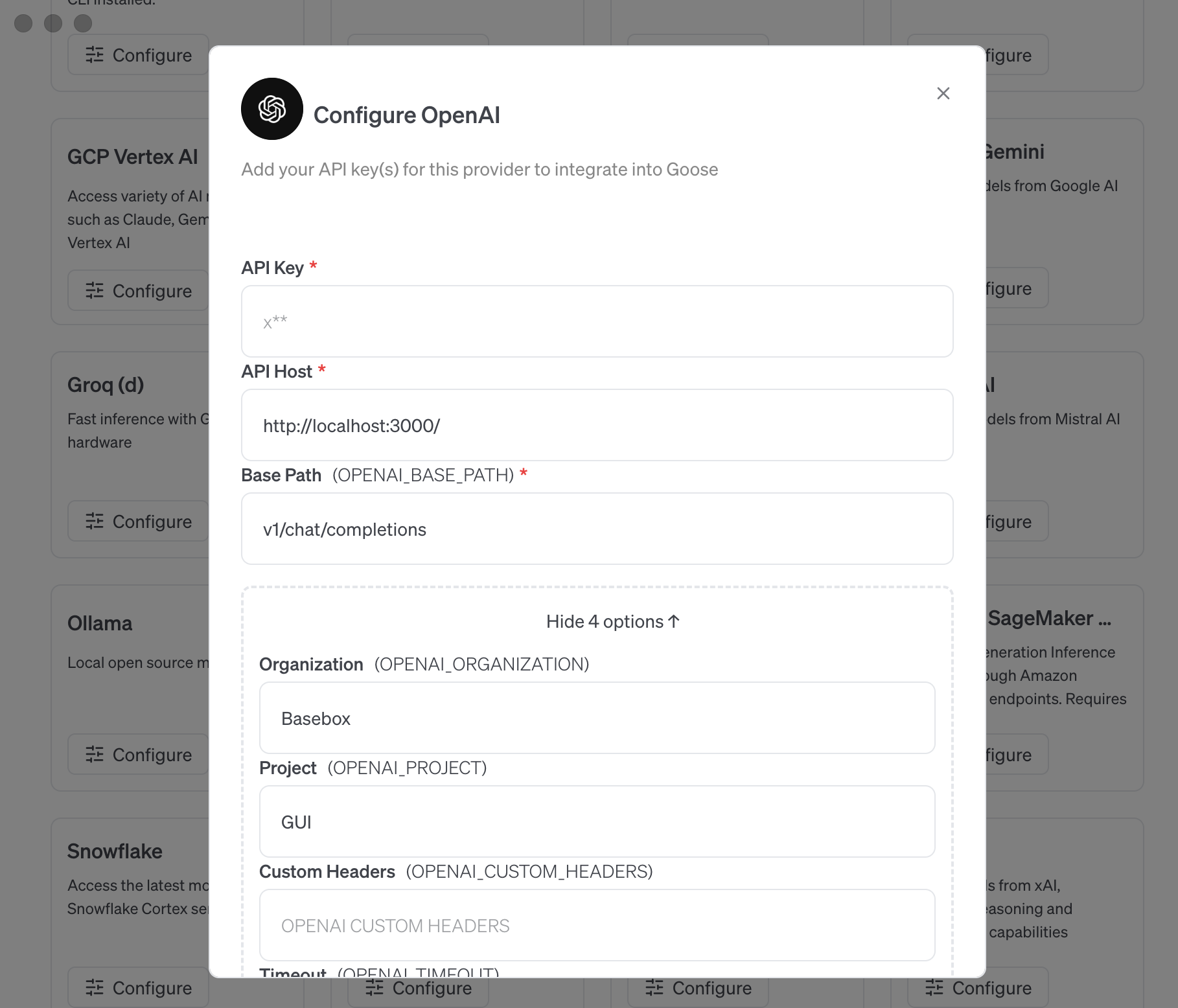
Konfigurationsschritte:
- Provider Type: „OpenAI Compatible"
- Name: „basebox" oder ein Name Ihrer Wahl
- Base URL:
http://localhost:8888/v1(lokal) oderhttps://your-org.basebox.ai/v1(Cloud) - Model: Verfügbare Modelle prüfen (z. B.
claude-sonnet-4) - API Key: Ihr basebox-API-Token
Erweiterungen & Fähigkeiten:
Goose Desktop bringt Erweiterungen für Entwickler mit:
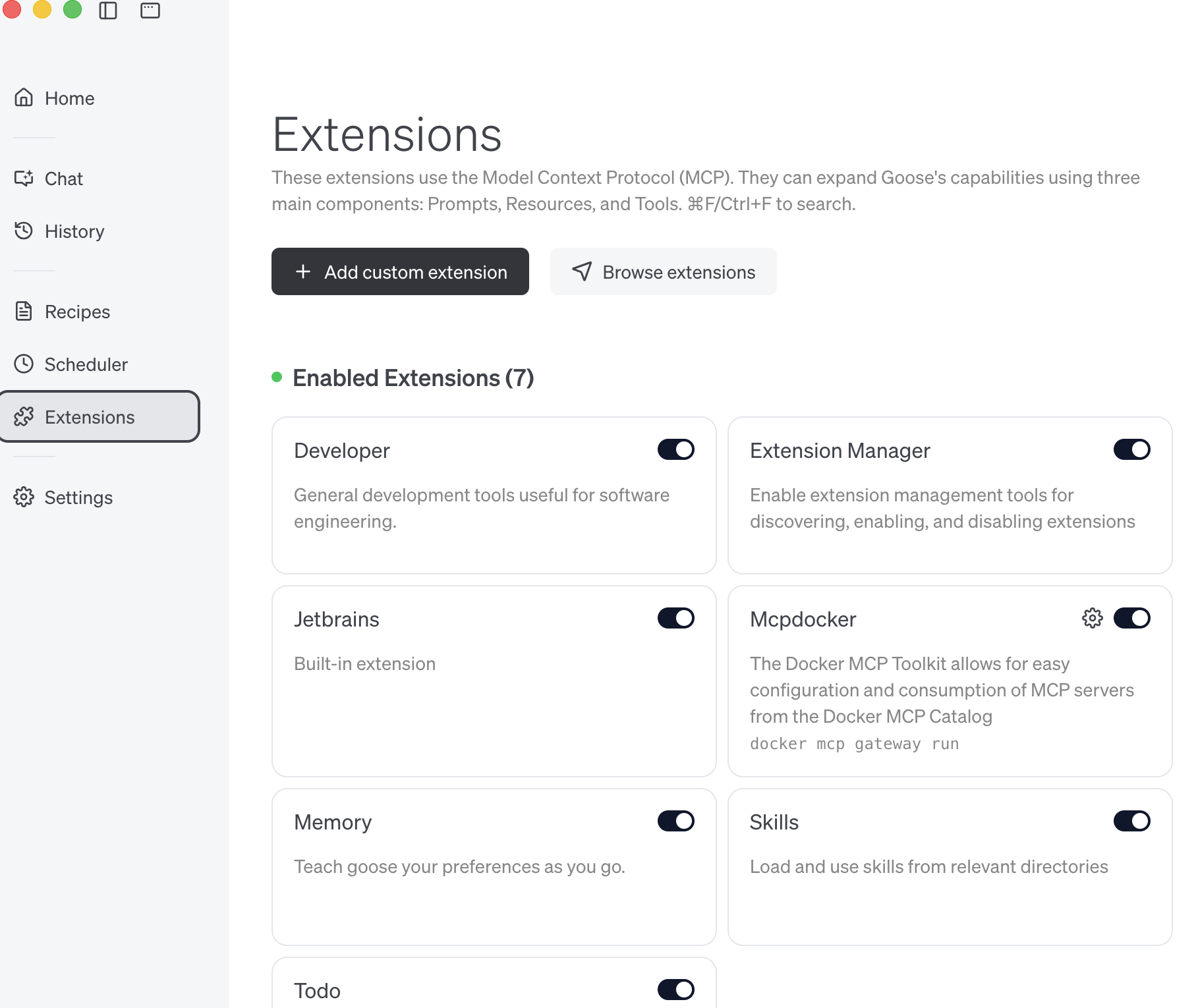
Vorinstallierte Erweiterungen (standardmäßig aktiv):
- Dateisystem: Projektdateien lesen, schreiben und navigieren
- Terminal: Befehle ausführen und Ausgabe sehen
- Git: Repository-Operationen und Versionskontrolle
- Code-Analyse: Projektstruktur und Abhängigkeiten verstehen
- Websuche: Dokumentation und Lösungen recherchieren (optional)
Eigene Erweiterungen:
- Im Erweiterungs-Marktplatz nach Spezialwerkzeugen stöbern
- Sprachspezifische Erweiterungen installieren (Python, Rust, JavaScript etc.)
- Integrationen für Datenbanken, Cloud-Dienste und APIs ergänzen
Praxisbeispiel:
Aufgabe: "Create simple benchmarking test in /scripts directory that will try to connect to different LLMs and get response time including tokens/second"
Ablauf bei Goose: 1. Planungsphase: Analysiert die Anfrage und zerlegt sie in Schritte 2. Umsetzung: Legt Verzeichnisstruktur und Testdateien an 3. Code-Generierung: Schreibt Benchmark-Skripte mit Fehlerbehandlung 4. Test: Führt den Code aus, um die Funktion zu prüfen 5. Dokumentation: Ergänzt Kommentare und Nutzungshinweise
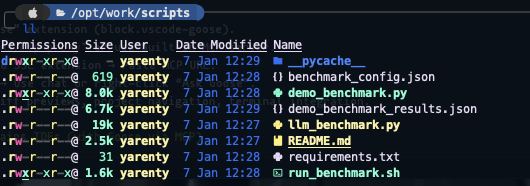
Ergebnis: - Goose generiert den Code und testet ihn - Behandelt Sonderfälle und Fehlerszenarien - Liefert Dokumentation und Nutzungsbeispiele - Kann auf Basis von Testergebnissen iterieren und verbessern
4. RustRover / JetBrains IDEs
Aktueller Stand (Januar 2025): Die JetBrains-MCP-Integration ist in der Beta mit eingeschränkter Funktionalität. Zwei Ansätze stehen zur Verfügung, jeder mit Abwägungen.
Option 1: Natives JetBrains MCP (Beta)
Was funktioniert: - Grundlegende Chat-Funktionalität - Code-Analyse und Vorschläge - Integration mit den bestehenden KI-Funktionen von JetBrains
Aktuelle Einschränkungen: - Kann Dateien nicht eigenständig ändern - Begrenzte Tool-Calling-Fähigkeiten - Erfordert manuelle Eingriffe für die meisten Aufgaben - Beta-Stabilitätsprobleme
Einrichtung:
1. Auf die neueste Version aktualisieren: RustRover 2025.3.1 oder neuer
2. MCP-Unterstützung aktivieren:
- Settings → Tools → AI → MCP
- „Model Context Protocol" aktivieren
3. Provider konfigurieren:
- OpenAI-kompatiblen Provider hinzufügen
- URL: http://localhost:8888/v1 (lokal) oder https://your-org.basebox.ai/v1 (Cloud)
- Model: Verfügbare Modelle prüfen (z. B. claude-sonnet-4)
- API Key: Ihr basebox-API-Token
Aktuelles Erlebnis:
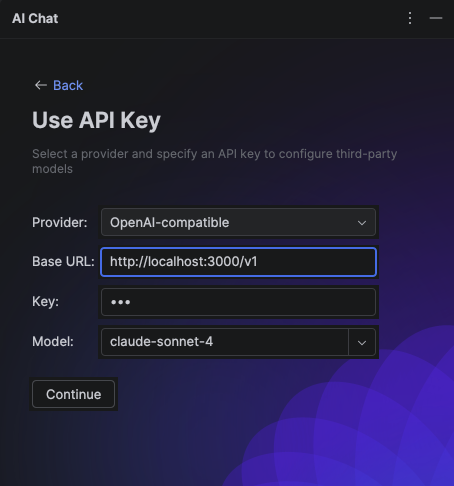
Hinweis: Stand Januar 2025 wirkt diese Integration im Vergleich zu anderen Editoren unvollständig. Der Chat funktioniert, aber die autonomen Fähigkeiten anderer KI-Coding-Assistenten fehlen.
Option 2: Goose Desktop mit JetBrains-MCP-Erweiterung
Dieser Ansatz nutzt Goose Desktop als primäre KI-Oberfläche und stellt Ihr JetBrains-Projekt über MCP bereit.
Einrichtung: 1. MCP in RustRover aktivieren: - Settings → Tools → AI → MCP - MCP-Server aktivieren - Die bereitgestellte SSE-URL (Server-Sent Events) kopieren
- Goose Desktop konfigurieren:
- Goose Desktop öffnen
- Extensions → Add Remote Extension
- Die SSE-URL aus RustRover einfügen
-
Die Erweiterung „JetBrains" oder „RustRover" nennen
-
Loslegen:
- Goose-Sitzung starten
- JetBrains in Ihren Prompts referenzieren: "Using the JetBrains extension, refactor the authentication module"
Vorteile: - Volle Goose-Fähigkeiten (Dateibearbeitung, Befehlsausführung, iteratives Debugging) - Projektkontext über JetBrains - Cargo- und Testausführung integriert - Diff-Freigabe-Workflows
Nachteile: - Erfordert den parallelen Betrieb von JetBrains und Goose Desktop - Kann bei mehreren offenen JetBrains-Instanzen zu Konflikten führen - Komplexerer Workflow als native Lösungen
Empfehlung:
Für ernsthafte Entwicklungsarbeit ziehen Sie Zed oder Neovim mit Goose in Betracht, bis die native MCP-Unterstützung von JetBrains ausgereift ist. Die aktuelle Beta kann Dateien noch nicht eigenständig ändern und erfordert für die meisten Aufgaben manuelle Eingriffe.
5. Neovim (mit goose.nvim-Plugin)
Warum Neovim: Terminal-nativer Workflow, anpassbare Konfiguration, alle Operationen per Tastenkürzel.
Hinweis: Dieses Setup ist bewusst meinungsstark und setzt Vertrautheit mit der Neovim-Konfiguration voraus. Neu bei Neovim? Beginnen Sie besser mit Zed oder Goose Desktop.
Voraussetzungen:
-
Neovim installieren (neueste stabile Version):
-
LazyVim installieren (Neovim-Konfiguration):
Goose-Plugin installieren:
Legen Sie die Plugin-Konfigurationsdatei an:
# Create plugins directory
mkdir -p ~/.config/nvim/lua/plugins/

# Create goose plugin configuration
cat > ~/.config/nvim/lua/plugins/goose.lua << 'EOF'
return {
  {
    'azorng/goose.nvim',
    dependencies = {
      "nvim-lua/plenary.nvim",           -- Required for async operations
      "MeanderingProgrammer/render-markdown.nvim",  -- Improved markdown rendering
    },
    config = function()
      require('goose').setup({
        -- Plugin Configuration
        prefered_picker = nil,                     -- Auto-detect best available picker
        default_global_keymaps = true,             -- Enable default keymaps

        -- Keymapping Configuration
        keymap = {
          global = {
            toggle = '<leader>gg',                 -- Open/close goose
            open_input = '<leader>gi',             -- Focus input window
            open_input_new_session = '<leader>gI', -- New session + focus input
            open_output = '<leader>go',            -- Focus output window
            toggle_focus = '<leader>gt',           -- Toggle focus between goose and editor
            close = '<leader>gq',                  -- Close UI windows
            toggle_fullscreen = '<leader>gf',      -- Toggle fullscreen mode
            select_session = '<leader>gs',         -- Select/load session
            goose_mode_chat = '<leader>gmc',       -- Chat mode (no tools)
            goose_mode_auto = '<leader>gma',       -- Full agent mode (default)
            configure_provider = '<leader>gp',     -- Quick provider switching
            open_config = '<leader>g.',            -- Open goose config
            inspect_session = '<leader>g?',        -- Debug session info
            diff_open = '<leader>gd',              -- View file diffs
            diff_next = '<leader>g]',              -- Next diff
            diff_prev = '<leader>g[',              -- Previous diff
            diff_close = '<leader>gc',             -- Close diff view
            diff_revert_all = '<leader>gra',       -- Revert all changes
            diff_revert_this = '<leader>grt',      -- Revert current file
          },
          window = {
            submit = '<cr>',                       -- Submit prompt (normal)
            submit_insert = '<cr>',                -- Submit prompt (insert)
            close = '<esc>',                       -- Close windows
            stop = '<C-c>',                        -- Stop goose execution
            next_message = ']]',                   -- Navigate messages
            prev_message = '[[',                   -- Navigate messages
            mention_file = '@',                    -- Add file to context
            toggle_pane = '<tab>',                 -- Switch input/output
            prev_prompt_history = '<up>',          -- Previous prompt
            next_prompt_history = '<down>'         -- Next prompt
          }
        },

        -- UI Configuration
        ui = {
          window_type = "float",                   -- float|split
          window_width = 0.35,                     -- 35% of editor width
          input_height = 0.15,                     -- 15% of window height
          fullscreen = false,                      -- Start windowed
          layout = "right",                        -- right|left|center
          floating_height = 0.8,                   -- 80% height for center layout
          display_model = true,                    -- Show model name
          display_goose_mode = false               -- Show mode indicator
        },

        -- Provider Configuration (optional quick-switch)
        providers = {
          openai = {
            "gpt-4",
            "gpt-3.5-turbo"
          },
          anthropic = {
            "claude-3.5-sonnet",
            "claude-3-haiku"
          },
          -- Add your local setup here:
          -- basebox = {
          --   "claude-sonnet-4"
          -- }
        },

        -- Custom system instructions (optional)
        system_instructions = ""
      })
    end,
  }
}
EOF
Erster Start und Konfiguration:
- Neovim starten:
-
LazyVim die Abhängigkeiten installieren lassen: Beim ersten Start installiert LazyVim das Plugin goose.nvim und seine Abhängigkeiten automatisch.
-
Goose-Provider konfigurieren: Nutzen Sie den Befehl
:Gooseoder drücken Sie<leader>gp, um Ihren Provider zu konfigurieren: -
Provider: OpenAI Compatible
- URL:
http://localhost:8888/v1(lokal) oderhttps://your-org.basebox.ai/v1(Cloud) - Model: Verfügbare Modelle prüfen (z. B.
claude-sonnet-4) - API Key: Ihr basebox-API-Token
Arbeitsablauf:
Grundbefehle:
<leader>gg→ Goose-Panel öffnen/schließen<leader>gi→ Neue Unterhaltung starten (Eingabe fokussieren)<leader>go→ Gesprächsverlauf anzeigen (Ausgabe fokussieren)<leader>gf→ Vollbildmodus umschalten
Erweiterte Funktionen:
- Dateiverweise:
@in der Eingabe tippen, um bestimmte Dateien in den Kontext zu nehmen - Diff-Verwaltung:
<leader>gd, um Änderungen vor der Übernahme zu prüfen - Sitzungsverwaltung:
<leader>gs, um zwischen mehreren Unterhaltungen zu wechseln - Moduswechsel:
<leader>gmcfür reinen Chat,<leader>gmafür den vollen Agentenmodus
Beispiel-Workflow:
1. Projekt in Neovim öffnen
2. <leader>gg drücken, um Goose zu öffnen
3. Anfrage eingeben: "Add error handling to the authentication module"
4. Goose analysiert, plant und setzt Änderungen um
5. Diffs mit <leader>gd prüfen
6. Änderungen nach Bedarf übernehmen oder verwerfen
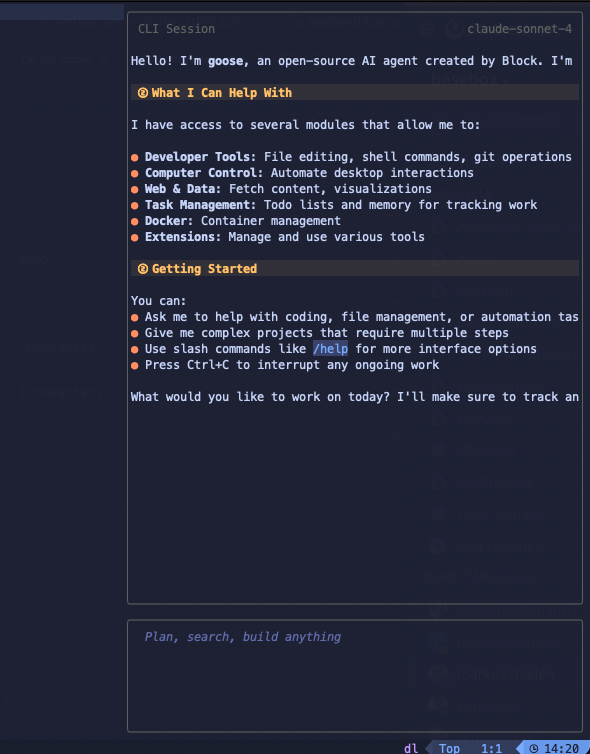
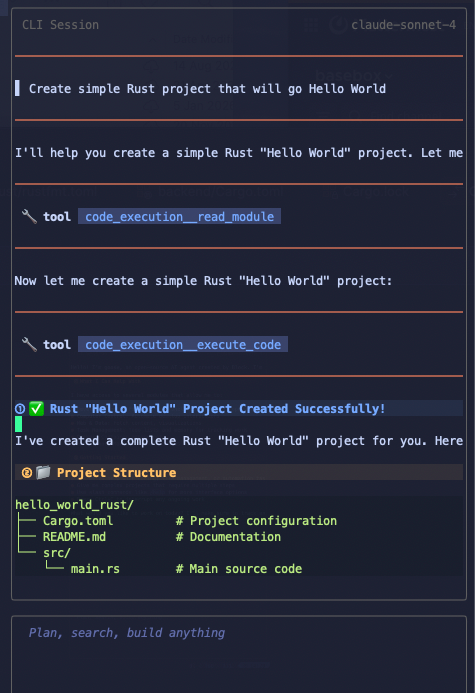
In Aktion:
Zentrale Funktionen:
- Terminal-Integration: Goose kann Befehle direkt im Neovim-Terminal ausführen
- Dateiauswahl-Integration: Der Befehl
@nutzt die native Dateiauswahl von Neovim - Persistente Sitzungen: Unterhaltungen überstehen Neovim-Neustarts
- Diff-Ansichten: Eingebaute Diff-Visualisierung zur Prüfung von Änderungen
- Tastatur zuerst: Alle Operationen über Tastenkürzel erreichbar
Troubleshooting & Best Practices
Goose-Konfigurationsprobleme:
- Konfiguration nicht gefunden:
goose configureausführen, um die Erstkonfiguration anzulegen - Provider-Fehler: Sicherstellen, dass die API-Endpunkt-URL das Suffix
/v1enthält (z. B.http://localhost:8888/v1) - Authentifizierung fehlgeschlagen: Prüfen, dass das API-Token korrekt ist und nicht widerrufen wurde
- Zugriff verweigert: Dateisystemrechte prüfen, damit Goose Projektdateien lesen/schreiben kann
Probleme bei der Editor-Integration:
- Erweiterung lädt nicht: Editor nach der Installation der Goose-Plugins neu starten
- Tastenkürzel funktionieren nicht: Auf Konflikte mit bestehenden Tastenkürzeln prüfen
- MCP-Verbindung fehlgeschlagen: Prüfen, dass der MCP-Server läuft und die URL korrekt ist
- API-Verbindung fehlgeschlagen:
- Prüfen, dass basebox läuft (
curl http://localhost:8888/v1/models) - Prüfen, dass das API-Token gültig ist
- Sicherstellen, dass die URL den Pfad
/v1enthält
basebox-API-Probleme:
- 401 Unauthorized: Ihr API-Token ist ungültig oder abgelaufen – ein neues erstellen
- 404 Not Found: Prüfen, dass der URL-Pfad
/v1enthält (z. B.http://localhost:8888/v1) - 500 Server Error: basebox-Logs prüfen – möglicherweise ein Problem mit der LLM-Backend-Konfiguration
- Modell nicht gefunden:
GET /v1/modelsaufrufen, um die verfügbaren Modelle Ihrer Organisation zu sehen
Auf dem Laufenden bleiben:
Dieses Ökosystem entwickelt sich schnell. Wichtige Quellen:
- Goose-Updates: Blocks Goose-Repository für neue Funktionen
- Modell-Releases: Hugging Face nach neuen codeorientierten Modellen beobachten
- Editor-Integration: Native KI-Verbesserungen in Ihrem bevorzugten Editor verfolgen
- vLLM-Performance: vLLM-Releases für Leistungs- und Kompatibilitätsverbesserungen verfolgen
Kurzreferenz
basebox-API-URLs
| Umgebung | Basis-URL | Vollständige API-URL |
|---|---|---|
| Lokale Entwicklung | http://localhost:8888 |
http://localhost:8888/v1 |
| Cloud-Instanz | https://your-org.basebox.ai |
https://your-org.basebox.ai/v1 |
Häufige Endpunkte
- Chat Completions:
POST /v1/chat/completions - Modelle auflisten:
GET /v1/models - Swagger UI:
GET /v1/api/docs(interaktive Dokumentation!)
Konfigurations-Checkliste
Bevor Sie Ihren Editor konfigurieren, stellen Sie sicher:
- basebox-Instanz läuft
- LLM-Backend in basebox konfiguriert
- API-Token erstellt und kopiert
- basebox-URL (lokal oder Cloud)
Hilfe nötig?
- API-Dokumentation:
/v1/api/docsim Browser öffnen (Swagger UI) - Benutzerhandbuch:
docs/openai-api-user-guide.mdfür die detaillierte API-Nutzung - Architekturdetails:
docs/openai-api-architecture.mdfür den technischen Tiefgang
Zum Schluss
"I'm not arguing, I'm just explaining why I'm right." — Unbekannt
Diese Architektur bietet eine einheitliche KI-Coding-Umgebung. Ob Sie lokale Modelle betreiben oder Cloud-Dienste nutzen – basebox gibt Ihnen eine konsistente API, die alle Ihre Werkzeuge nutzen können. Ein Proxy ist nicht nötig.
Zuletzt aktualisiert: Januar 2026